Create a task from a case
Quick answer
- Open a case from any wellbeing table by clicking its Case title.
- In the Tasks tile, click + to open Add new task.
- Fill in the Title, Assignee, and Notes, then Save.
Assign a follow-up action on a wellbeing case to a colleague.
Note: Creating a task needs wellbeing write access (pastoral / student-support staff and leaders). For read-only staff such as classroom teachers the + add-button does not appear.
Open the case
Click a Case title in any wellbeing table to open its detail page.
Start a new task
In the Tasks tile, click the + (Add task). The + is hidden when the case is resolved or cancelled, so reopen the case first if you need to add a task.
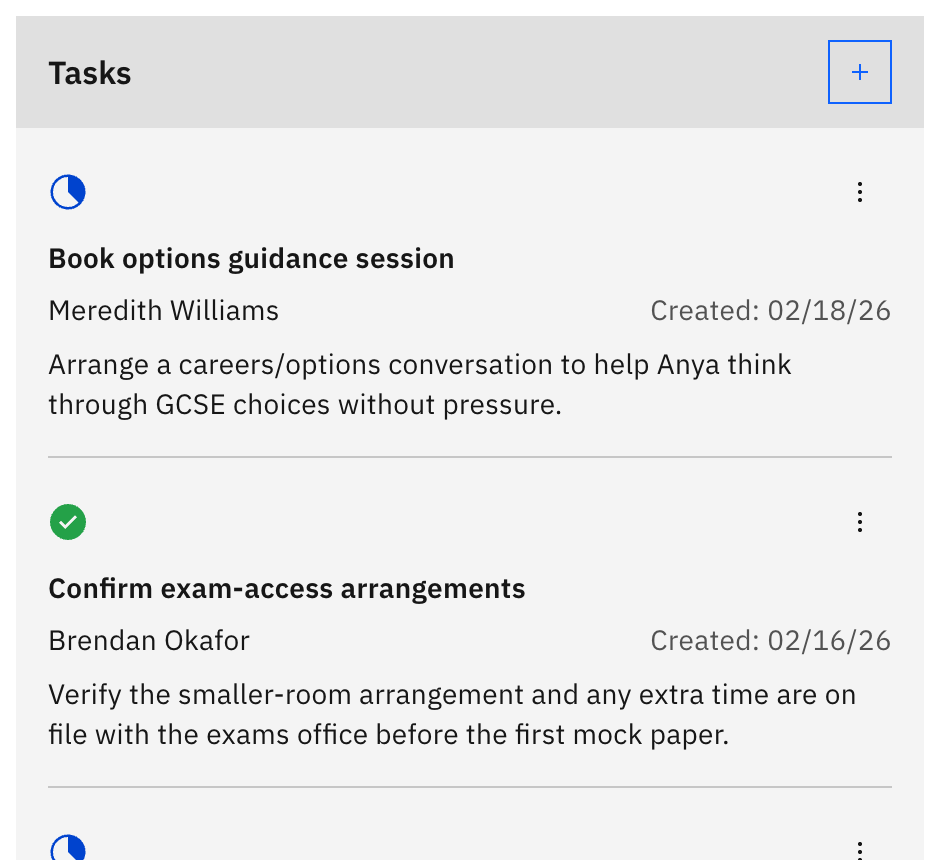
Fill in the task
In Add new task, enter a Title (up to 100 characters), search and pick an Assignee, and write the Notes (what needs doing, up to 250 characters). All three fields are required, and Save stays disabled until each one is filled.
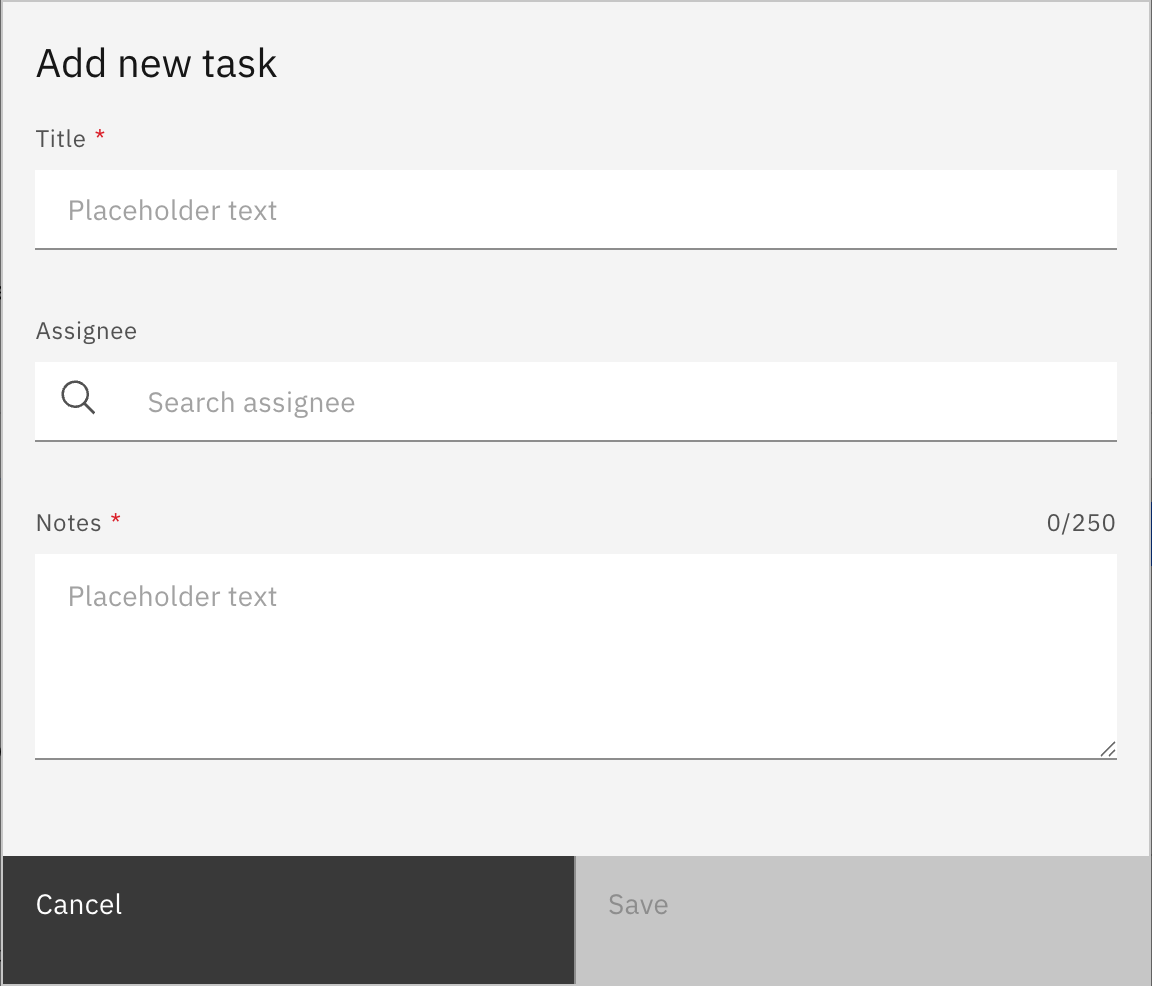
Save
Click Save. A new task starts in an open state, so it appears in the case's Tasks list and straight away in the assignee's Open tasks tab under Track my notes.