View the Wellbeing landing page
Quick answer
- Open Wellbeing from the navigation.
- A Metrics strip sits across the top, then your notes table below.
- Click a Case title to open a case, or a Student name to open the profile.
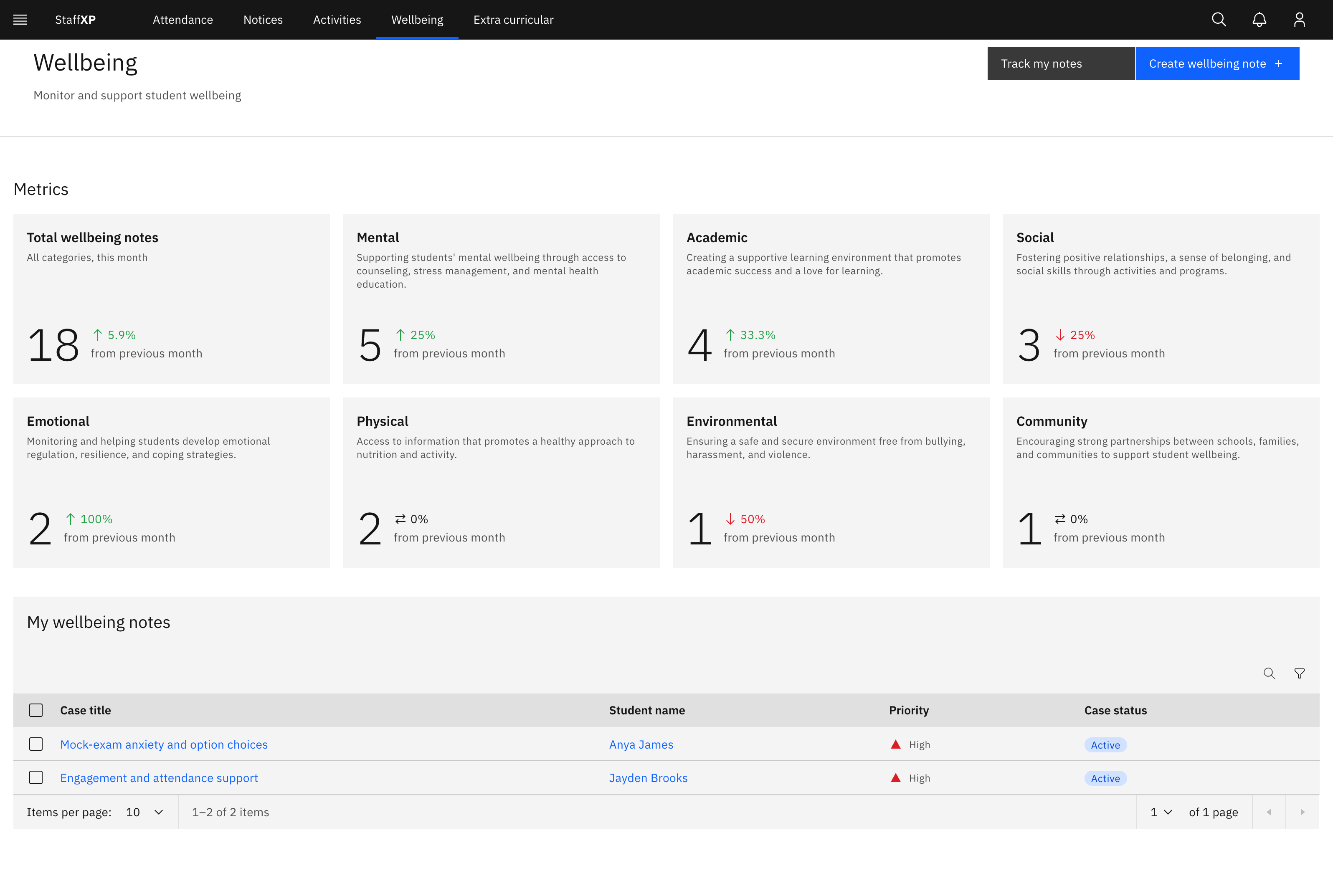
The Wellbeing landing page is the pastoral overview: a metrics strip across the top, then a table of your wellbeing notes below.
Open Wellbeing
Click Wellbeing in the main navigation. The page opens on the metrics strip and your notes table.
Read the metrics strip
The Metrics cards show this month's figures with a "from previous month" change. Total wellbeing notes combines every category, and there is one card per wellbeing category (Mental, Academic, Social, Emotional, Physical, Environmental, Community) with that month's count. The cards are read-only summary figures, not clickable filters.
Browse the notes table
Below the strip, the table lists your active notes with Case title, Student name, Priority and Case status. Search the table, filter by priority, and page through the results. The heading reads All wellbeing notes if you have view-all permission (leaders and coordinators); otherwise it reads My wellbeing notes and shows only notes you created or were assigned.
Open a case or a student
Click a Case title to open that case's detail page. Click a Student name to open the student's profile. Case status is shown as a coloured tag: Active (blue) is an open case being worked, Resolved (green) is finished and read-only, and Cancelled (grey) is closed without resolution and read-only. Priority is one of Low, Medium, High or Critical.