View a wellbeing case
Quick answer
- Click a Case title in any wellbeing table to open the case.
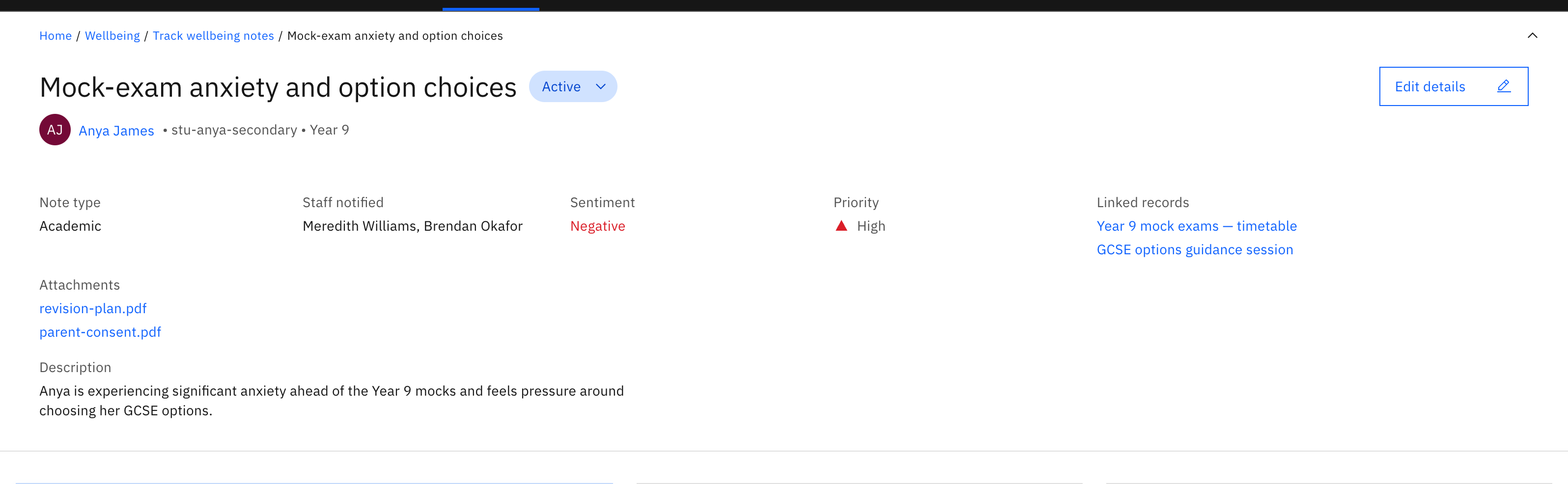
- The header shows the status pill, the student, and attribute chips.
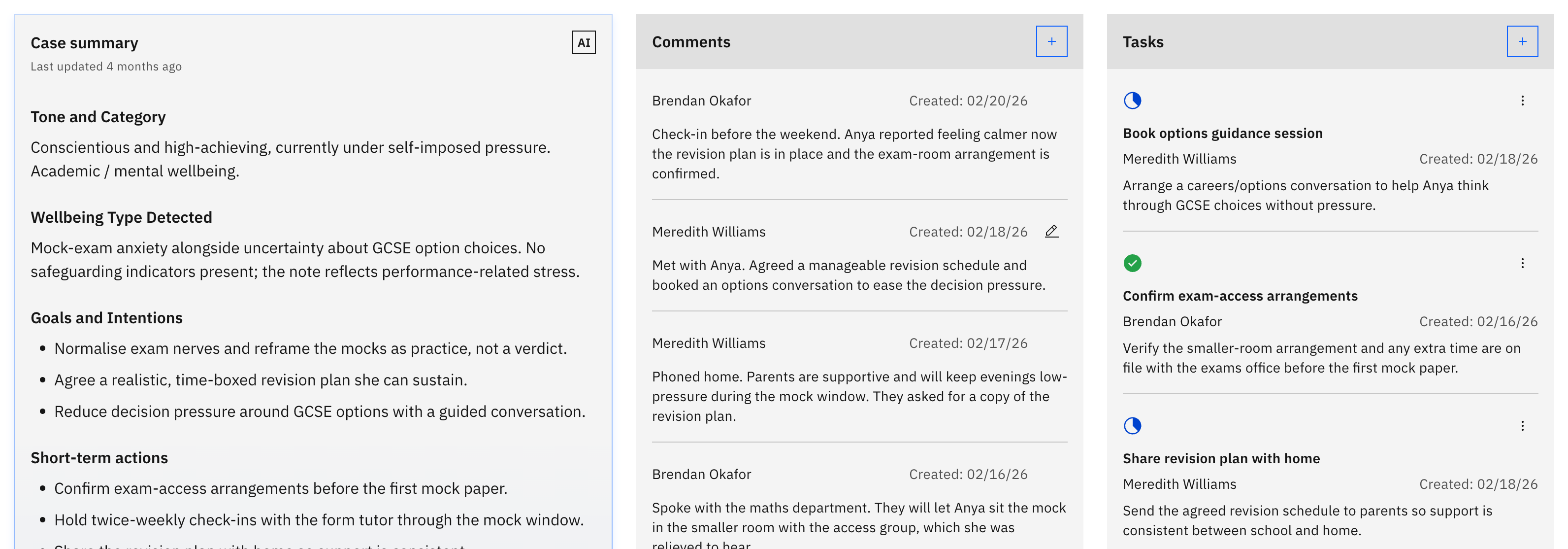
- The body holds Summary, Comments, and Tasks.
The case detail page is the full workspace for one wellbeing note.
Open the case
Click a Case title in any wellbeing table. The case detail page opens.

Read the header
The header shows the case title, an interactive status pill (Active, Resolved, or Cancelled), the student (avatar, name, ID, year group), and attribute chips: Note type, Staff notified, Sentiment, Priority, Linked records, and Attachments. Use the chevron button to collapse or expand these details.
The Attachments and Linked records in the header are clickable: images open in a preview, and other files download.
Work the case body
The body has three areas. Summary is an AI-generated case summary with a "last updated" label. Comments is the timeline of follow-up comments. Tasks lists the follow-up tasks for the case.
Edit the details
Writers see an Edit details action in the header to change the note. A resolved or cancelled case is read-only: an info banner appears and the Edit details, Add comment, and Add task controls stay hidden or disabled until you reopen the case from the status menu.