Edit or update a task
Quick answer
- Open the task from a case's Tasks list, or from Track my notes → Open tasks.
- In Edit task, change the Title, Assignee, Status, or Notes.
- Click Save. You can also reassign the task or delete it.
Change a task's details, reassign it to a colleague, or move it through its statuses.
Note: Editing tasks needs Wellbeing write access (pastoral / student-support staff, leaders). Classroom teachers with read-only access don't see the task edit controls.
Open the task
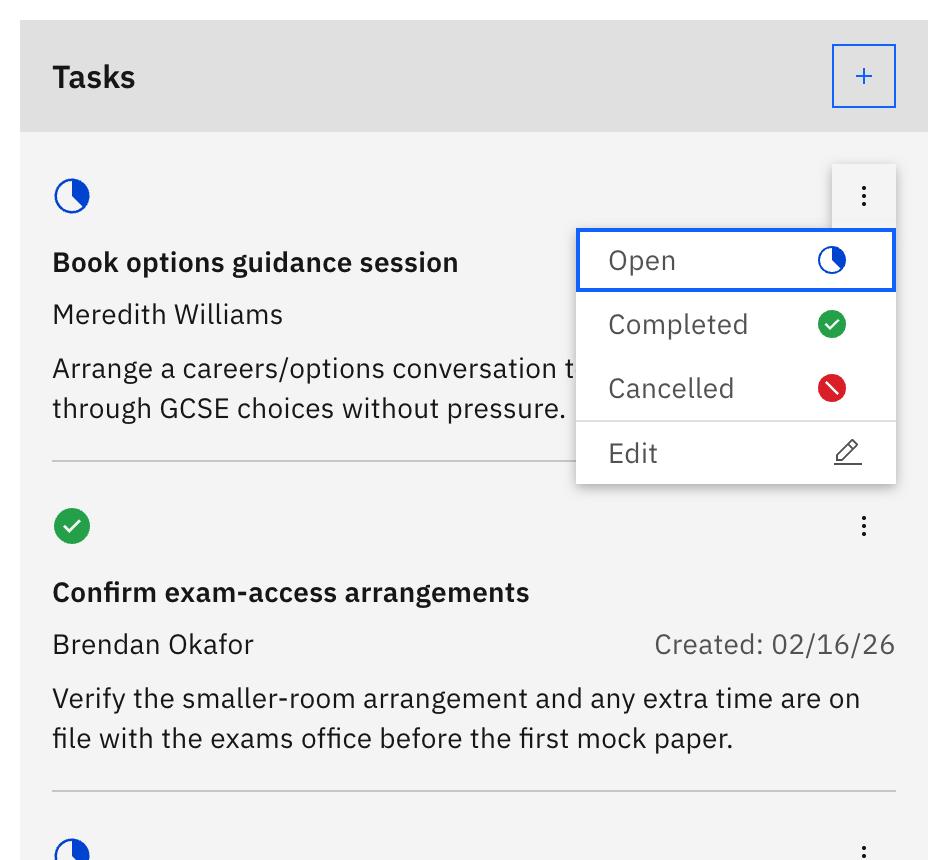
On the case detail page, open the task's ⋮ (options) menu in the Tasks list and choose Edit. Or from Track my notes → Open tasks, expand the task's row and click Edit task.
Change the details
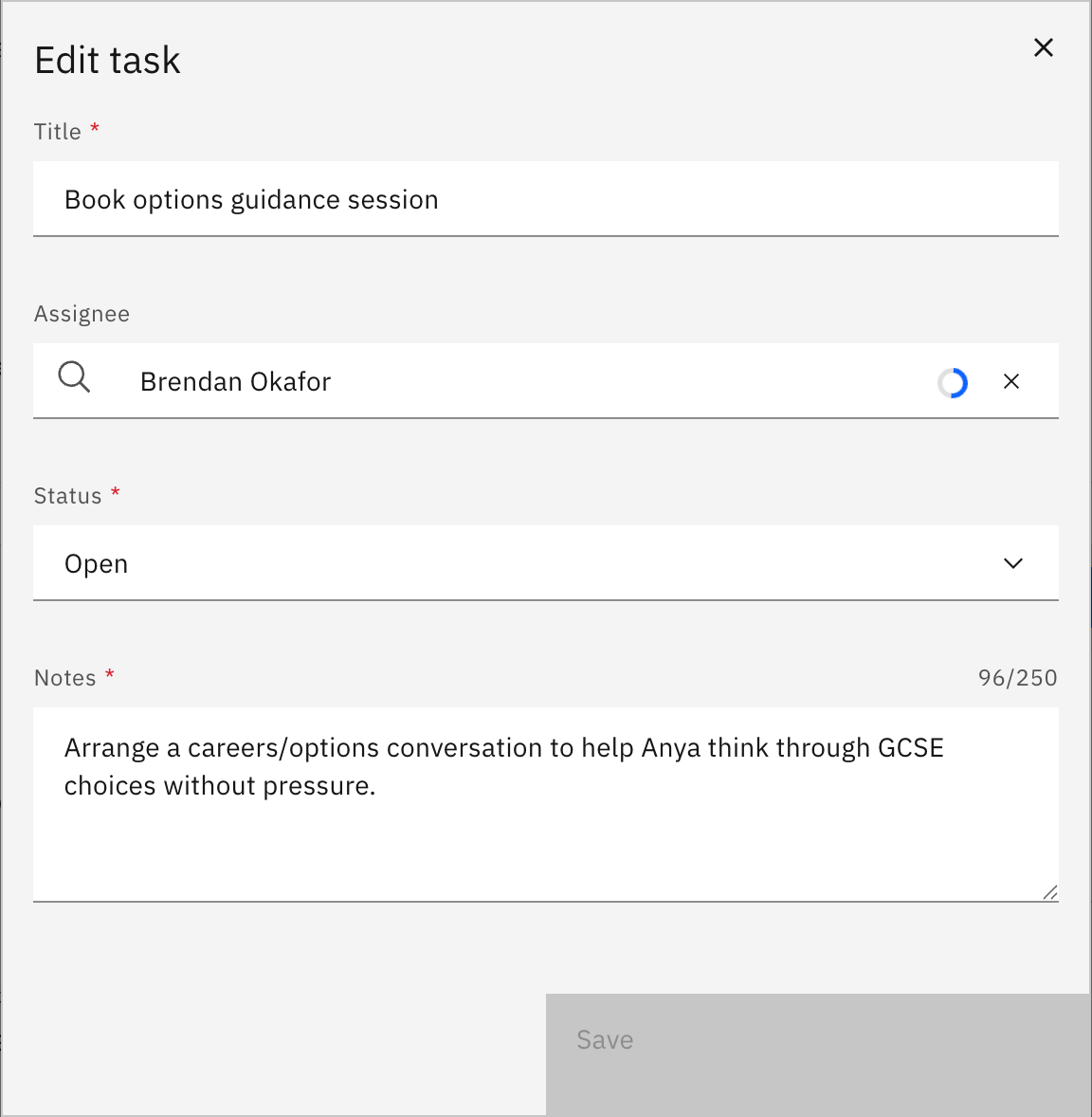
In Edit task, update the Title, the Assignee, the Status (Open, Completed, or Cancelled), or the Notes. To hand the task to a different colleague, change the Assignee — the task moves to their Open tasks list.
Save
Click Save — it stays disabled until you've changed something and every required field is filled. A success toast confirms the update.
Delete a task (optional)
To remove a task, use Delete task and confirm in the prompt.
Note: Deleting a task is permanent — the confirmation warns that "This action cannot be undone."