Edit a wellbeing note
Quick answer
- Open the case and click Edit details in the header.
- In Edit wellbeing note, change the Title, Note type, Sentiment, Priority, Description, notifications, links, or attachments.
- Click Save.
Change a note's content after it's created. The fields are the same as when you created it, pre-filled with the current values.
Note: Editing a note needs write access (pastoral / student-support staff or leaders). Edit details does not appear for read-only staff.
Open the case and start editing
Click the Case title to open the case detail page, then click Edit details in the header. Edit details is disabled while a case is resolved or cancelled — reopen the case (set it back to Active) before you can edit it.

Change the fields
In the Edit wellbeing note modal, update the Title, Note type, Sentiment, Priority, or Description. You can also change Notify parents / staff, linked notes, or attachments. The Subject (student) section is hidden, so you cannot reassign a note to a different student — the student is fixed when the note is created.
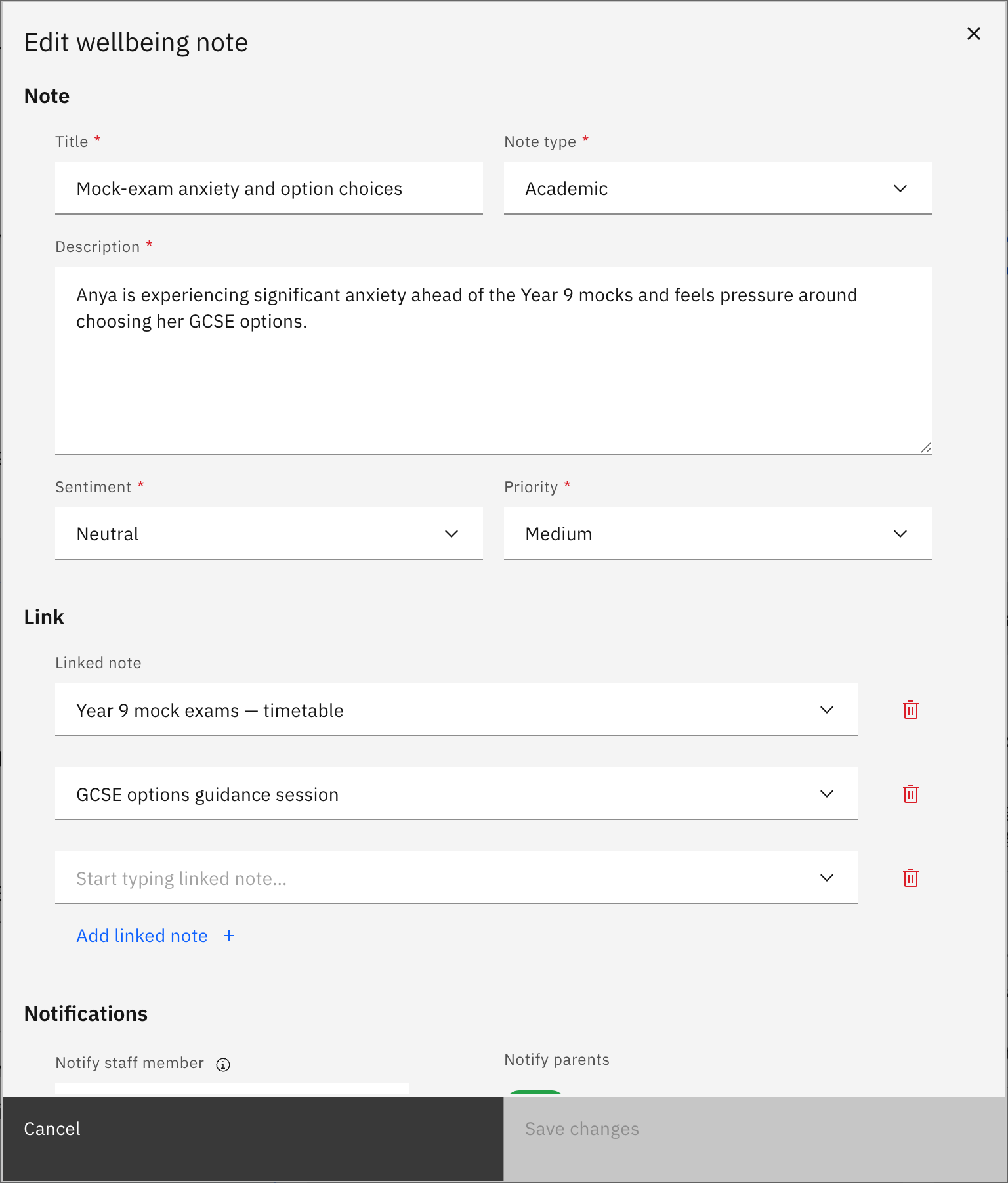
Save your changes
Click Save. A success toast confirms the update. If you close the modal with unsaved changes, a warning asks you to confirm before discarding them.