Create a wellbeing note
Quick answer
- On the Wellbeing landing page, click Create wellbeing note.
- Pick the Student name, then fill in the Note details.
- Set Notify parents as needed and click Publish note.
A wellbeing note records a concern, an observation, or a positive note about a student, and opens a case you can track from there. Creating a note needs Wellbeing write access (pastoral and student-support staff, leaders); read-only staff see a disabled Create wellbeing note button, which is also disabled when you are offline.
Open the form
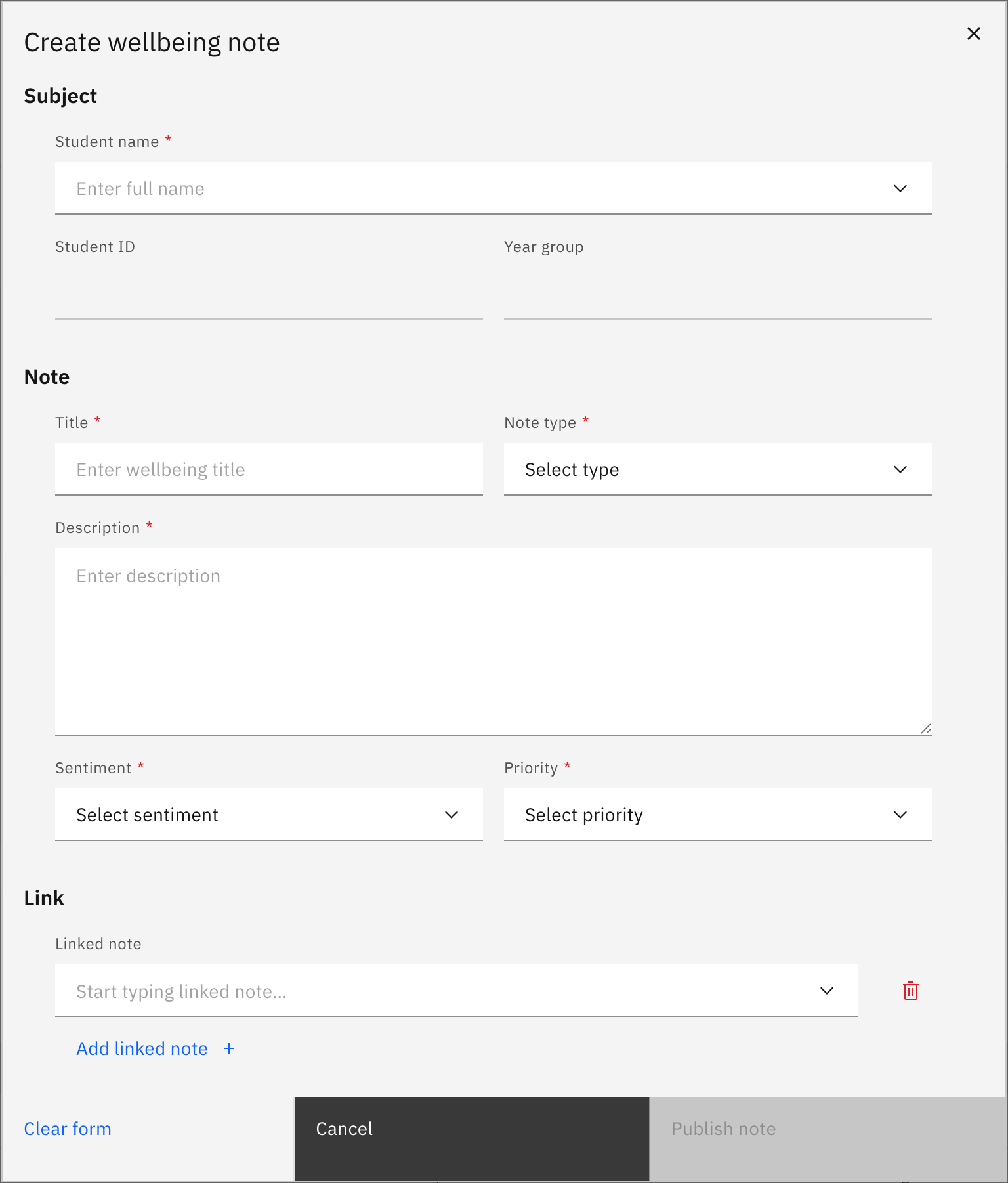
On the Wellbeing landing page, click Create wellbeing note (top right). It opens as a single Create wellbeing note window with Subject, Note, Link, Notifications, and Attachments sections.
Choose the student
In Subject, search for and pick the Student name. Their Student ID and Year group fill in automatically and are read-only.
Note: The student is fixed once you publish. You cannot reassign a note to a different student later, so pick the right one now.
Write the note
In Note, enter the Title (up to 100 characters), choose a Note type, write the Description, and set a Sentiment and a Priority (Low, Medium, High, or Critical). All of these are required.
Add links, notifications, or attachments
Optionally, in Link attach a related Linked note; in Notifications pick staff to notify (adding any staff member switches staff notification on; leaving it empty leaves it off) and set Notify parents; in Attachments upload photos or documents (max 10 MB each: .jpg, .png, .pdf, .doc, .docx).
Note: Notify parents defaults to On. Turn it off before publishing if parents should not be notified.
Publish
Click Publish note, which stays disabled until every required field is valid. A "Wellbeing note created" toast confirms it.