View medical info
Quick answer
- On a student profile, open the Medical tab.
- Read Medical details for condition, severity and Medication required.
- Read Doctor details for the student's doctor and medical centre.
- Open View care plan, View medication plan and View vaccination record where they appear.
The Medical tab gathers a student's condition, medication, care and medical plans, vaccination record, and their doctor. Like the rest of the profile it is read-only — you view and copy this information, you don't edit it here. This is also where the Medical alert pop-up sends you for condition and medication detail.
Open the Medical tab
On the student's profile, click the Medical tab.
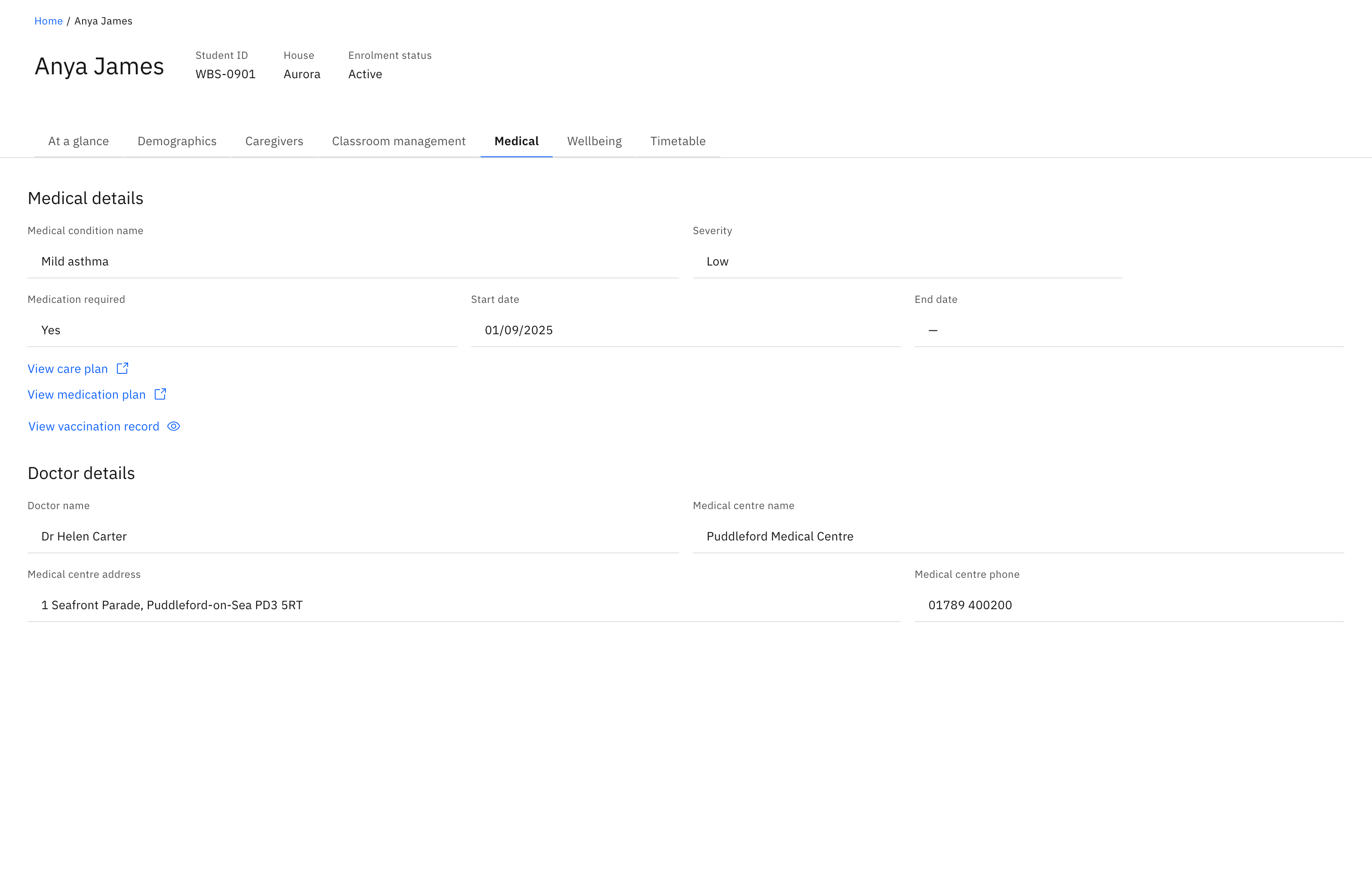
Read Medical details
The Medical details section lists the medical condition name, Severity, Medication required (Yes or No), and the Start date and End date of the condition.
Open the attached plans
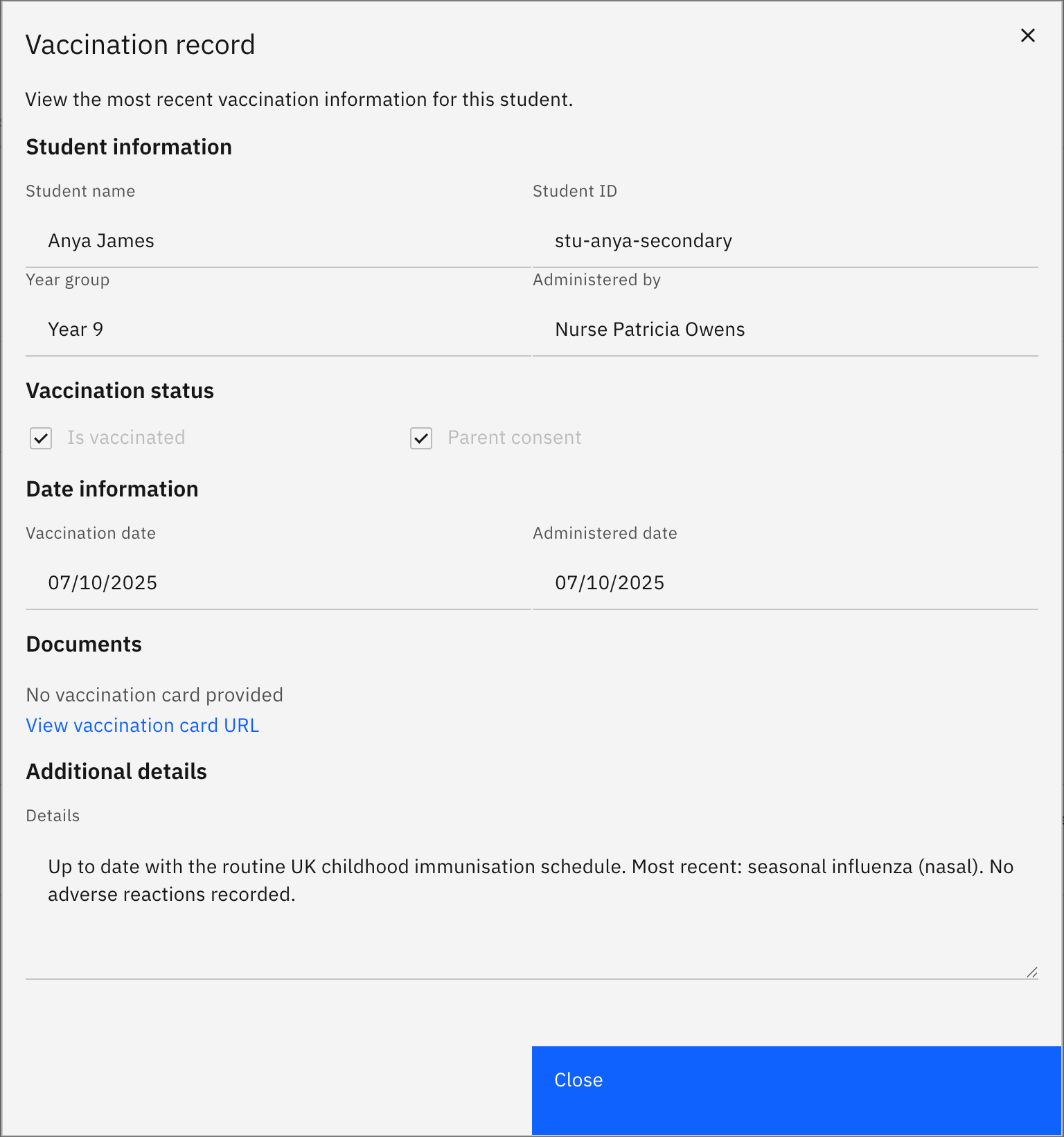
Below the details, View care plan, View medication plan and View vaccination record open the documents on file. Each link only appears when that document exists; otherwise the section shows a "nothing attached" line in its place. View vaccination record opens a pop-up with the latest record — student info, the Is vaccinated and Parent consent ticks, vaccination and administered dates, and links to the vaccination card and card URL.
Read Doctor details
The Doctor details section shows the doctor name, plus the medical centre name, address and phone — the contacts to call about this student's care.