View demographics
Quick answer
- Open the Demographics tab on a student profile for their fuller identity record.
- Read Student details, Visa information and Enrolled siblings — all read-only.
- A dash (—) means no value is on file, which is normal.
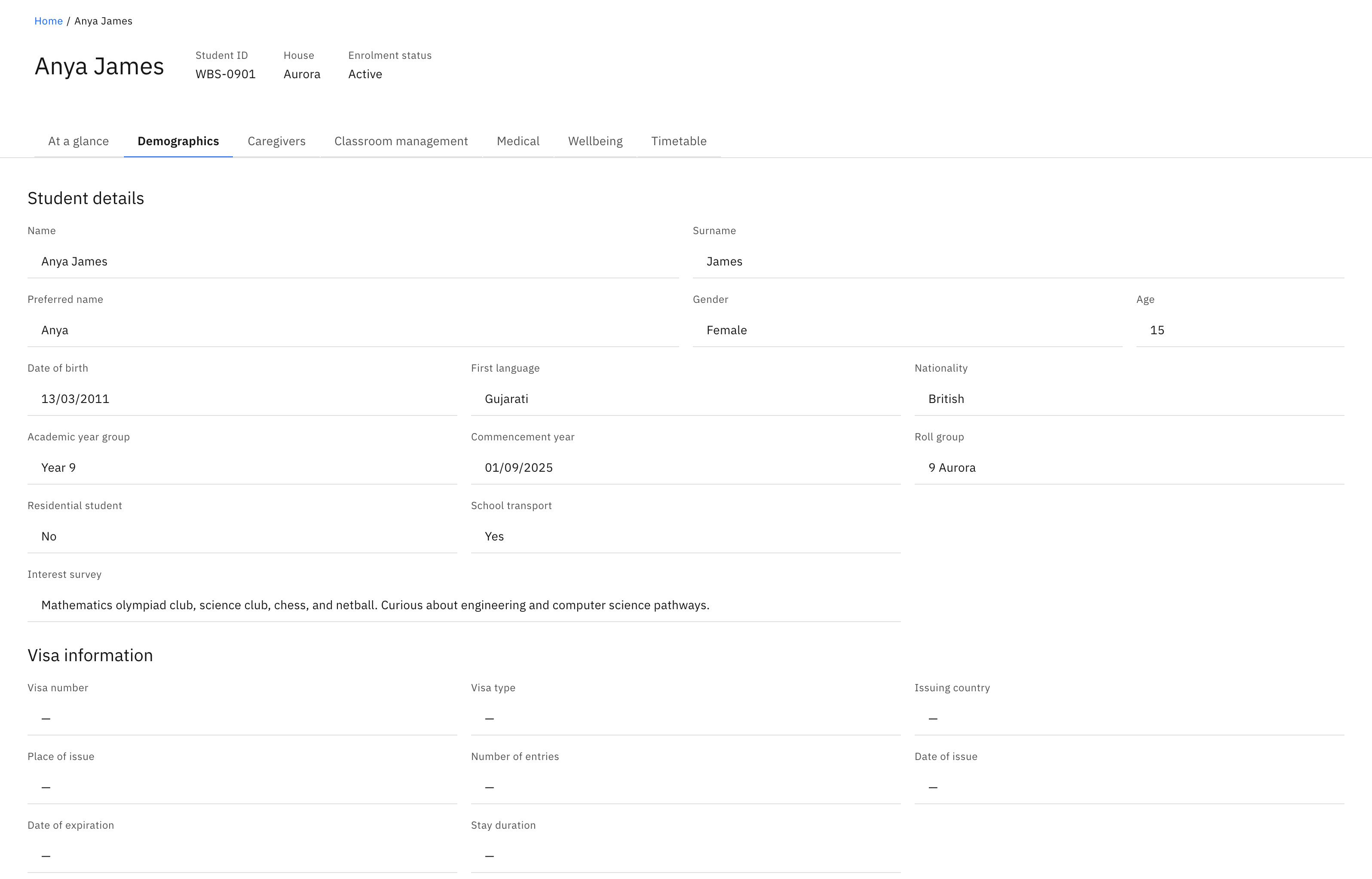
The Demographics tab holds a student's fuller identity record — residency, transport, visa details, and any siblings enrolled at the school. Everything is read-only: you view and copy, you don't edit a student's record here.
Open the Demographics tab
On a student profile, open the Demographics tab. It sits alongside the other profile tabs.
Read Student details
The Student details block covers identity and enrolment: Name, Surname, Preferred name, Gender, Age, Date of birth, First language, Nationality, Academic year group, Commencement year, Roll group, Residential student (Yes/No), School transport (Yes/No), and Interest survey.
Read Visa information
The Visa information block lists Visa number, Visa type, Issuing country, Place of issue, Number of entries, Date of issue, Date of expiration, and Stay duration. Visa remarks only show when there are remarks on file.
Check Enrolled siblings
The Enrolled siblings table lists each sibling at the school with their Name, Relationship type, Academic year group, and Date of birth. If the student has none, it shows No enrolled siblings.

Any field with no value shows a dash (—) — this is normal, not an error.