View caregivers & contacts
Quick answer
- Open the student's profile and select the Caregivers tab.
- Read Parent 1, Parent 2, Custody arrangements, Emergency contacts and Authorised contacts.
- Use the copy button on addresses, emails and phone numbers; everything is read-only.
The Caregivers tab on a student's profile shows who the family is, how to reach them, custody status, and who's authorised to collect or be contacted — all read-only.
Open the Caregivers tab
Go to the student's profile and select the Caregivers tab. The sections read top to bottom: Parent 1, Parent 2, Custody arrangements, Emergency contacts and Authorised contacts.
Read the parent contact details
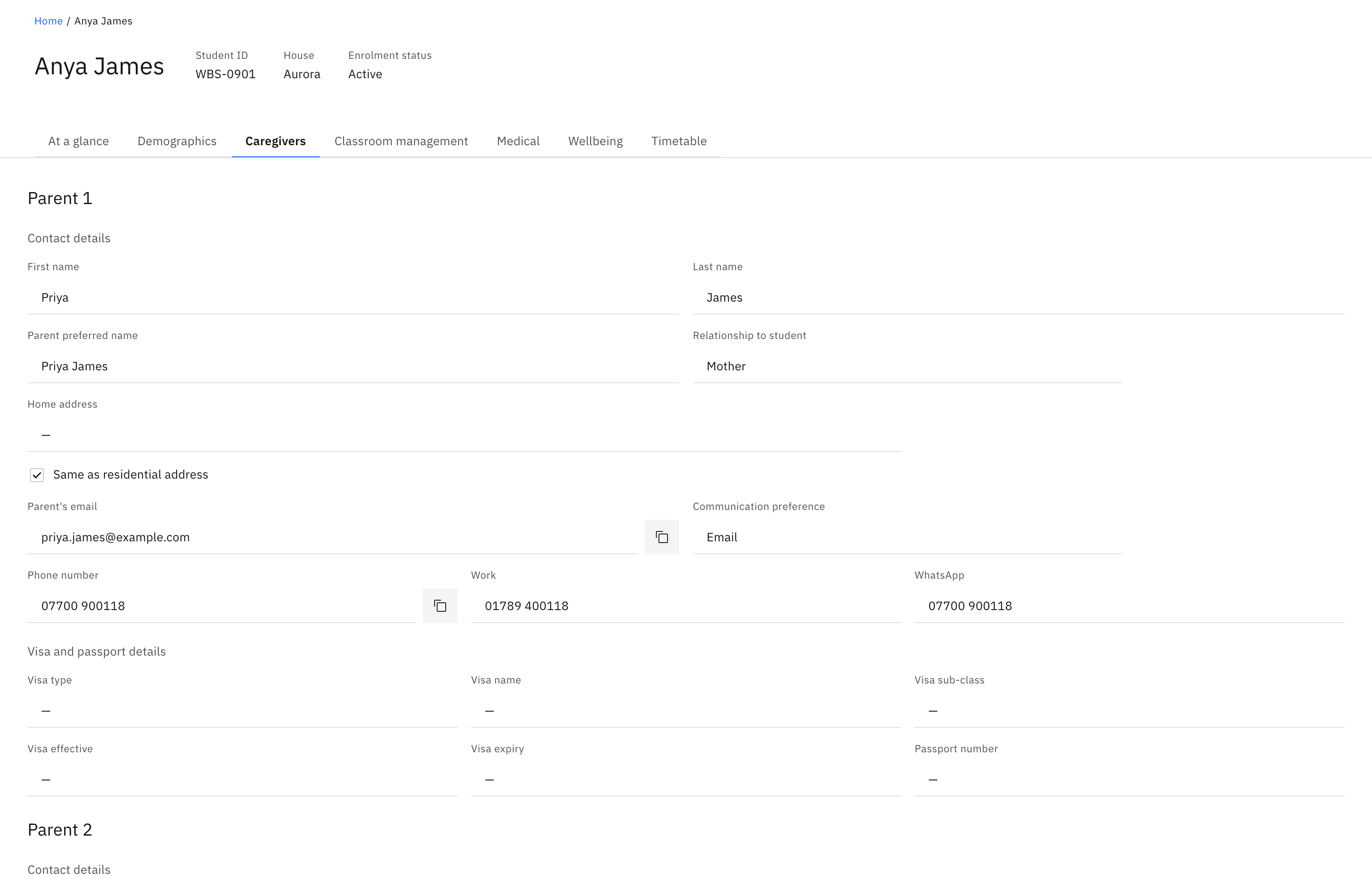
Each parent block lists First name, Last name, Parent preferred name, Relationship to student, Home address, the Same as residential address tick, Mailing address, Parent's email, Communication preference, Phone number, Work and WhatsApp, plus the parent's Visa and passport details. Parent 2 appears only when a second parent is recorded, and a Mailing address is shown separately only when it differs from the home address.
Copy a value to your clipboard
Home address, mailing address, email and phone numbers each have a copy button next to them — click it to copy the value, handy for dialling or pasting into an email. The copy button shows only when there's actually a value.
Check custody before releasing a student
Custody arrangements is a single read-only tick: Custody arrangements in place. This tab is where the Custody alert sends you, so check it before you release a student or contact family.
Note: When custody arrangements are in place, confirm who is authorised to collect the student here before letting them leave with anyone.
See emergency and authorised contacts
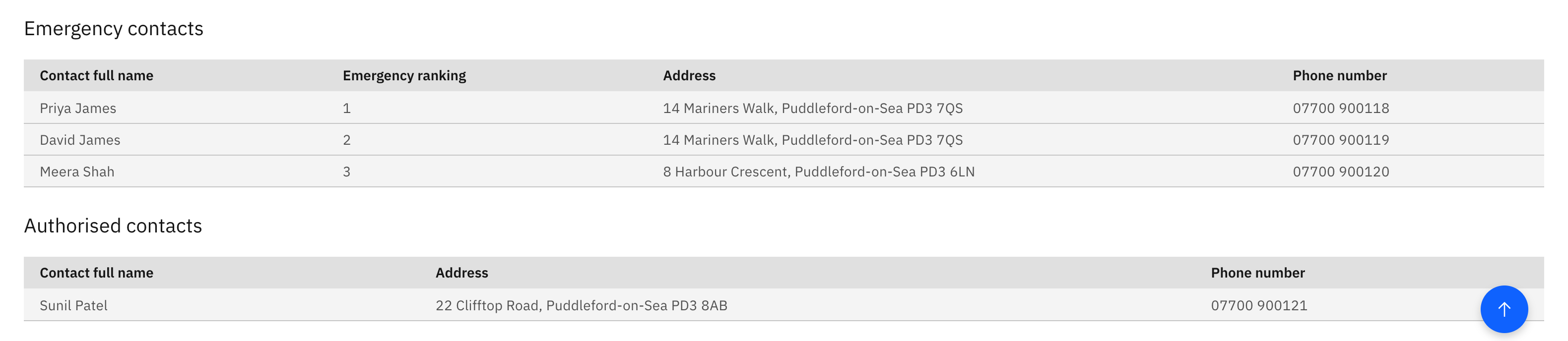
Emergency contacts is a table of Contact full name, Emergency ranking, Address and Phone number — the ranking tells you who to call first. Authorised contacts lists the people cleared to collect the student, with Contact full name, Address and Phone number.