View a student at a glance
Quick answer
- Click a student's name anywhere to open their profile on the At a glance tab.
- Read the Student details block, then check the four alert icons over the photo — custody, physical, learning, medical.
- Click an active (full-colour) icon for a pop-up; open any Shared documents (IEP, learning-disability, medical plan).
At a glance is the landing tab of a student's profile — their photo and core details, a row of alert icons, and any shared documents. Everything here is read-only: you view and copy, you never edit a student's record.
Open the profile
Click a student's name anywhere it appears — a class roll, an attendance list, a wellbeing case — or search the name in the header search and pick the student. The profile opens on At a glance. Opening it needs student-profile read access.
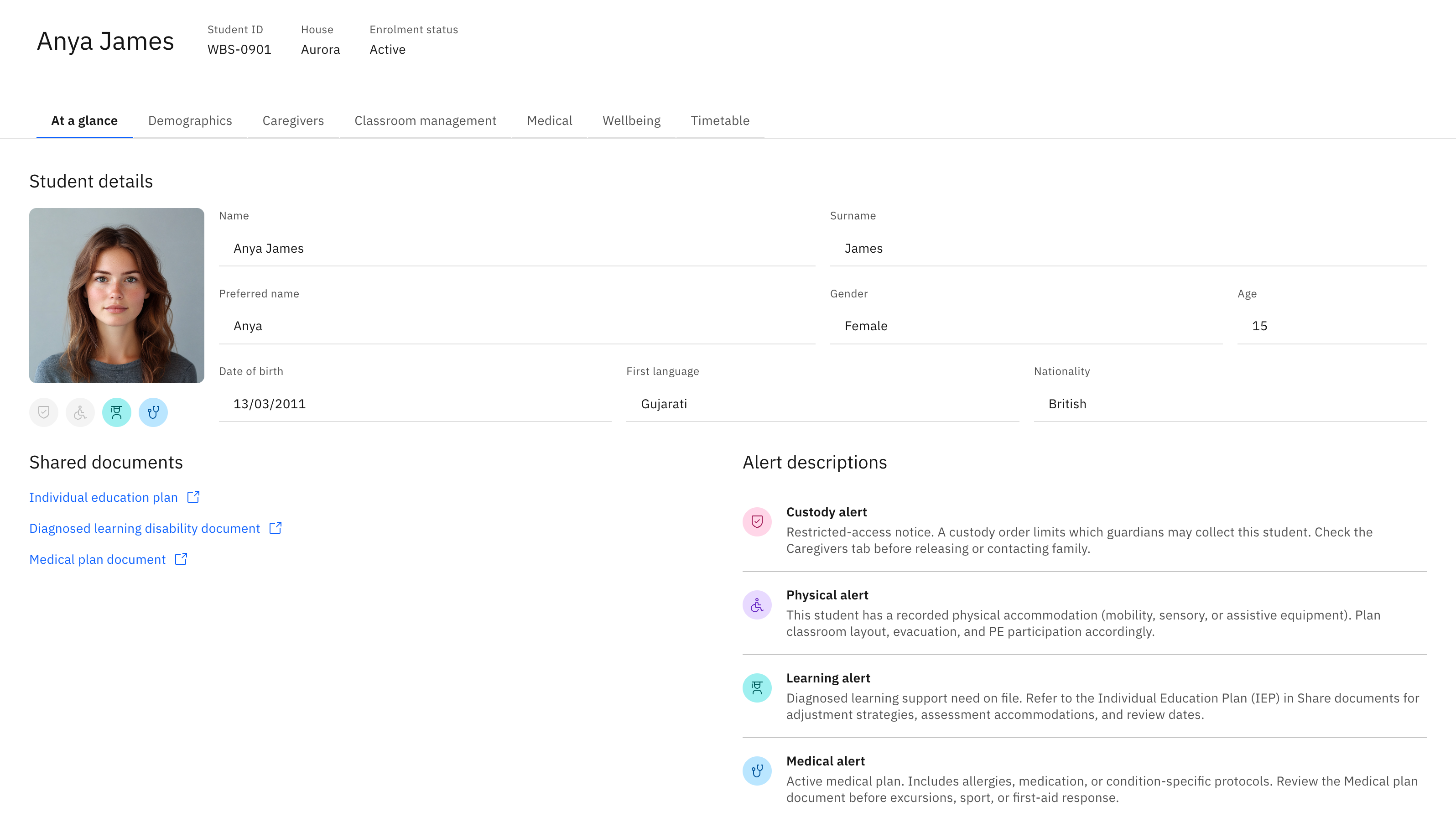
Read the student's details
The Student details block shows the photo (or a placeholder) and the core identity fields: Name, Surname, Preferred name, Gender, Age, Date of birth, First language, and Nationality. An empty field shows a dash (—) — that's normal, not an error.
Check the alert icons
Over the photo is a row of four coloured icons, always in the same order: Custody, Physical, Learning, Medical. A full-colour icon means that alert is active for this student; a muted/greyed icon means it's not on file. The icons stay in place even when inactive, so the row reads the same for every student. Whether an alert shows depends on the student's data, not on your role.
- Custody — a custody order limits who may collect the student.
- Physical — a recorded physical accommodation (mobility, sensory, assistive equipment).
- Learning — a diagnosed learning-support need; refer to the IEP.
- Medical — an active medical plan (allergies, medication, condition protocols).
Open an active alert for detail
Click an active icon to open a short pop-up explaining it. Where relevant the pop-up links you on: Custody opens the Caregivers tab so you can check who may collect the student before releasing them; Learning links the IEP and learning-disability documents; Medical points to the Medical plan and Wellbeing tab. The Physical pop-up shows a general note only. Muted (inactive) icons are not clickable.
Note: Before releasing a student to anyone, follow an active Custody alert through to the Caregivers tab and confirm the person is authorised to collect them.
Open shared documents
Shared documents lists any Individual education plan (IEP), diagnosed learning disability, or medical plan document attached to the student — click one to view or download it. If nothing is attached, the section says so.
Use the alert key
Alert descriptions at the bottom is a static key explaining all four alert types, so you can read the row even when you're new to it.