Find a student profile
Quick answer
- Click a student's name anywhere it appears to open their profile.
- Or open search in the top toolbar and type at least 2 characters of their name.
- Pick the student row from the results — the profile opens at At a glance.
A student profile is the single read-only record for one student — their details, contacts, alerts, and timetable. The quickest way in is their name, which is a link almost everywhere it appears.
Click the student's name
Find the student on any screen that lists them — a class roll, an attendance list, a wellbeing case, an emergency screen — and click their name. The profile opens at the At a glance tab. The same profile opens wherever you click from; the starting screen only sets the breadcrumb back-link, so opening from a class roll lets that trail return you to the roll.
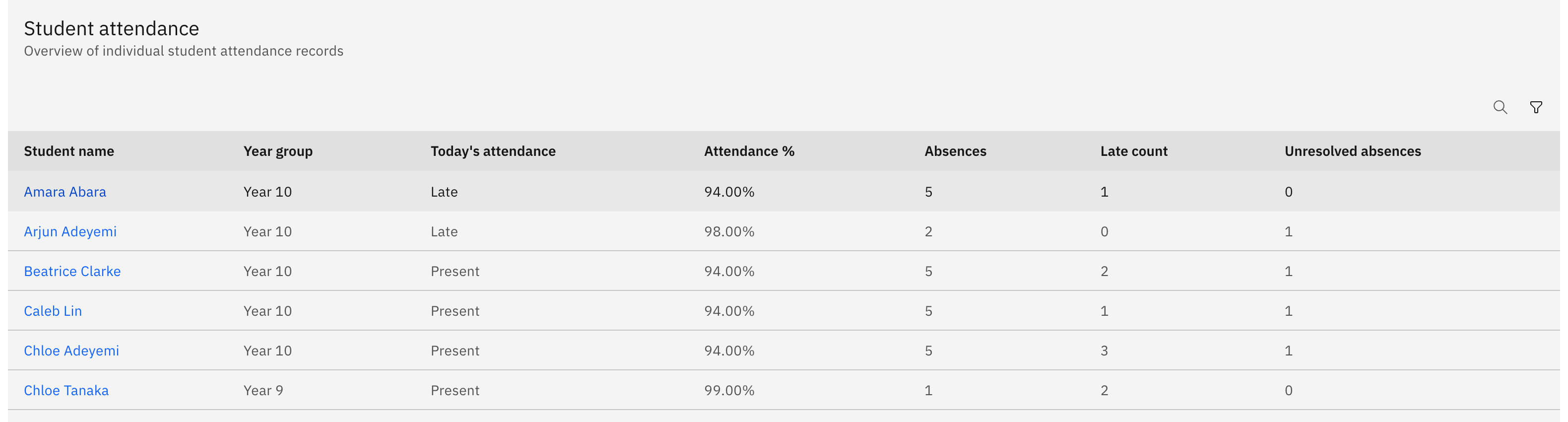
Or search by name
Open the search in the top toolbar and type at least 2 characters of the student's name. Results appear after a short pause as you type, split into Pages (places in the app) and Students. Click the student row to open their profile. Searching for students needs search access — without it, the students section simply doesn't appear.
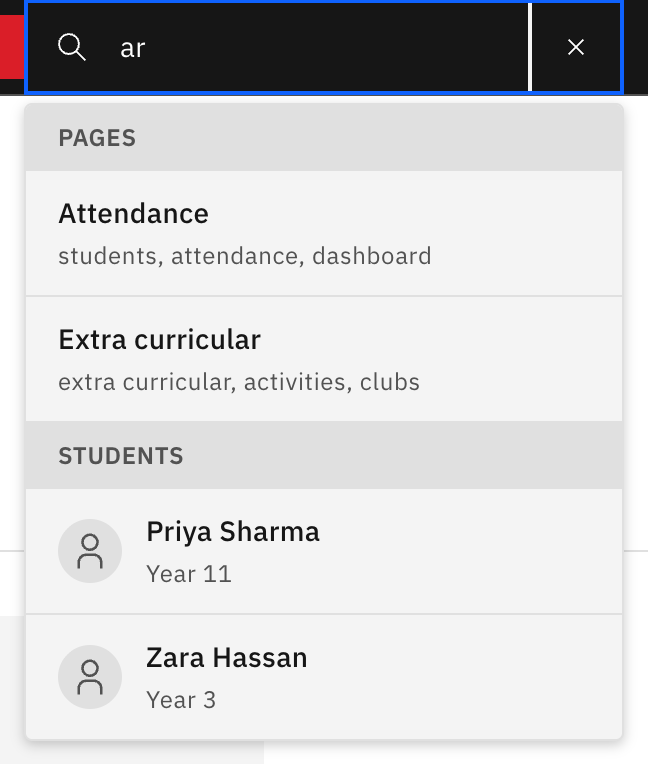
Confirm you're on the right student
The profile header shows the student's name, with their Student ID, House and Enrolment status as inline attributes. Everything here is read-only — you view and copy, you don't edit a student's record from this page.