View all your notifications
Quick answer
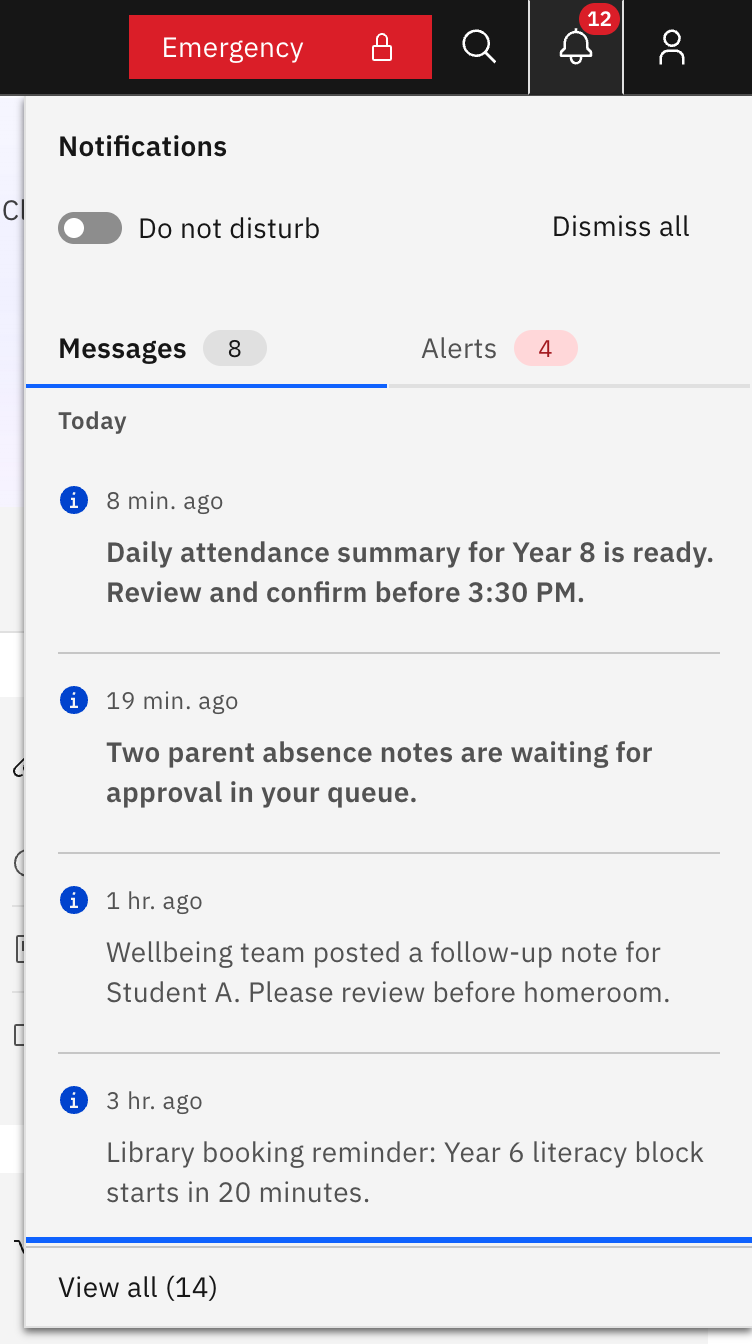
- Open the bell panel and click View all at the bottom.
- The Notifications page opens with Messages and Alerts tabs.
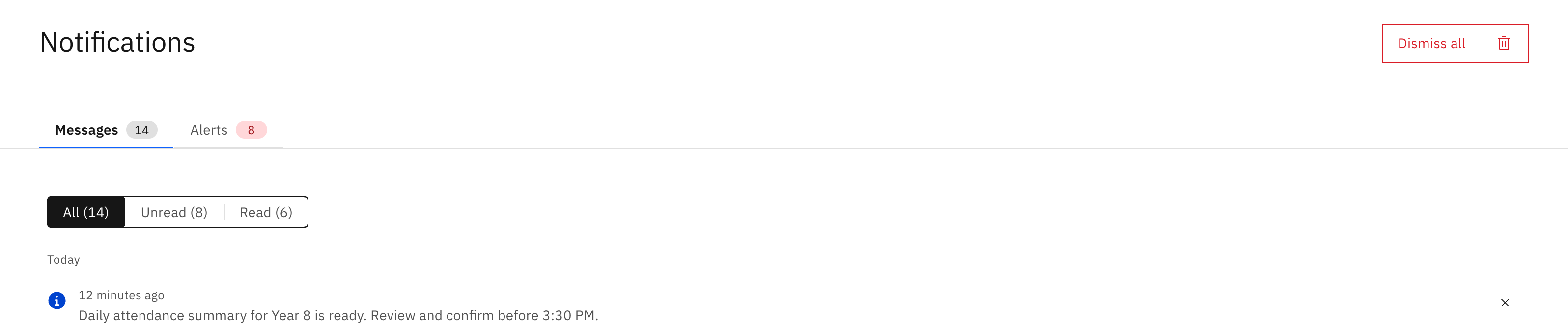
- Filter by All, Unread or Read, then Load more to see older items.
The Notifications page is the full-history view of everything the bell panel shows, with filtering and paging the panel doesn't have. Every signed-in staff member can open it.
Open the page
Click the bell in the top header bar to open the slide-out panel, then click View all at the bottom. View all shows a count of how many items you have (for example "View all (12)"). There is no main-navigation link — the bell panel is the only way in.
Switch between Messages and Alerts
The page has two tabs. Messages are items addressed to you, usually with a "go here" action; Alerts are school-wide operational and safety notices. Here the count tag on each tab shows the total number of items in that tab — unlike the bell panel, where the same-looking tag shows only the unread count.
Filter the list
Use the All / Unread / Read filter to narrow what you see. Each option shows a live count for the current tab. Items are grouped under Today and Previous, newest first.
Load older items
The page shows the first 10 items. Click Load more to reveal another 10 at a time. Switching tab or changing the filter resets the list back to the first 10.
Open or dismiss an item
Click any row to open it: this marks the item read and, for a message, takes you straight to what it's about (alerts just mark read). Each row also has a dismiss (✕) button that removes that item from your list only — it doesn't affect anyone else.