Turn pop-up notifications on or off
Quick answer
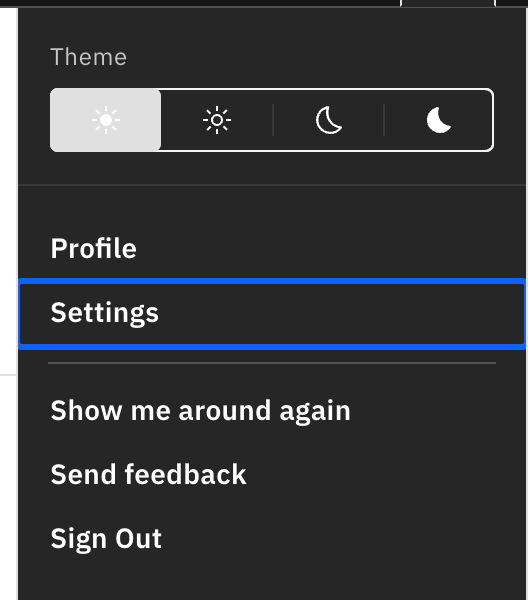
- Open the user menu (your avatar, top-right) and choose Settings.
- In the Notifications section, switch Push notifications on or off.
- Save the page — a pop-up appears only when Push notifications is on and Do not disturb is off.
Push notifications are the small pop-up cards (toasts) that slide into the corner of the screen when a new notification arrives and then auto-dismiss. They are on by default. Every signed-in staff member can change this setting.
Open Settings
Open the user menu (your avatar, top-right) and choose Settings.
Switch push notifications on or off
In the Notifications section, switch Push notifications on or off — the change applies instantly. A pop-up only appears when Push notifications is on and Do not disturb is off — either one switched off stops the pop-ups.

Know what this does and does not change
Clicking a pop-up does the same as clicking the notification in the panel: it marks the item read and opens what it is about. This setting only controls the pop-ups — the bell, the slide-out panel, and the Notifications page always keep working. To silence pop-ups just for a while without changing this setting, toggle Do not disturb in the bell panel instead.