Turn on Do not disturb
Quick answer
- Click the bell icon in the top bar to open the Notifications panel.
- Switch on Do not disturb in the panel header.
- Pop-up toasts stop, but items still arrive in the panel and the bell badge.
Do not disturb stops new notifications popping up on screen while you are busy, without switching notifications off. Every signed-in staff member has this control.
Open the notifications panel
Click the bell icon at the top right of the header (it shows on every page). The Notifications slide-out panel opens.
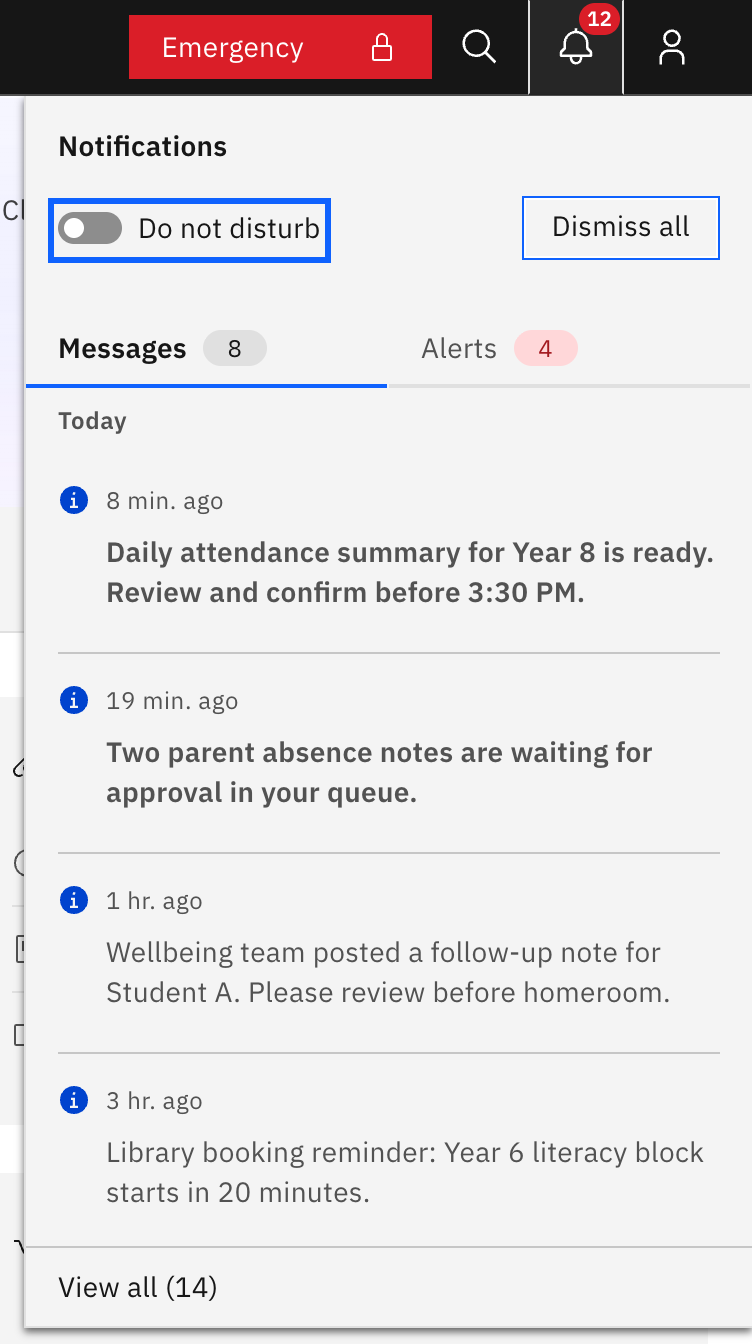
Switch on Do not disturb
Toggle Do not disturb in the panel header. New notifications stop showing the brief pop-up toast in the corner of the screen. Items still arrive in the panel and the bell badge still updates its count, so nothing is missed. The toggle is remembered between sessions, so turn it back off when you want pop-ups again.