Dismiss a notification
Quick answer
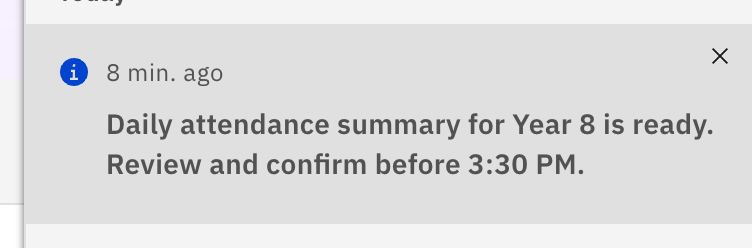
- In the bell panel, hover the notification and click its dismiss (✕).
- Or on the Notifications page, click the ✕ on the item's row.
- The item drops off your list — it only affects your view, no one else's.
Remove a single notification you've dealt with so it stops cluttering your list. Dismissing affects only your own view — it doesn't notify or change anything for anyone else.
From the bell panel
Click the bell in the top header bar to open the Notifications panel. Hover (or keyboard-focus) the notification you're done with and click its dismiss (✕) control. The item is removed from the list straight away.
Or from the Notifications page
On the Notifications page, each row has its own ✕ button — click it to dismiss that item. This works on either the Messages or Alerts tab.
