Check your notifications
Quick answer
- Click the bell in the top bar to open the Notifications panel.
- Switch between the Messages and Alerts tabs, each with its own unread count.
- Click any notification to mark it read and jump to what it's about.
Notifications keep you up to date as things happen in the school day. They live behind the bell in the top bar, ready on every page.
Open the bell panel
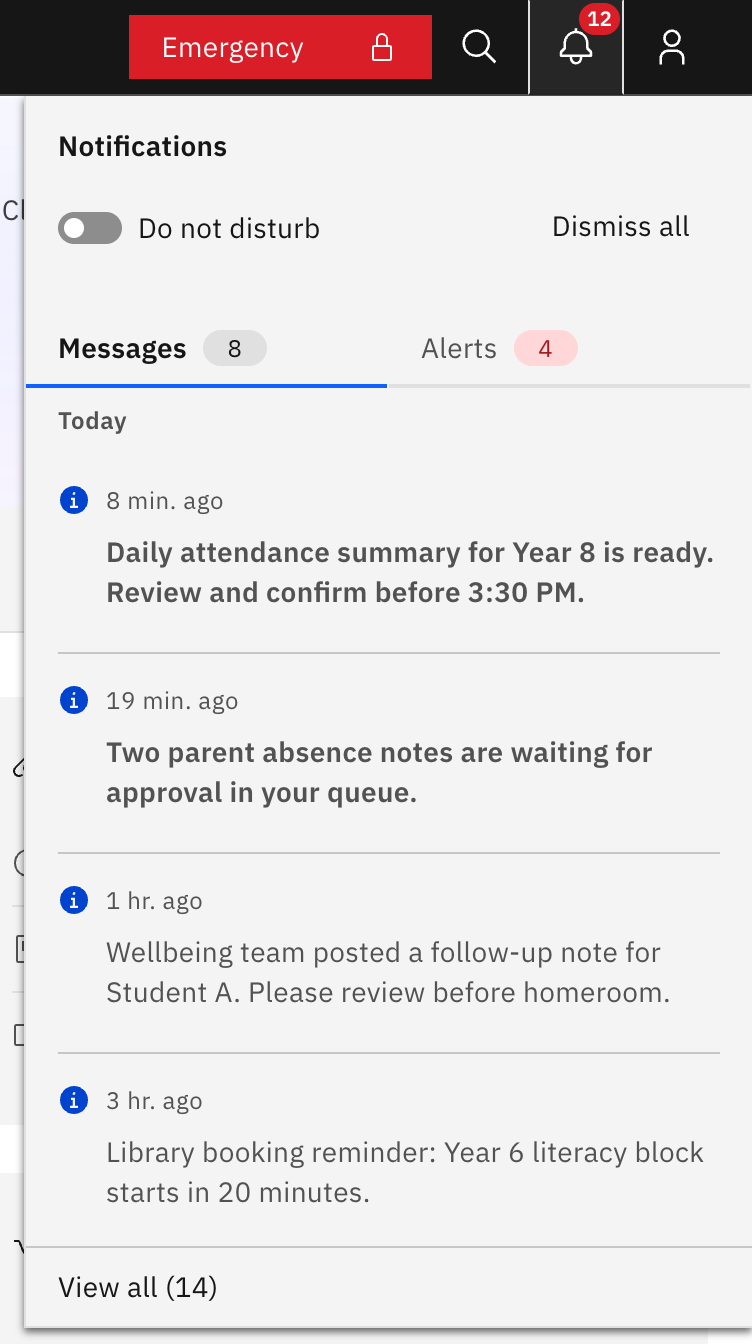
Click the bell icon at the top-right of the header. The Notifications slide-out panel opens. When you have unread items, a red badge on the bell shows the count (it reads 99+ above 99).
Choose a tab
The panel has two tabs, each with its own unread count tag: Messages — items addressed to you, usually with something to go and do (pending requests, attendance summaries, approvals, wellbeing follow-ups) — and Alerts — school-wide operational or safety notices, such as transport disruptions, weather pauses, or drills. The bell badge is the combined unread count across both tabs.
Scan the list
Items are grouped under Today, Yesterday and Previous, newest first. Long items have a Read more / Read less toggle. Every notification shows the same blue information icon — the type and urgency are in the words, not the icon colour.
Open a notification
Click any notification row. This marks it read — there is no separate mark-as-read button. A Message then takes you straight to what it's about (for example the pending-requests queue, an attendance summary, or a student's wellbeing case), and the screen you land on is briefly highlighted so you can spot it. An Alert just marks read; alerts don't link anywhere.
See the full history
Click View all at the bottom of the panel (it shows a count, for example "View all (12)") to open the full Notifications page, where you can filter by All, Unread or Read and page through everything.
What you receive differs from your colleagues: the system decides which notifications to send you based on your role and responsibilities. The bell, the panel and these controls are the same for everyone.