Feature a notice
Quick answer
- In Manage notices, find the notice.
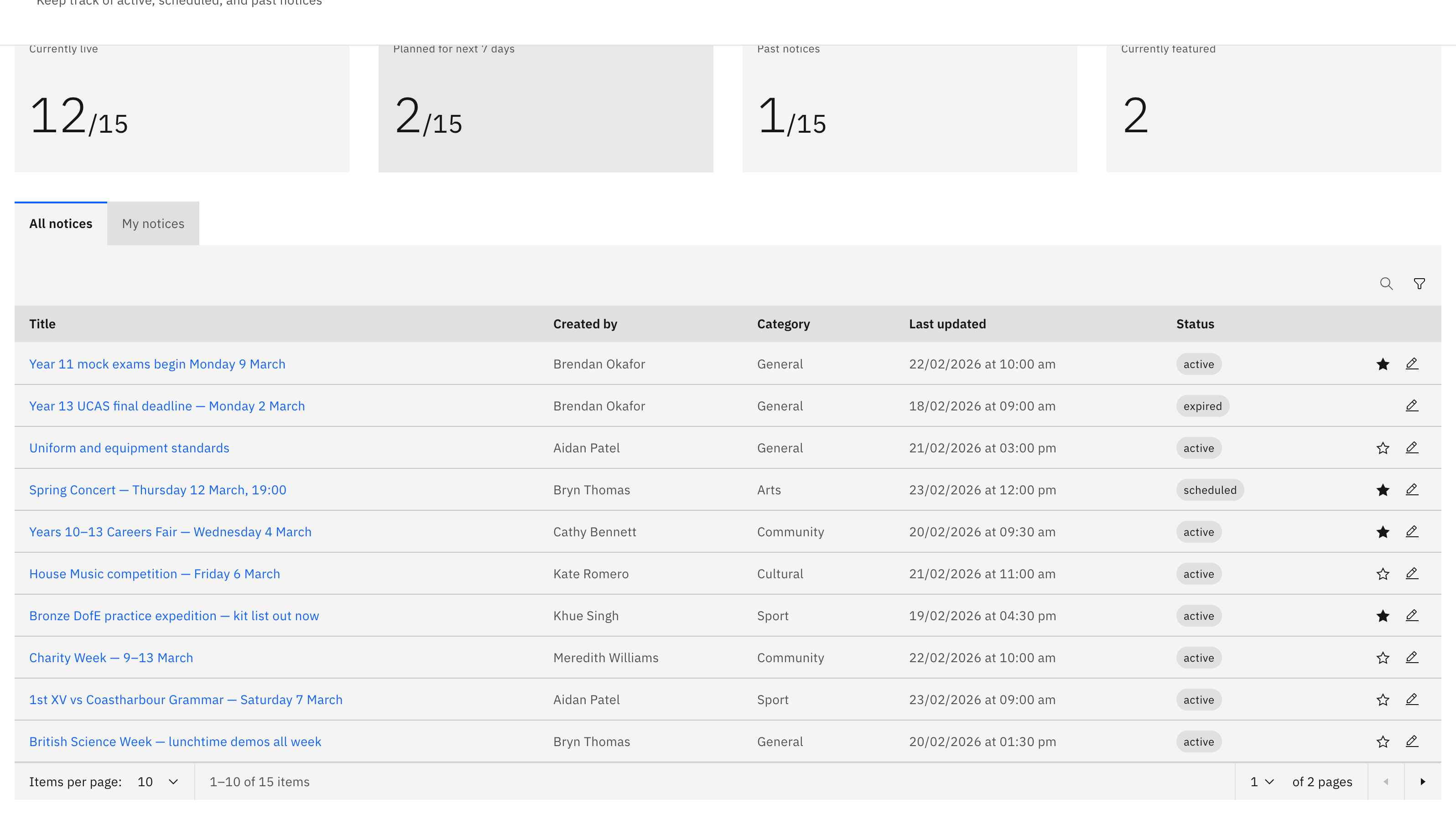
- Click the star icon on its row to feature it.
- It now appears in the Featured tab on the board.
Featuring a notice highlights it in the Featured tab at the top of the board.
Note: This is a school leader action — other staff don't see the feature controls.
Open Manage notices
On the Notices board, click Manage notices, then use Search or Filter to find the notice.
Feature it
Click the star icon on the notice's row. A filled star indicates the notice is featured, and a Featured updated message confirms. Click the star again to unfeature.
Note: You can feature Active or Scheduled notices, not Expired ones. There's a daily cap on featured notices — if it's reached, you'll see a message that the notice publishes to the non-featured section instead.