Find and read notices
Quick answer
- Open Notices from the menu.
- Browse the tabs — Featured, Your interests, or a category.
- Click a card to flip it and read the full notice.
The Notices tab is the school’s noticeboard. You see notices as cards, grouped into tabs.
Open the board
Click Notices in the menu. The board displays a set of tabs — Featured, Your interests, and one tab per category (General, Sport, Cultural, Arts, Community).
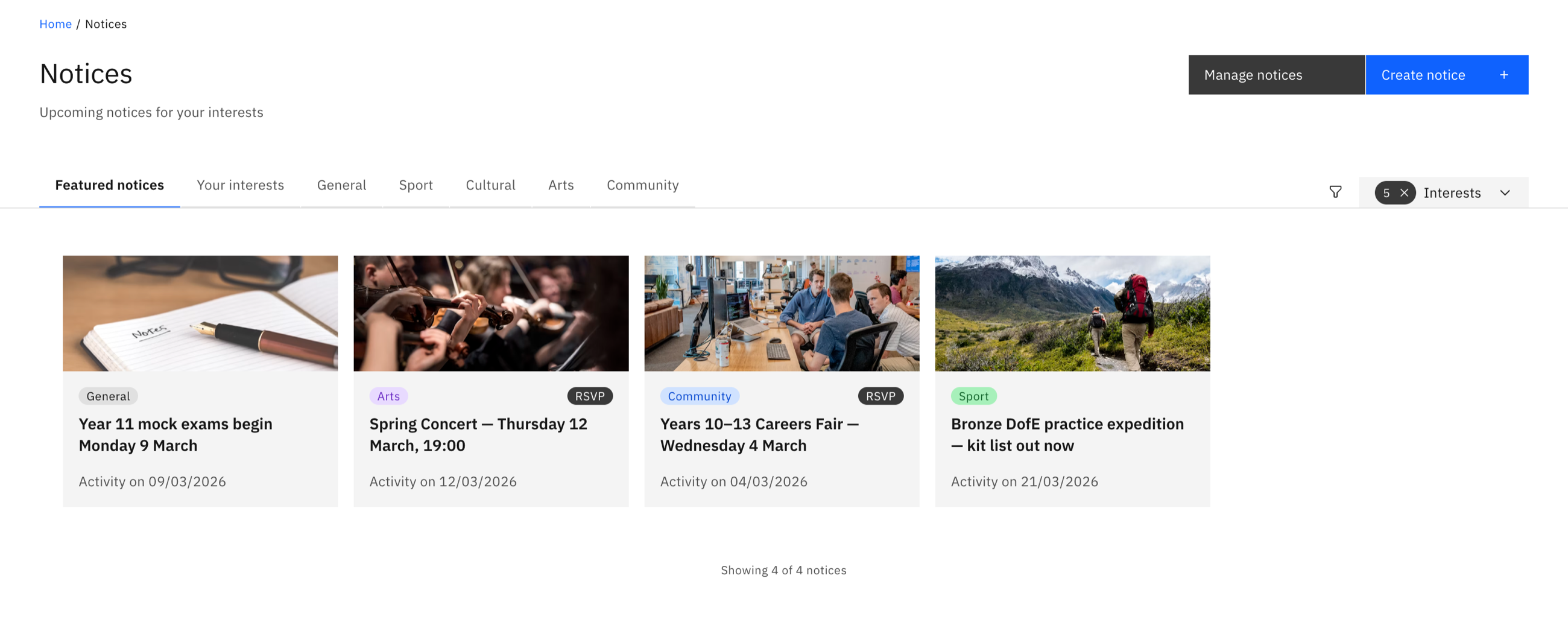
Read a notice
Click a card to flip it over. The back gives you the full description, the activity date and time, the author, any attachments or links, and an RSVP button if you can RSVP.
Note: You see only notices aimed at your audience while they're within their visible dates — so your board won't match a colleague's.