Edit a notice
Quick answer
- Open Notices → Manage notices.
- Find your notice and click its edit icon.
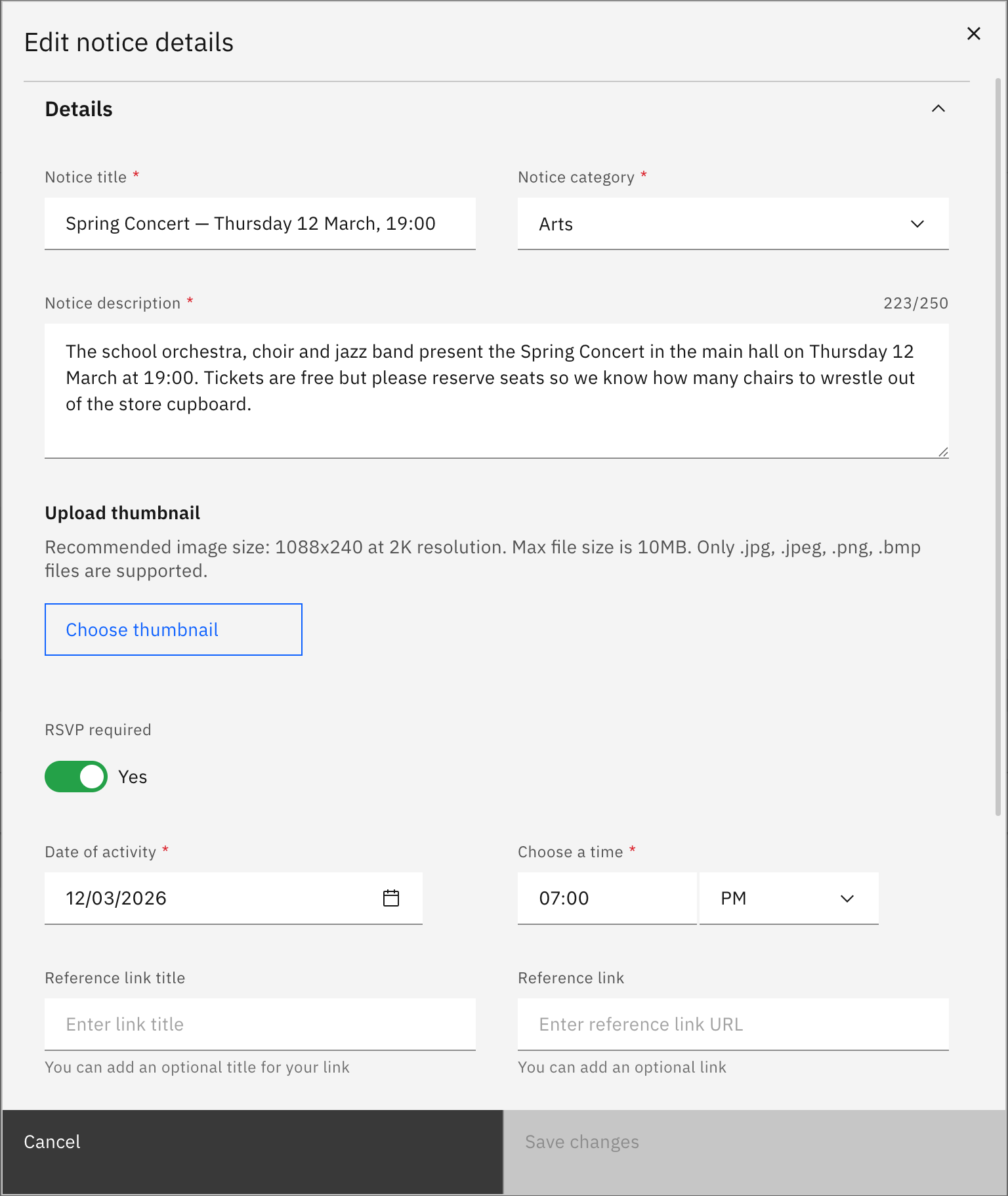
- Expand a section, make your changes, then Save changes.
Update a notice you already created by changing its details, audience, or visibility.
Note: You can only edit a notice that you created.
Open Manage notices
In the Notices tab, click Manage notices.
Find your notice
Click the edit icon in your notice's row in the Your notices list. Use the Active notices and Scheduled notices tiles to filter if needed.
Make changes and save
Expand the section you want to change in Edit notice details—Details, Audience type, or Visibility—edit the fields, then click Save changes.
Note: Save changes only becomes active once you've changed something.