Edit a notice
Edit a notice
Note: You can only edit a notice that you have created.
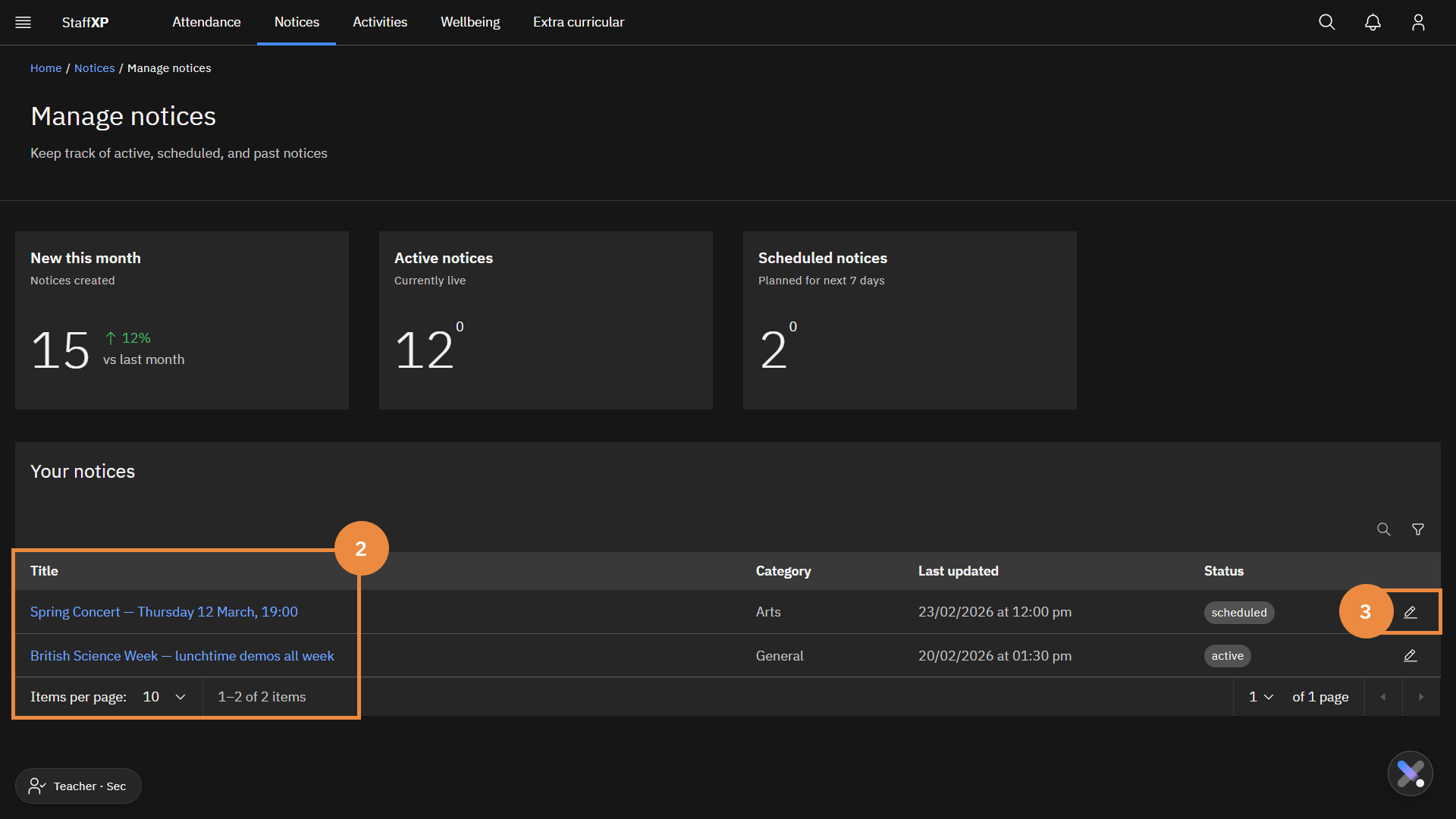
In the Notices tab, click Manage notices.
Find the notice you want to edit.
Note: You can filter your notices via the Active notices and Scheduled notices tile.
Click edit icon.
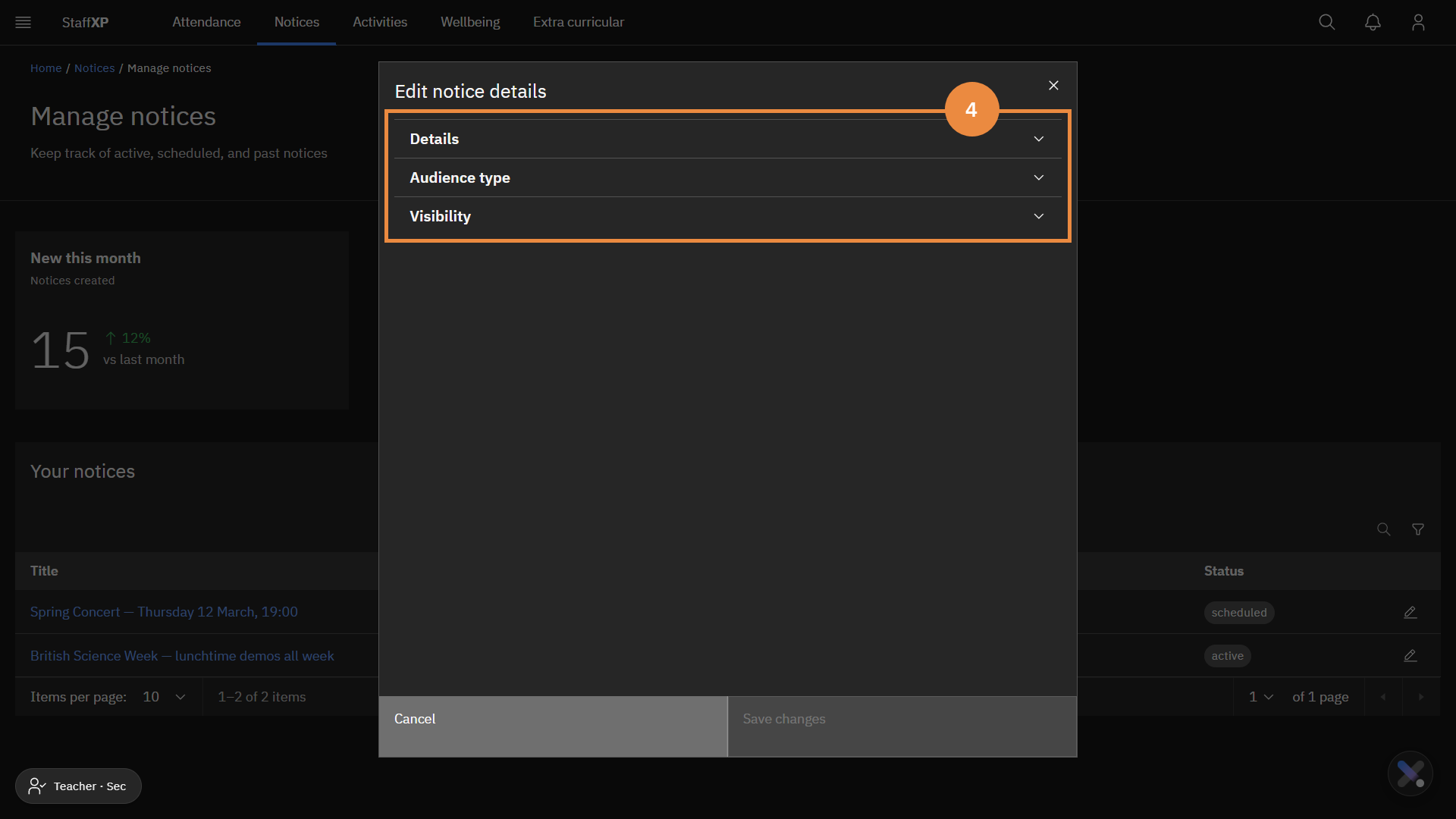
Expand the appropriate sections to edit the notice.
Make the edits as needed.
Click Save changes.