Review and approve a request
Quick answer
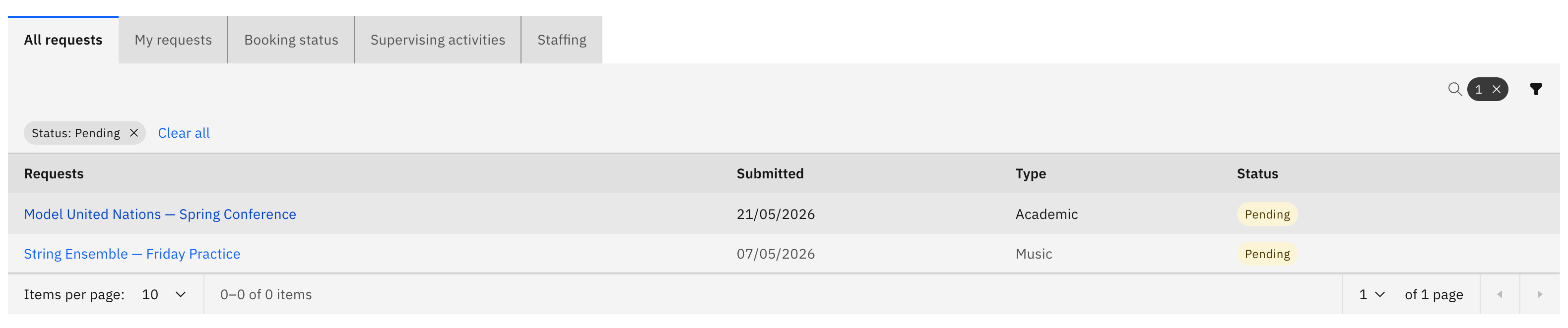
- On the All requests tab, find a Pending request and click Review.
- Read the full plan, then choose Approve, Decline, or More info from the header.
- Decline and More info need notes; Approve opens the activity for enrolment.
Coordinators and school leaders act on Pending extra-curricular requests — approving them, declining them, or sending them back for changes.
Note: The Review action and the Approve / Decline / More info buttons appear only to staff with approve permission. A coordinator who isn't authorised for that activity can open the request but can't act on it.
Open the request
On the All requests tab, find a Pending request and click Review in the row (or click the request name). The tab opens pre-filtered to Pending for approvers, so it's already your triage queue.
Read the full plan
The request opens read-only on the Review and submit summary — activity details, venue, attendees, costs, resources, and risks. To drop specific students from enrolment, open the Attendees section and use Exclude students; those students won't be enrolled when you approve. This control is review-only.
📸 needs image: the read-only Review and submit summary with the Exclude students control in the Attendees section. (The Exclude students control lives in the gated Step 4 of the create/edit wizard and couldn't be reached during the autonomous capture pass without completing the full multi-step form — capture manually.)
Choose an outcome
Pick a decision from the page header or bottom bar:
- Approve — the activity becomes live and opens for enrolment.
- Decline — opens a notes box; the activity leader is notified with your reason.
- More info — opens a notes box; sends the request back to the leader to update and resubmit.
Note: Decline and More info both require notes before you can confirm. Those notes are exactly what the author reads later via View review notes on their request row, so make the reason clear.
Confirm
A confirmation message appears and you return to the hub.