Manage registered participants
Quick answer
- Open an approved activity's details page and find the Registered participants table.
- Search by name, year group, or gender to find someone.
- Click a row's bin icon, then confirm in Remove participant, to take a student off.
Once an activity is approved, you manage everyone enrolled in it on the activity's own details page.
Open the participants table
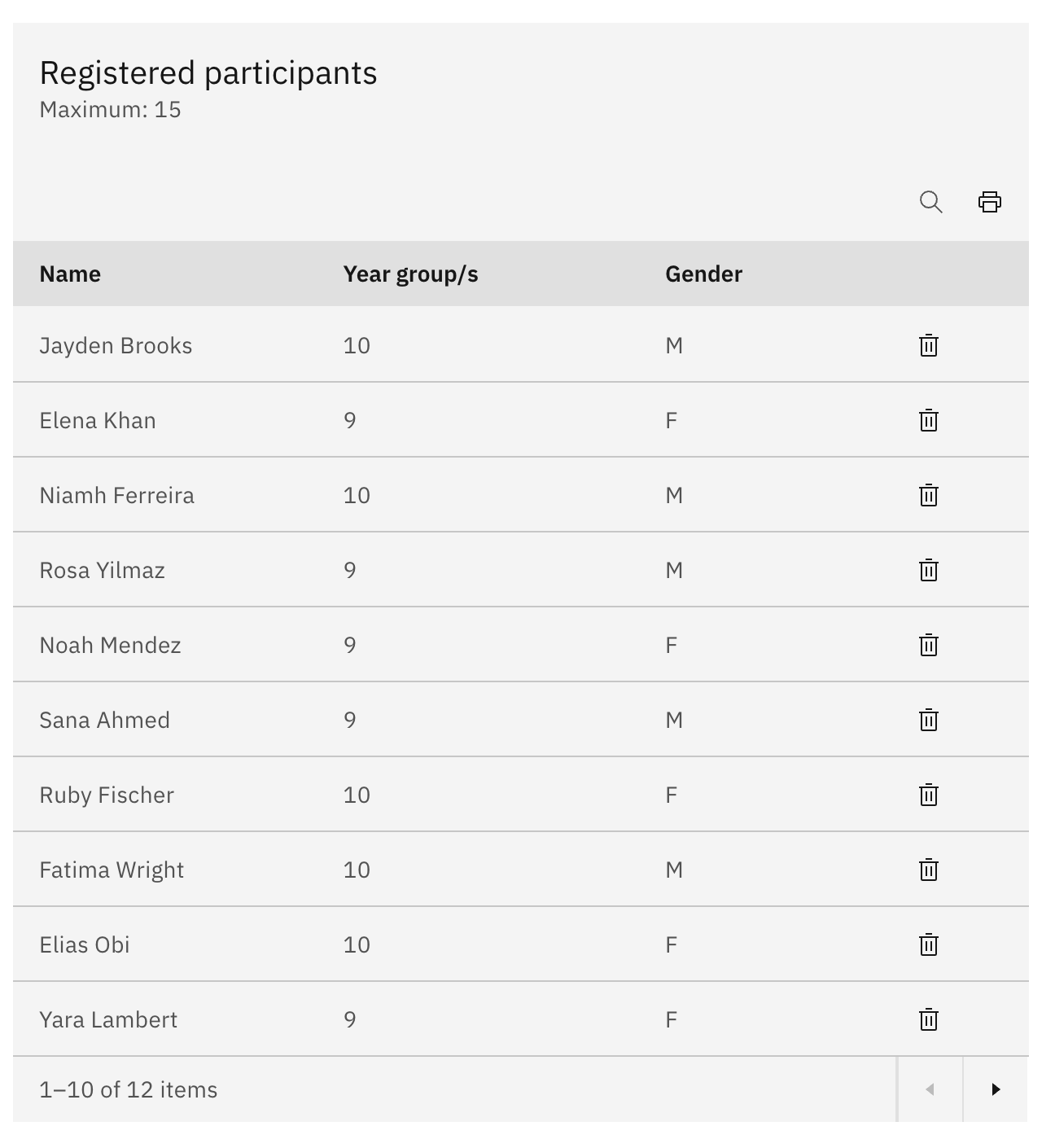
Open the approved activity's details page and find the Registered participants table. The heading shows the place limit as Maximum (for example, Maximum: 20), and each row lists the student's Name, Year group/s, and Gender.
Find a participant
Use Search to filter the table by name, year group, or gender.
Remove a participant
Click the bin icon on the student's row, then confirm in the Remove participant dialog. A success message confirms the student has been removed.
Note: Removing a participant takes them off the activity straight away. To re-enrol them, they have to register again (or be approved from the waitlist).