Browse extra-curricular activities
Quick answer
- Open Extra curricular from the menu to reach the hub.
- Switch the tabs — requests, Booking status, Supervising activities, Staffing.
- Each table has search, filters and pagination.
- A request's Status tag decides which row action you get.
The Extra curricular hub is where you find the school's clubs and teams — their requests, bookings, approved activities and assigned staff.
Open the hub
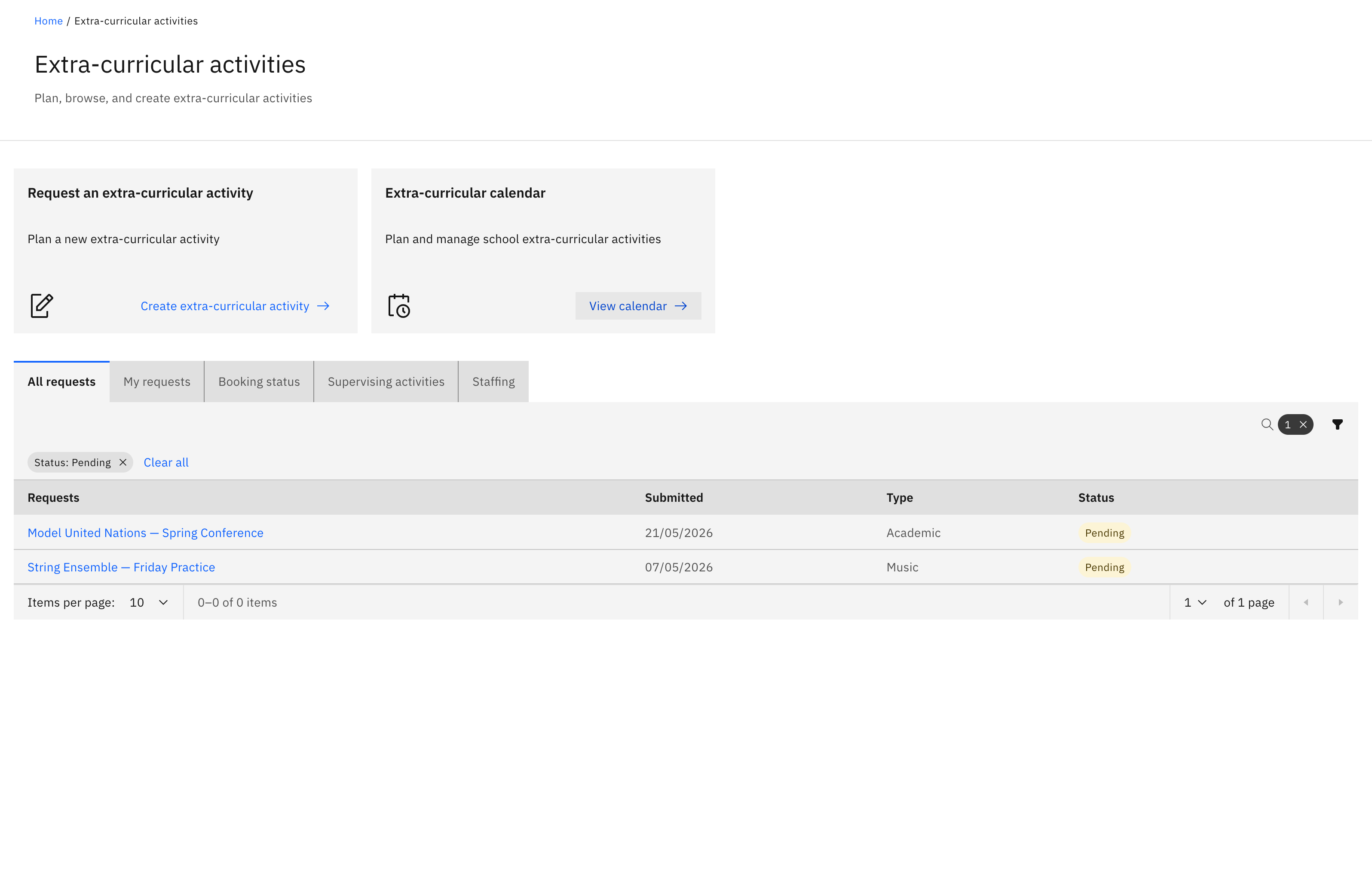
Click Extra curricular in the navigation. Two action cards sit at the top — Create extra-curricular activity and View calendar — above a set of tabs. Anyone with extra-curricular access can open the hub, but what each tab shows depends on your role.
Choose a tab
The first tab is the request queue: regular staff see Your requests (your own submissions); activity coordinators and school leaders see All requests (everyone's queue) plus a My requests tab that filters the same queue to activities you lead. The other tabs are Booking status, Supervising activities, and Staffing.
Read the request queue
The request tabs list each request under Requests (the name, a link), with its Submitted date, Type and Status. Search by request name and Filter by Status and Type together.
Note: For approvers, All requests opens pre-filtered to Pending — it's the triage queue. Clear the Pending chip to see every status. Your own Your requests / My requests always show all statuses.
Use the row action that matches the status
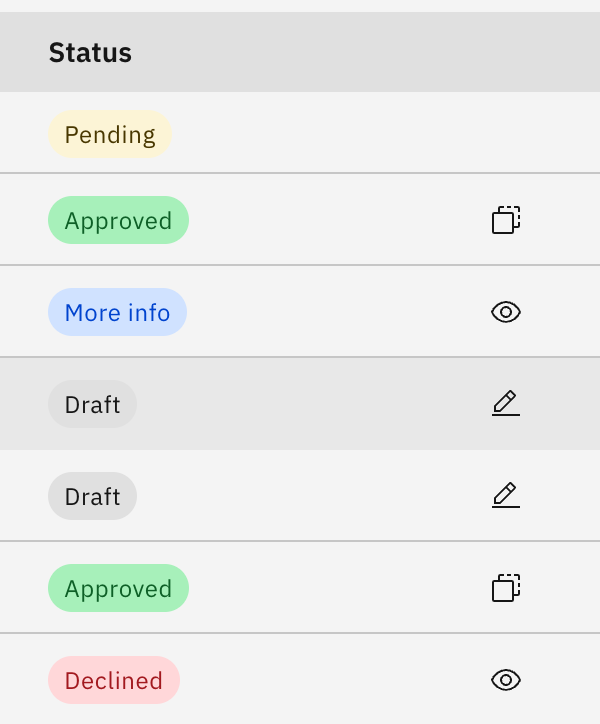
Each request row carries one status-aware action. A New / Draft request shows Edit (pencil) and Delete (bin) to its author, and its name reopens the editable form. A Pending request shows Review (only if you can approve) and opens the Review request screen. An Approved request shows Replicate and its name opens the Activity details page. A Declined / Rejected or More info request offers View review notes.
Check resource bookings
The Booking status tab lists bookings tied to activities, with columns Event, Resource, Quantity, Picked up by, Return date and Status. Search by event name and filter by booking status.
Browse live activities
The Supervising activities tab ("All ECAs") lists only Approved and Rejected activities, with Name (a link to its details), Event type, Event start, Event end, Activity lead and Status. Search across name, type or lead and filter by Approved or Rejected. Approved rows offer Replicate; Rejected rows offer View review notes.
Look up assigned staff
The Staffing tab lists staff assigned to activities, with Name, Role, Phone, Email and Consent. Search by name and filter by role. Consent shows View to open an external member's clearance document, Internal for internal staff, or a dash when there's nothing to show.
Know what each status means
The coloured Status tag tells you the stage: New / Draft is saved but not yet submitted; Pending is submitted and awaiting a decision; More info means an approver has sent it back with notes for you to update and resubmit; Approved means it's live and open for enrolment; and Declined / Rejected was turned down — open View review notes to read why.
Every table sets how many rows show per page (10, 25, 50 or 100).