Use your Attendance page
Quick answer
- Open Attendance from the navigation to land on your teacher page.
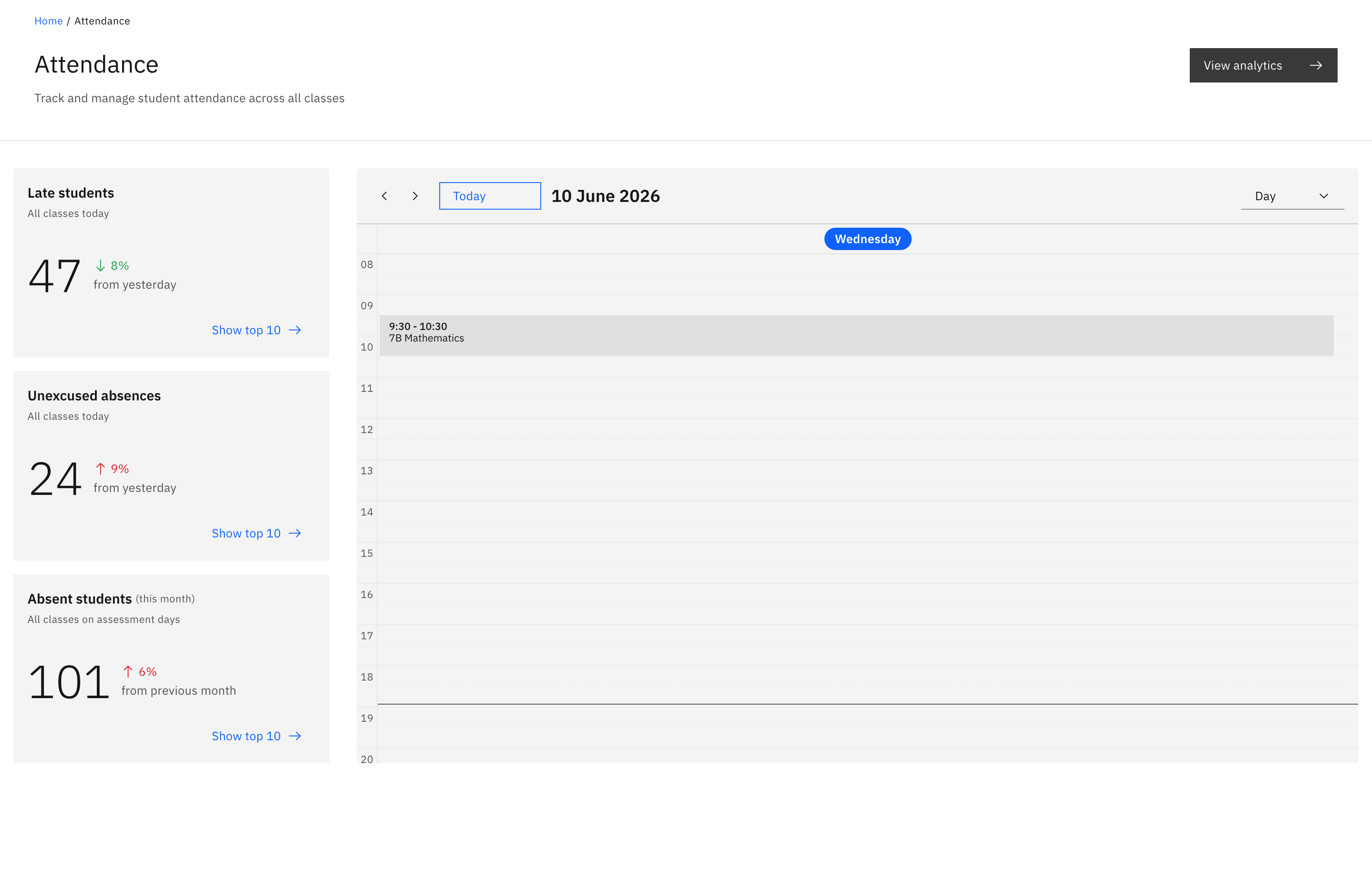
- Three stat cards sit above your day's calendar.
- Click a class on the calendar to open its roll.
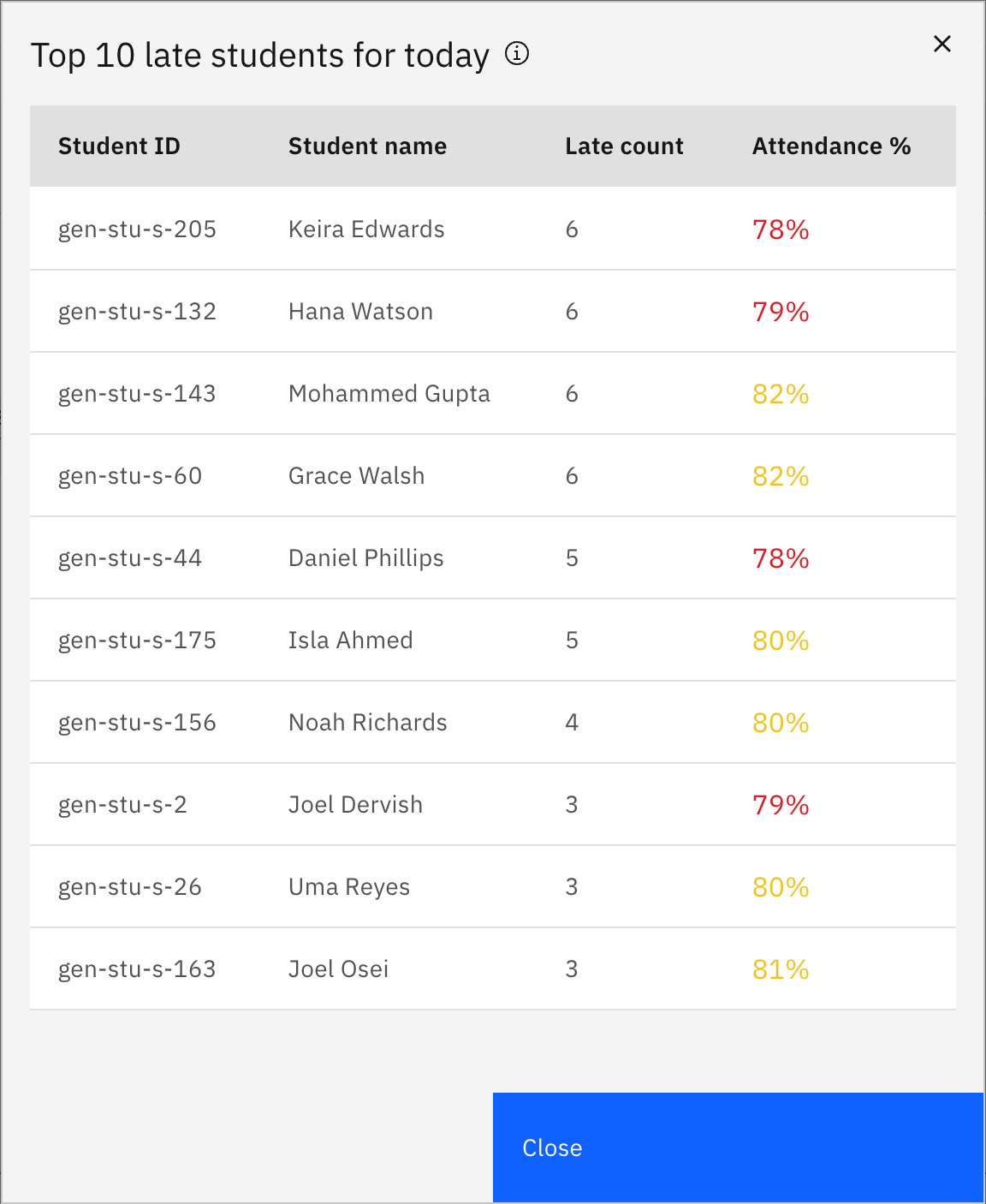
- Each card's Show top 10 opens a list of those students.
The Attendance page is your teacher landing screen: three stat cards on the left and a calendar of your day's classes below. The same Attendance nav item opens a whole-school dashboard instead if you're a school leader or attendance officer.
Open Attendance
Click Attendance in the main navigation. As a regular teacher you land on the stat cards and your day's calendar.
Read the three stat cards
The cards summarise today across all your classes: Late students and Unexcused absences (both for today), and Absent students (this month, on assessment days). Each card shows a count with a "from yesterday" or "from previous month" change.
See who's in a card
Click a card's Show top 10 to open a list of those students.
Open a class roll
The calendar shows your classes for the day. Click a class to open its roll and start marking students.
View analytics
Click View analytics (top right) to open Attendance analytics. The link is only enabled if you have attendance-analytics access.