Use the Attendance overview dashboard
Quick answer
- Open Attendance as a leader or officer to land on Attendance overview.
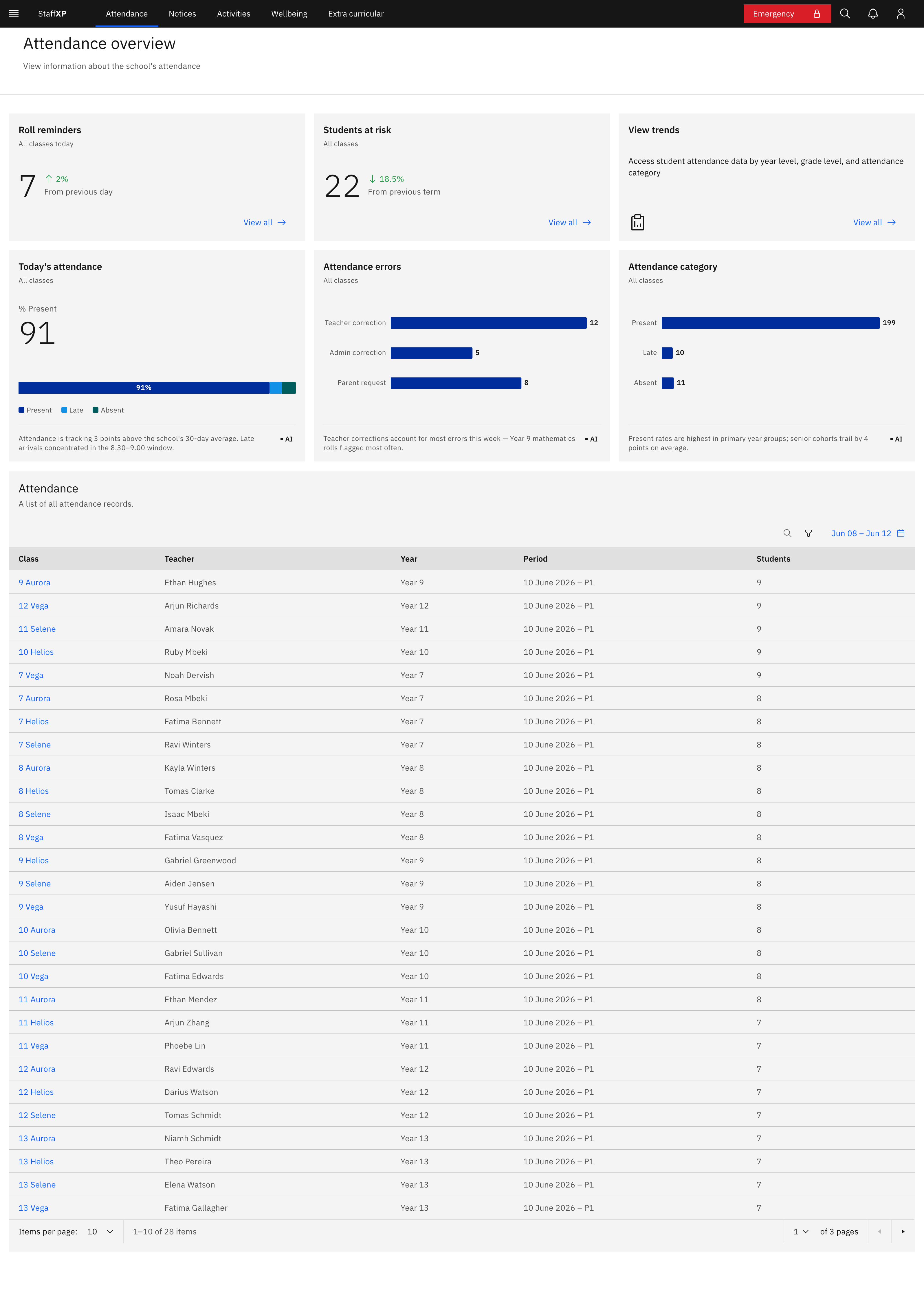
- Top tiles show Roll reminders, Students at risk, and View trends.
- Chart row covers Today's attendance, Attendance errors, and Attendance category.
- A Class rolls list below lets you open any class's roll.
Attendance overview is the whole-school dashboard. School leaders and attendance officers see it automatically when they open Attendance — the same nav item that opens the teacher calendar for everyone else. Officers see the same dashboard as leaders, plus an extra set of officer tabs.
Open Attendance overview
Click Attendance in the main navigation. As a leader or officer you land on Attendance overview instead of the teacher page.
Read the top tiles
The top row tracks the things needing attention today:
- Roll reminders — the tile label shows a live count of classes that haven't submitted yet. Click View all to list them by teacher, class, period, and outstanding count.
- Students at risk — a live count of students below the attendance threshold. Click View all to open the at-risk list.
- View trends — jumps to Attendance trends.
Read the chart row
Three charts summarise the day, each with a short summary line: Today's attendance (a gauge you can filter by Present, Absent, or Late), Attendance errors (where corrections are coming from), and Attendance category (the Present / Late / Absent split).
Open any class roll
Below the charts, the Class rolls list shows the school's rolls. Search by class or teacher, filter by year group, and click a class name to open its roll.
Work the officer tabs
If you're an attendance officer, a tab bar sits on the dashboard with Leave requests, Class rolls, Unresolved attendance, Correction request, and Resolved requests. Open a tab to work through that queue. Leaders see the dashboard without these tabs.