Take the emergency roll
Quick answer
- When a leader declares an emergency, your open roll flips to the Emergency roll (red Emergency roll tag).
- Mark each student Present or Missing, or use the header mark all action.
- Click Submit to send your class's status — you can submit what you have, even part-marked.
Once a school leader declares an emergency, every teacher's open roll switches into a stripped-down headcount. Every teacher does this — the Emergency button that starts and ends an emergency is leader-only, but taking the emergency roll is for everyone.
Your roll becomes the Emergency roll
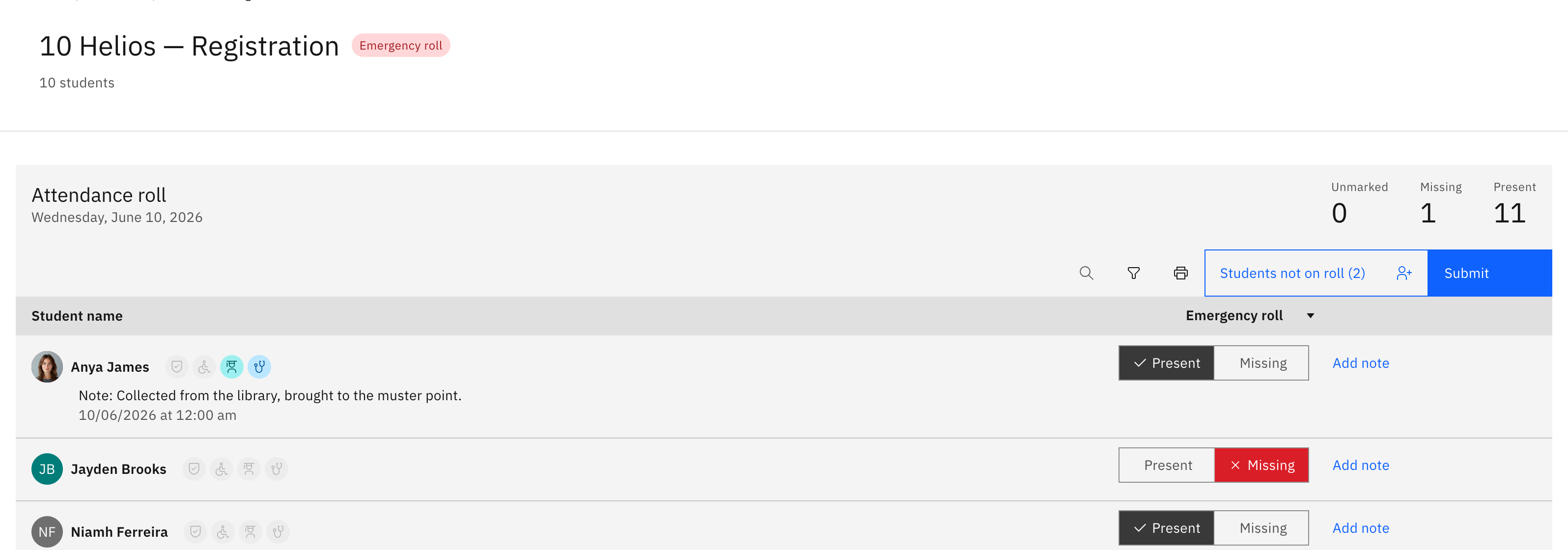
When an emergency is declared, your open roll flips automatically — a red Emergency roll tag appears in the header, and all staff are notified. The table strips back to two columns, Student name and Emergency roll, so per-period history and Attendance % are hidden and nothing competes with marking.
Mark each student Present or Missing
Tap each student Present or Missing. To set everyone at once, use the mark all action in the column header, then adjust individuals. A live counter strip in the card header shows running Unmarked, Missing, and Present totals.

Add a note where needed
Add a note to any student to pass on detail — for example where a missing student was last seen.
Submit your class's status
Click Submit to send your class's emergency status. Unlike a normal roll, there's no all-marked gate here — you submit what you have, fast, and coordinators chase the rest. Emergency mode is deliberately minimal: no date picker, no print, no birthday cue. A confirmation tells you the roll has been submitted.