Take the daily roll
Quick answer
- Open the class roll from your Attendance calendar, a roll reminder, or Felix.
- Click each student's status icon in today's column and pick Present, Absent, or Late.
- Once everyone is marked, Submit enables — click Submit.
Taking the roll is the core teacher task: open your class, mark every student, and submit.
Open the class roll
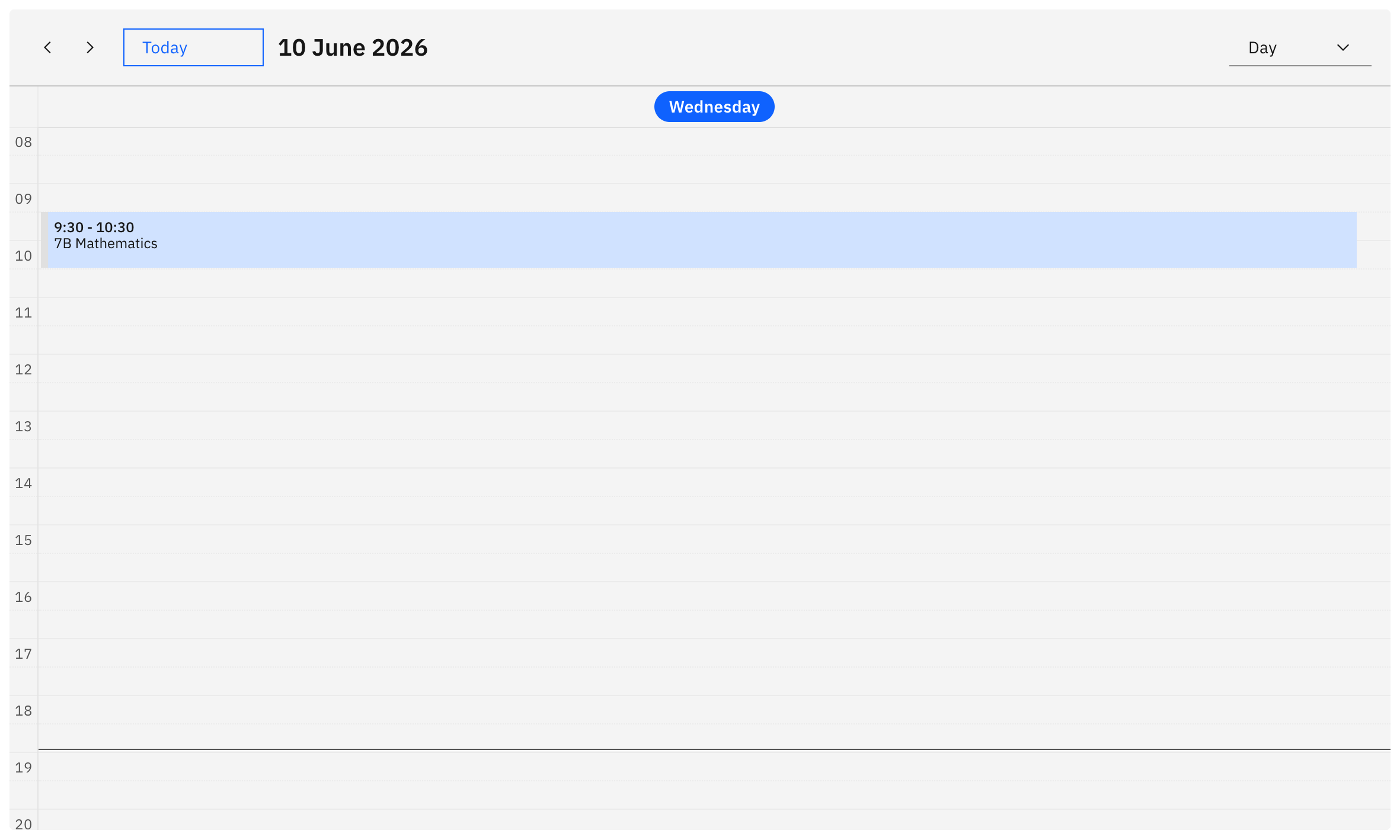
From the Attendance page, click your class on the calendar, follow a roll reminder, or ask Felix ("take the roll"). The page header shows the class name, the period and student count (for example "Period 2 · 24 students"), and the date.
Read the roll table
The Attendance roll table lists every student on one page — there's deliberately no pagination, so nobody gets missed. Each row shows an avatar, the student's name (first name bold), and their Attendance %. On the left, you can see up to 4 prior sessions as read-only history, and on the right, today's editable column. You can only mark today's column; the prior sessions and approved absences cannot be changed.
Mark each student
Click the status icon in today's column to open the menu, then pick Present, Absent, or Late. The menu only shows options different to the current status. To mark all students at once, use the action control on today's column header (All present / All absent), then adjust individuals if needed. Bulk marking skips students who already hold an approved absence.

Submit the roll
When all the students have a valid status, the Submit button enables — click it. Submit stays disabled until no student is left on Not yet marked (the
···default), so you can't submit a partial roll. It's also disabled while you're offline. A success toast confirms with "Attendance submitted"; if you came from a roll reminder and have more classes to complete, the toast offers a "Take roll for [next class]" shortcut.Note: Once submitted, a roll is locked — there's no direct edit. To fix a mistake, ask Felix to log a correction request, which an attendance officer resolves.
Check what the icons mean
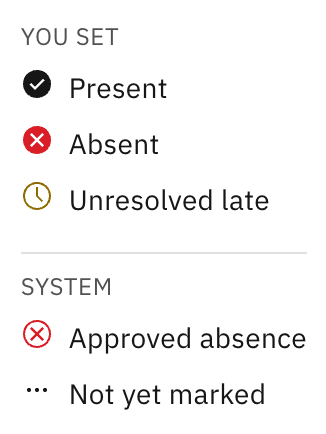
The roll uses icons, not words. Click the information (ⓘ) icon next to the Attendance roll title to open the key. There are two status groups, statuses you set — Present, Absent, Unresolved late — and system statuses: Approved absence (resolved by an officer elsewhere, so not editable by you; clicking it opens the absence's details) and Not yet marked (the default before you mark, which still blocks Submit).