Review past emergencies
Quick answer
- Open Emergency analytics from Attendance › Emergency to see past drills and incidents.
- Read the history table's timing stats and filter it by type, term, and year.
- Click any incident to open Emergency details — per-class and per-muster-point timings.
- Print the details page for a record. Leaders only.
After a drill or real incident ends, you can review what happened and how long each part of the muster took. This is leader-only: the Emergency history is reachable by school leaders, not teachers or attendance officers.
Open Emergency analytics
On the Attendance page, open Emergency. This shows a history table of past incidents — both drills and real emergencies.
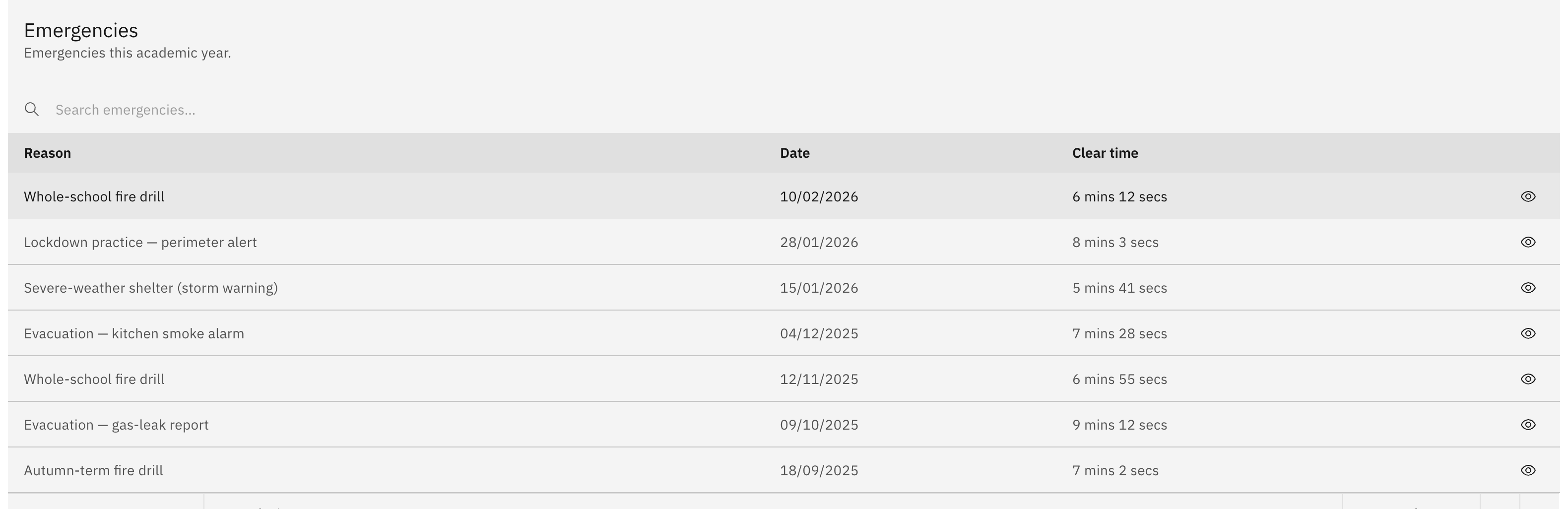
Read the history table
Each row is one past incident, with timing stats such as average clear time. Use the filters to narrow the list by type, by term, and by year.
Open one incident's full report
Click an incident row to open Emergency details for that incident. It breaks down time taken per class and per muster point, and compares present against absent numbers.
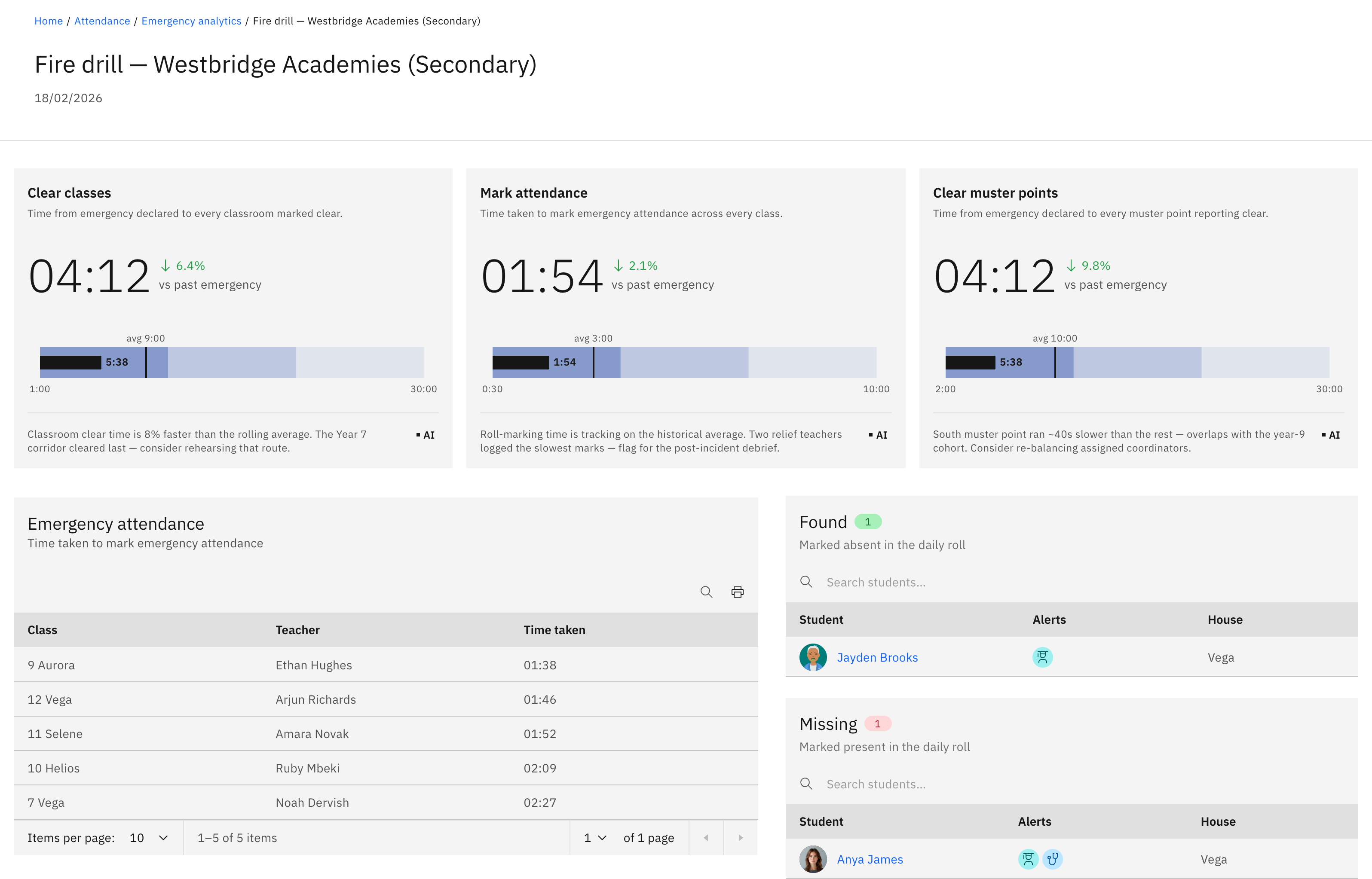
Print the report
The details page is printable, so you can keep a record of the incident or share it for a debrief.