Resolve and correct attendance marks
Quick answer
- On the Attendance overview, use the officer tab bar to work requests and marks.
- Open Unresolved attendance, Correction request, or Leave requests and action the list.
- Change a cell to open the category picker and pick a specific reason, then submit.
Attendance officers clear requests and unresolved marks from tabs on the dashboard. These tabs and the powers below are officer-only; teachers don't see them.
Open the officer tab bar
On the Attendance overview, the officer tab bar lists the work waiting for you: Leave requests (approve or decline parent-submitted leave), Class rolls (open any roll to edit), Unresolved attendance (marks that still need a resolution category), Correction request (teacher correction requests to action), and Resolved requests (the history of what you've already cleared).
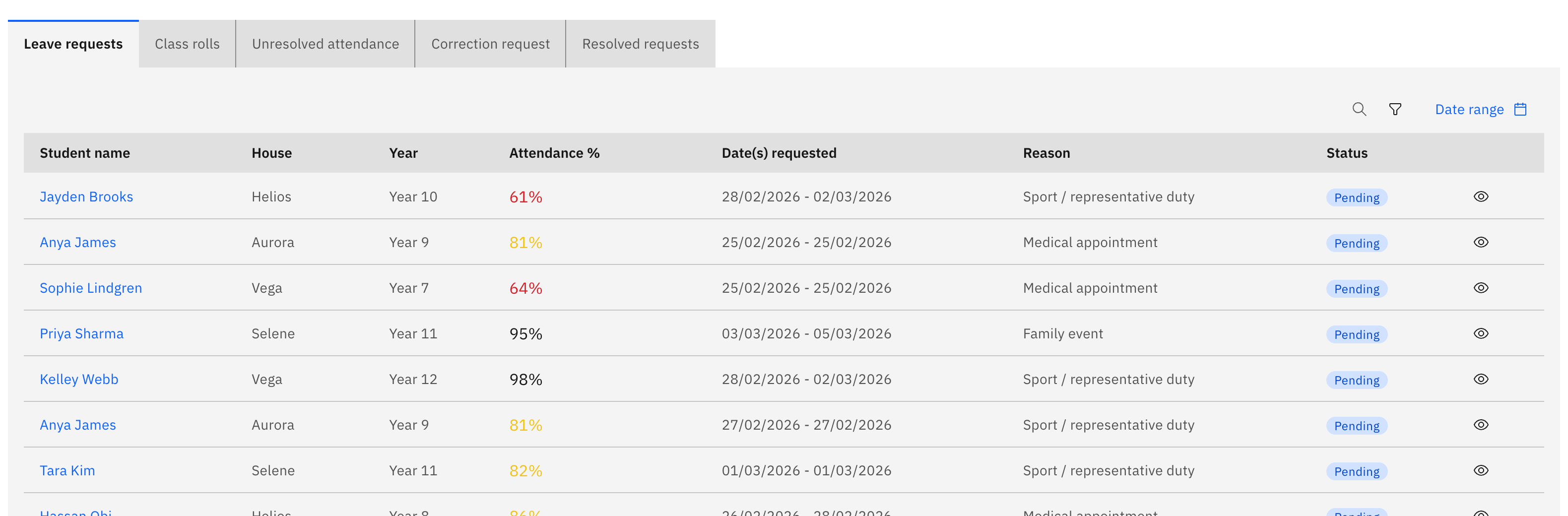
Pick a tab and work the list
Open the relevant tab and action each item in turn. For Leave requests, approve or decline. For Unresolved attendance or Correction request, open the roll to make the change.
Change a cell and choose a reason
When you change a cell on a roll, a category picker opens so you set the specific reason rather than just Present, Absent, or Late — for example Absent then Excused: Sick or Holiday. Cells you've changed show a hover tooltip with the correction history.
Use your officer powers
You can edit past-dated rolls and change approved absences — the date lock and resolved-absence lock that apply to teachers don't apply to you.
Submit the corrections
Click Submit to save. Your submit sends partial corrections, so you don't need every student marked — the all-marked gate is teacher-only. Resolved items move to the Resolved requests tab.