Coordinate the muster
Quick answer
- During an active emergency, coordinators open the Emergency coordinator or Muster coordinator page to watch the headcount live.
- Emergency coordinator shows every class and muster point, plus a Cleared classes table.
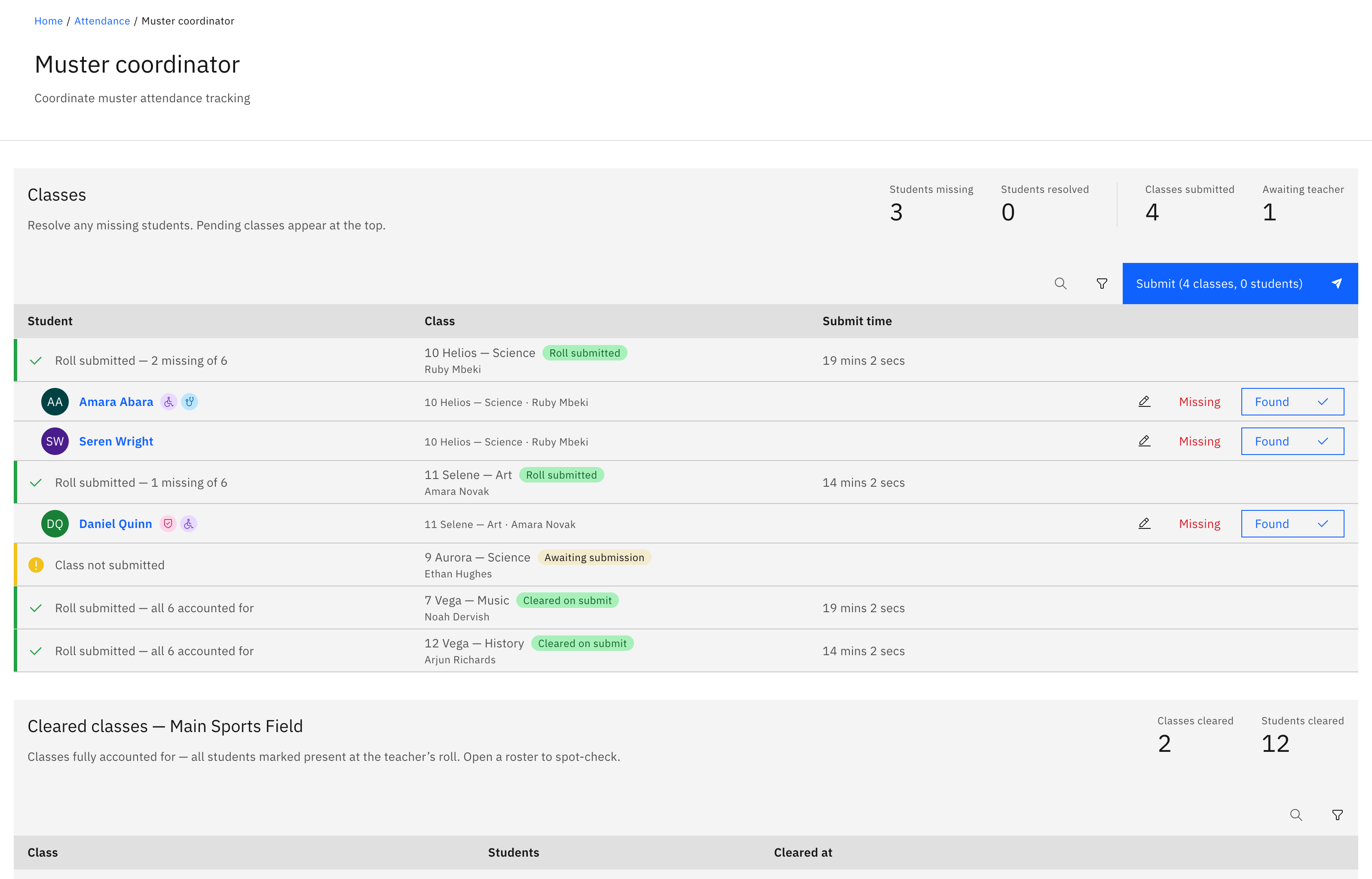
- Muster coordinator shows just your own muster point's headcount and cleared classes.
- These pages only exist while an emergency is active.
When a leader declares an emergency, coordinators get live screens to watch the whole evacuation and confirm every class is accounted for. The page you see depends on your role, and both pages exist only while an emergency is active.
Open your coordinator page
These screens appear automatically once an emergency is declared. As an emergency coordinator or school leader you get the Emergency coordinator page; as a muster-point coordinator you get the Muster coordinator page for your own point. If you don't hold one of these roles, the pages don't appear — you take the emergency roll like everyone else.
Watch the whole school (Emergency coordinator)
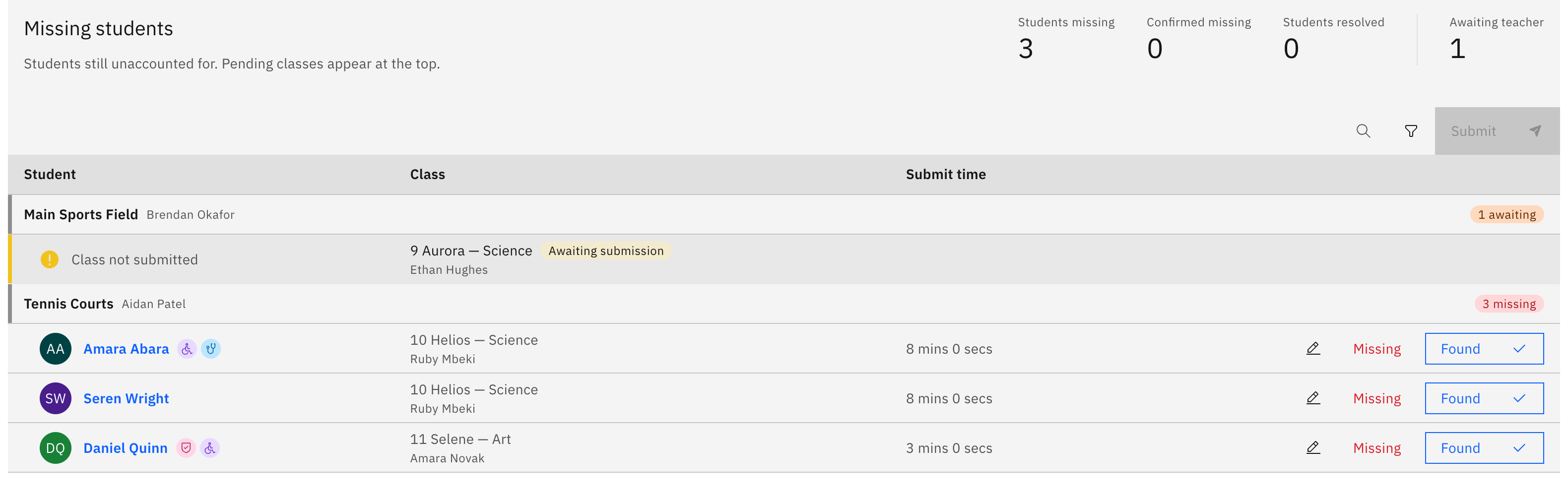
The Emergency coordinator page shows a live muster table of all classes and muster points so you can see at a glance which classes have submitted and where students still need accounting for. The figures update as teachers submit their emergency rolls.
Confirm cleared classes
A Cleared classes table lists the classes that are fully accounted for, so you can focus on the ones still outstanding.

Watch your own muster point (Muster coordinator)
The Muster coordinator page shows just your muster point's headcount and the cleared classes for that point — your slice of the evacuation rather than the whole school.
End the emergency (leaders only)
Only a school leader can end an incident: on the Emergency coordinator page they click Turn off emergency protocol and confirm. Coordinators see all the live data but can't end the emergency themselves.