View a past roll session
Quick answer
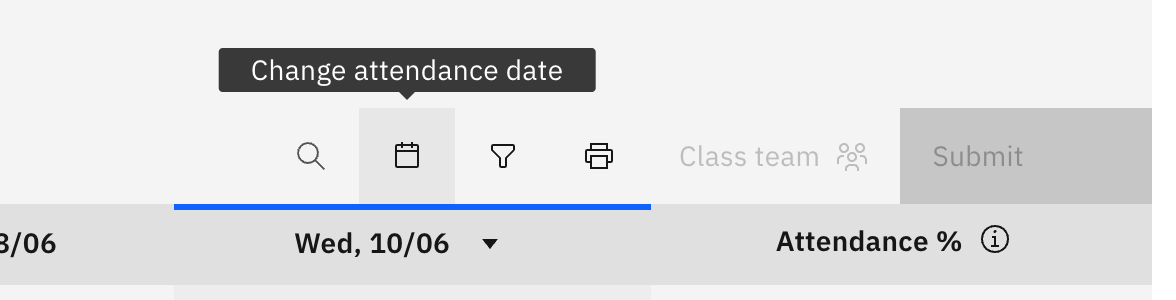
- On the roll toolbar, click the calendar icon (Change attendance date).
- Pick a day in the popover to load that session's roll.
- Past sessions open read-only for teachers — review the marks, but the cells are locked.
The roll opens on today by default. Use the date picker to look back at an earlier session for the same class.
Open the date picker
On the roll toolbar, click the calendar icon (Change attendance date).
Pick a date
Choose a day in the popover. The roll reloads on that date, showing how the class was marked. The date travels in the page address, so a link to a specific day's roll is shareable.
For a teacher, a past session opens read-only — you can review the marks but the cells are locked, and you mark only today's column. An attendance officer can still edit a past-dated roll.