Review a request
Quick answer
- In All requests, click Review on a Pending request.
- Read the submitted details, then choose Approve, Decline or Request more info.
- Decline and Request more info require notes the requester can read back.
- A venue conflict disables Approve until you resolve it.
As an activity coordinator you act on the requests staff submit — approving them, declining them, or sending them back for more information. The request opens in the same layout it was submitted in, with the decision controls in the header.
Open a Pending request
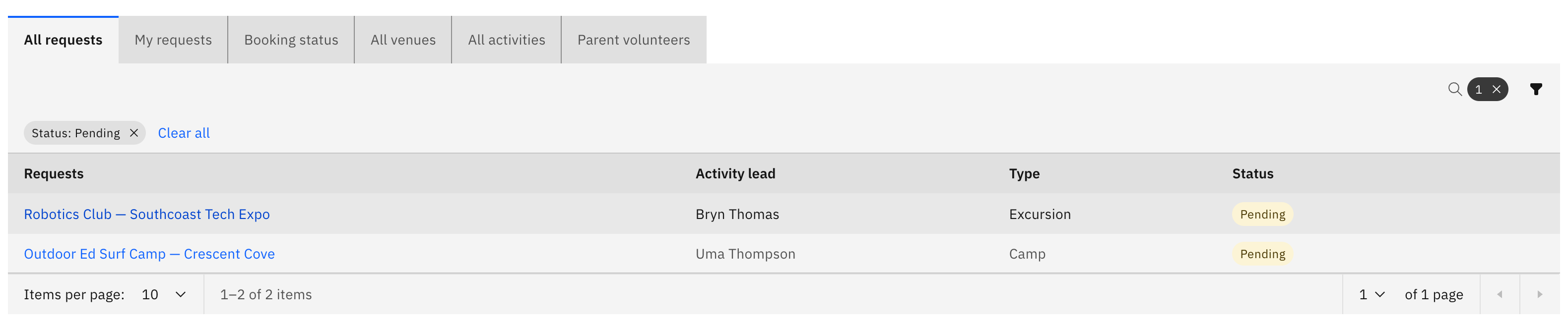
On the Activities overview, open the All requests tab, find a Pending request and click Review (the row action). The Review action only appears on Pending requests and only for coordinators.
Read the submitted details
The request opens read-only, showing everything the requester entered — the activity, participants, venue and risk assessment. Scroll through to check it before you decide.
Choose a decision
The decision controls sit in the header:
- Approve — signs the request off. A success message confirms it, the request becomes Approved, and you return to the queue.
- Decline — opens a notes box. Enter why and confirm; the request becomes Rejected and the requester is notified.
- Request more info — opens a notes box. Enter what's needed and confirm; the request moves to More info for the requester to update and resubmit.
Decline and Request more info both require notes — the requester reads them back via View review notes on the request row.

Edit on behalf if needed
To fix something yourself rather than send it back, use Edit on behalf. This opens the request in its editable form; Back to approval returns you to the decision step without saving.
Review a venue request the same way
A venue request uses the same Approve / Decline / Request more info controls in its own review.
Note: if the requested venue clashes with another approved event, Approve is disabled and a Venue conflict detected pop-up names the conflicting event. You can't approve until the clash is resolved.