Request a camp
Quick answer
- On the Activities overview, click Request activity, choose Camp, and Submit.
- Work through the four steps: Activity details → Resource booking → Risk management → Review and submit.
- On the last step, click Submit — the camp shows as Pending for a coordinator to approve.
A camp is one of the activity types you request from the Activities overview. It uses the same four-step guided form as an excursion — Activity details → Resource booking → Risk management → Review and submit — with a few camp-specific fields (a meeting and pick-up time, multiple off-site locations, and lead staff). Any staff member with activity access can submit a request; a coordinator then approves it.
Start the request
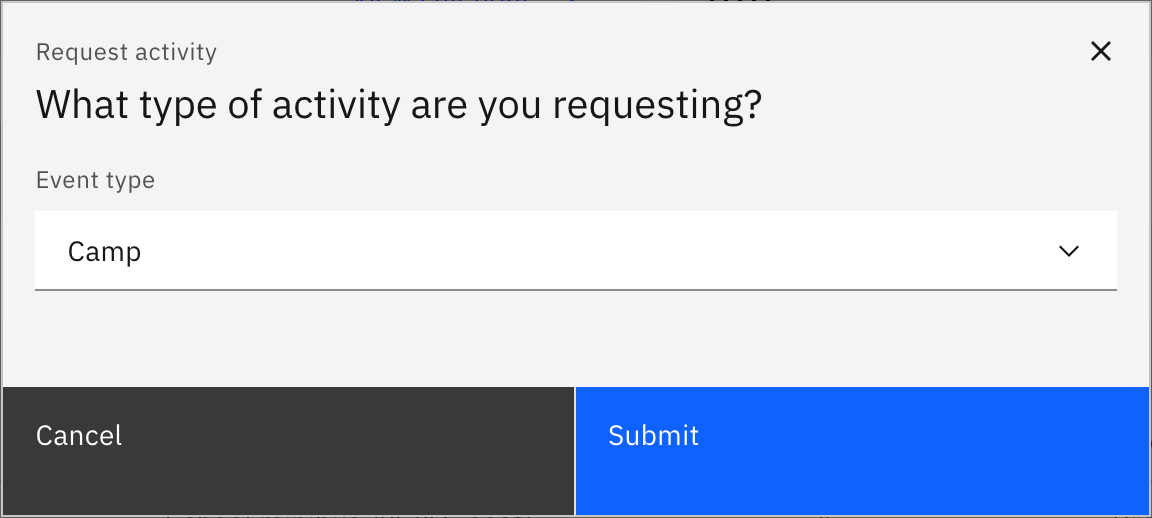
On the overview, click Request activity, choose Camp, and click Submit. (Click Calendar view first if you want to check your preferred dates are clear.)
Fill in the activity details
In Activity details, work through the four sections in the left rail. Under General information add the Activity name and set the meeting date & time and pick-up date & time (camps capture both, not a single start/end time). Under Attendees pick the Student groups by house, year group, class or roll group, then add the lead staff member and a second-in-charge (with their role), and set insurance if it applies.
Add the location details
In Location details, enter each off-site venue. A camp supports multiple locations, so add an entry per venue with its name, address, phone, email, website and contact. Choose from approved venues, or enter one manually — if a venue you need isn't approved yet, request it first.
Set alignment and purpose
In Alignment and purpose, describe the camp's purpose and curriculum alignment, and upload the schedule file and the packing-list file.
Book resources (optional)
In Resource booking, book anything the camp needs across Finance, Equipment, Transportation, and Technology — or skip the step. If you start a booking row you must finish it (pick a category and a resource); Next stays disabled until you do.
Complete the risk management
In Risk management, fill in each category: Student lists, Activity based, Transport, and Staff capacity (log each risk and its mitigation, or mark the category "no risk"). Under Key contacts add the lead teacher, principal, deputy principal, first-aid teacher and the local emergency number (required, and must be a valid phone number). Complete the External provider and Requester clarification sections too.
Review and submit
On Review and submit, check the summary and click Submit. Submit stays disabled until every required field across all steps is valid — if anything is missing, an error appears against each field so you know what to fix. A success message confirms the request, and you land back on the overview with the camp showing as Pending.
To stop partway, click Save and exit (enabled once you've entered an activity name) to keep it as a Draft you can finish later.