Find and track your requests
Quick answer
- On the Activities overview, open the Your requests tab.
- Search by name, or Filter by Status and Type.
- Click a request's name to open it; use the row action to act on it.
- The Status tag tells you what each request lets you do next.
The request table on the Activities overview is where you find every activity you've requested and see where each one is up to.
Open your requests
On the Activities overview, open the Your requests tab. As an activity coordinator or school leader you instead see an All requests tab (everyone's requests) plus a My requests tab for just your own submissions.
Read the table
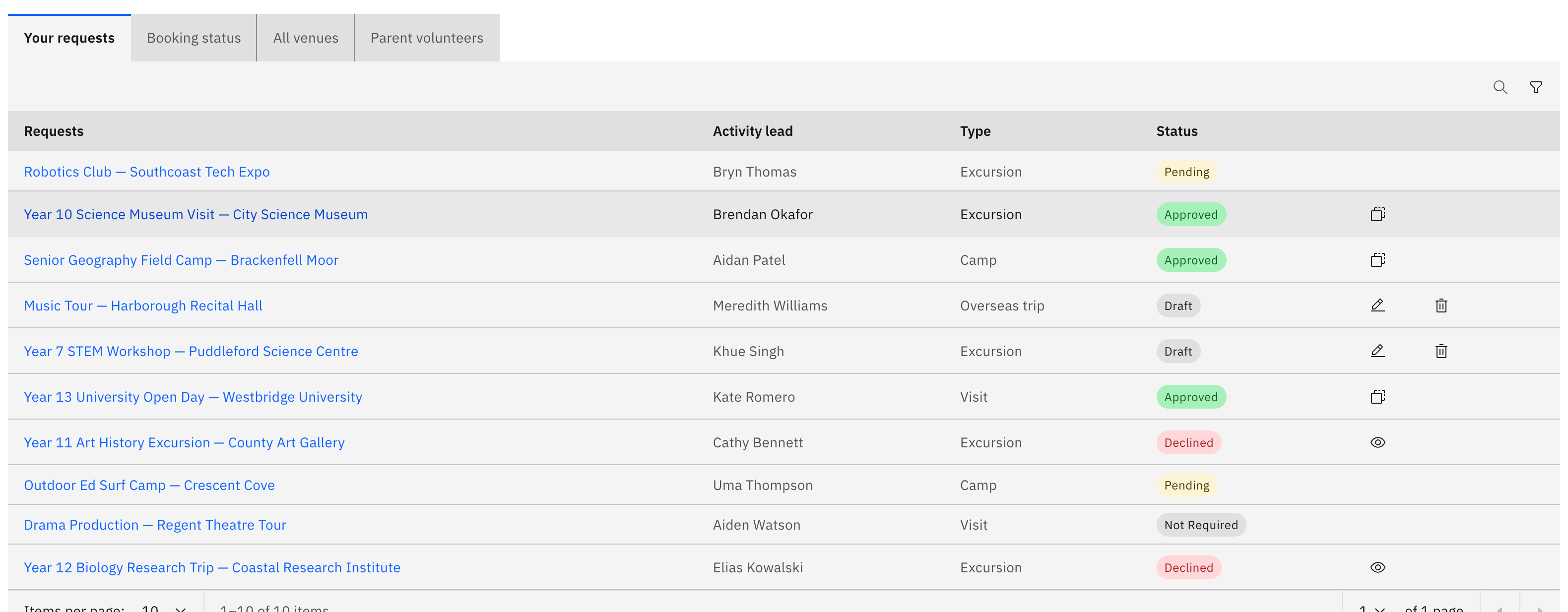
Each row shows the request's name under Requests, its Activity lead, its Type (Excursion, Visit, Camp or Overseas trip) and its Status.
Narrow the list
Search by request name, Filter by Status (Pending, Approved, Rejected or More info) and Type, and set how many rows show per page (10, 25, 50 or 100).
Open a request
Click a request's name to open it. Where it opens depends on its status — a draft reopens for editing, an approved request opens its activity details, and a Pending or Rejected request opens read-only.
Use the row action to act on it
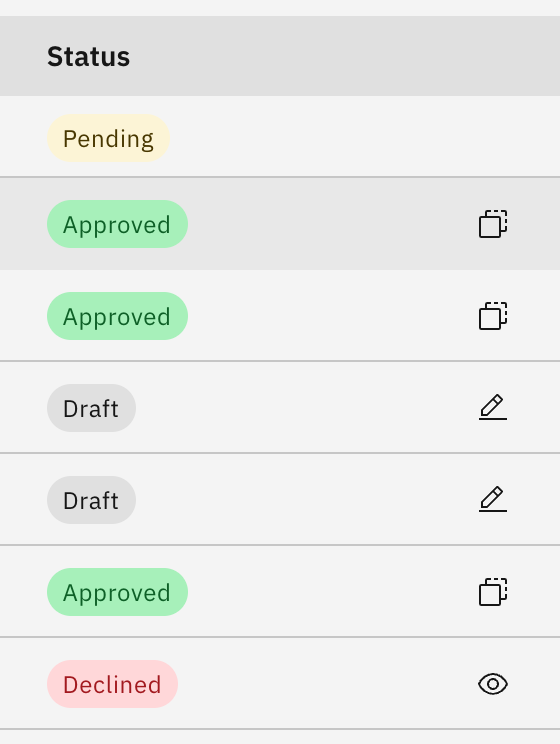
Each row has a single action icon that matches its status: New / Draft rows offer Edit and Delete; Approved rows offer Replicate (start a new request from this one); More info and Rejected / Denied rows offer View review notes to read why. Coordinators get a Review action on Pending rows.
Know what each status means
The coloured Status tag tells you the stage: New / Draft (gray) is started but not yet submitted; Pending (amber) is submitted and awaiting a coordinator's decision; Approved (green) is signed off and confirmed; More info (blue) means a coordinator has asked you to update and resubmit; and Rejected / Denied (red) was declined — open View review notes to see what was said.