Browse approved venues
Quick answer
- On the Activities overview, open the All venues tab.
- The list opens filtered to Approved; switch the status filter to Declined to see rejected requests.
- Search by name and filter by Learning area to find a venue, then open it read-only.
The All venues list shows every venue the school can run activities at, both Approved and Declined. Any staff member with activity access can browse it — it's where you check whether the place you need is already approved before starting a request.
Open the venues list
On the Activities overview, open the All venues tab.
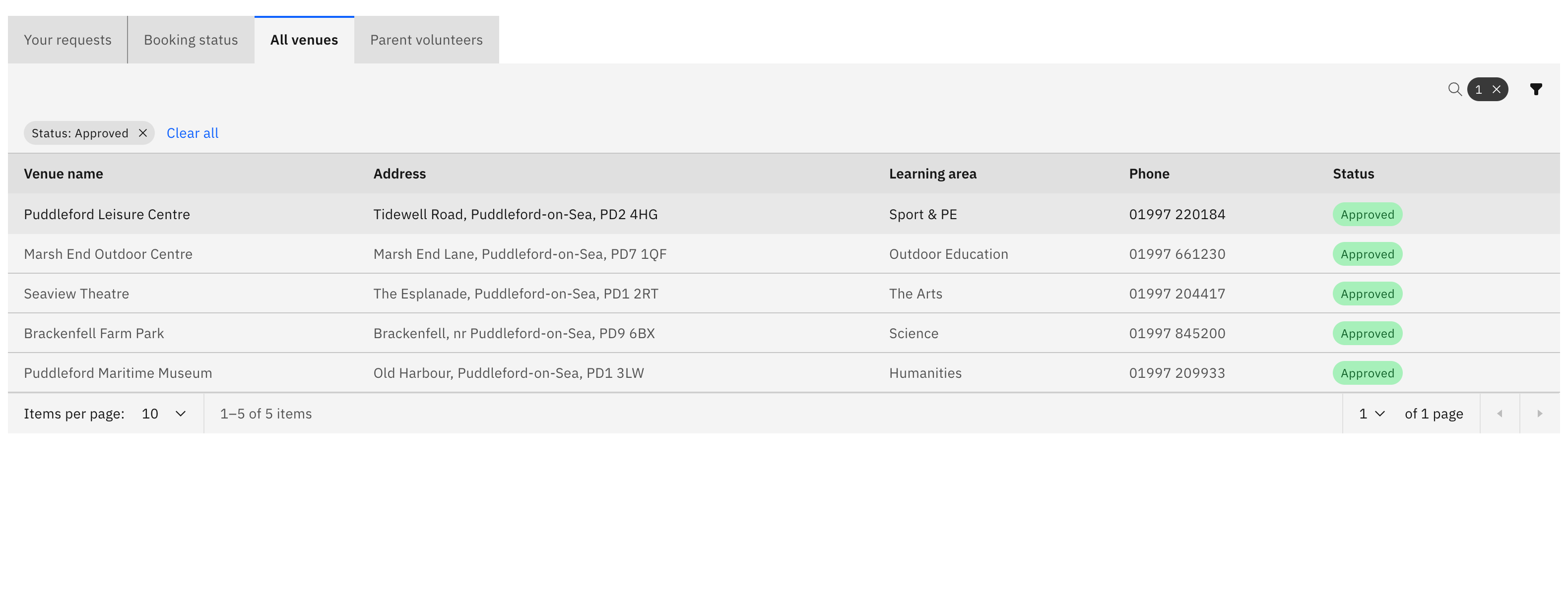
Read the table
Each row shows Venue name, Address, Learning area, Phone, and Status. The list opens filtered to Approved, so by default you see only venues you can use right away.
Find a venue
Search by name, and narrow the list with the Status filter (Approved / Declined) and the Learning area filter. Switch the status filter to Declined to see venue requests that were rejected.
Open a venue or check declined notes
Open any venue to view its full details read-only. For a Declined venue, use its row action to view the declined notes — the reason the request was turned down.
If the venue you need isn't listed, click Request venue on the overview to submit it for approval first.