View a student progress report
Quick answer
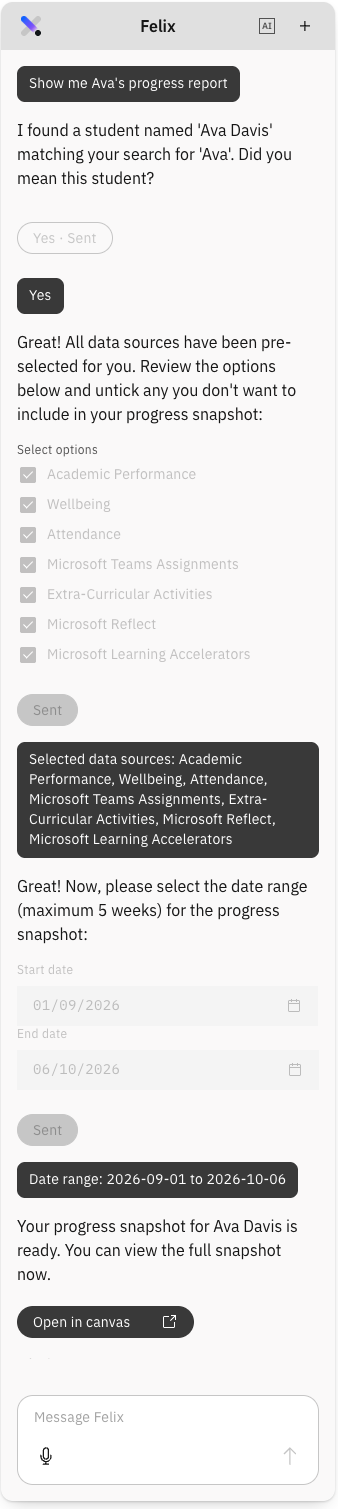
- Ask Felix to show me [student]'s progress report.
- Choose the reporting period — five weeks maximum — then click Open canvas.
- Read the assignments, rubrics, marks, feedback, areas for growth and next steps.
The EduScope agent builds a progress report for one student from their Microsoft Teams assignments — what was set, what was handed in, the rubric the teacher applied, the marks, and the feedback given. Felix calls it for you.
Ask Felix for the report
Open Felix and prompt show me [student name]'s progress report. Felix confirms which student you mean, then hands the request to the EduScope agent.
Note: There is no menu, button or tile for this report anywhere in StaffXP. Prompting Felix is the only way to reach it, and only for students at your school.
Choose the reporting period
Pick the period you want covered. The maximum is five weeks — a limit set by how much assignment data can be pulled and processed at once.
Open the report
Click Open canvas to view it.
Note: The extra click is expected. Because the report is produced by a separate agent rather than by Felix itself, it does not open in the canvas automatically the way other agent output does.
Read the report
The report covers, for the period you chose:
- Assignments — with subject, teacher, and whether the work was submitted, handed in, or handed in but not yet graded.
- Rubrics — one per assignment, with every criterion shown and the weighting applied.
- Marks and feedback — expand an assignment to read the teacher's comments.
- Areas for growth and next steps.
Note: The report is read-only. The data comes from Microsoft Teams Assignments, so corrections are made in Teams, not here.
Check the data sources
The AI transparency badge lists the data sources used to produce the report. Open it to see what the analysis was based on.
Look for learning accelerator data
Where a student has used Reading Progress, Maths Progress or Speaker Progress in Teams, that data appears in the report as well. If a student has not used them, nothing is shown for them.
Finding the right student
Felix handles close matches and most misspellings. If several students share a first name, they are all listed for you to pick from; if Felix cannot work out who you mean at all, it says so rather than guessing. A misspelling that is also a real word cannot always be resolved — check the name before you confirm.