Summarise the notices you missed
Quick answer
- Ask Felix what notices did I miss?
- Pick the interests you want covered if you have not set any.
- Click a footnote to open the notice on the Notices canvas.
Rather than scrolling the noticeboard, ask Felix what you have missed. It reads the recent notices for the categories you follow and gives you a short summary of each, grouped by interest.
Ask for the summary
Open Felix and prompt what notices did I miss? or summarise my notices.
Note: "Missed" currently means notices created in the past 24 hours. It does not yet mean unread — read and unread are not tracked for notices at this release.
Choose your interests if you are asked
If you have not saved any notice interests, Felix shows an interest picker. Select the categories you want — for example General, Sport and Arts — and it summarises each one separately.
Note: To set your interests permanently instead, see Follow notice categories.
Read the summary
Felix returns a short summary per interest, covering the notices posted in each.
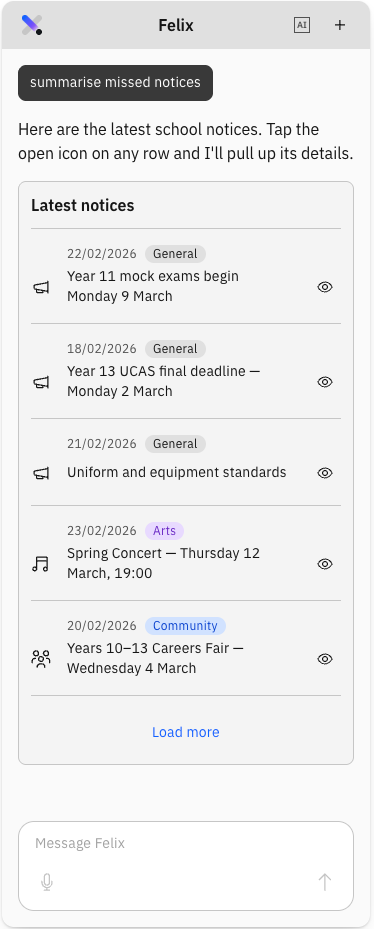
Open a notice in full
Each summary carries a footnote link. Click it to open the Notices canvas with that notice highlighted, where you can read the full card and view more details.
Check another category
When you are done, Felix offers to check another category. Say yes and it presents the interest picker again.