How Felix and the AI agents work
Quick answer
- Agents are reached by prompting Felix — there is no menu route to any of them.
- Include the keyword that names what you want: rewards dashboard, not just dashboard.
- Felix only ever sees the students, classes and school your account has access to.
Felix is the assistant in StaffXP's chat panel. Behind Felix sits a set of agents — each one handles a single job, such as writing a notice, drafting a class update, or logging a reward. You do not choose an agent; you describe what you want, and Felix hands the request to the right one.
Open Felix and describe what you want
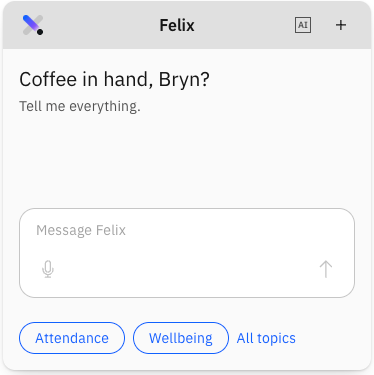
Open the Felix panel and type what you are trying to do — for example create a notice, log a reward for Sophie, or what notices did I miss? You can also use voice input instead of typing, or select from pre-added prompts in the chat panel. The Felix panel is on the right of the screen, or you can click the icon at the bottom right to open the chat panel.
Note: No agent has a navigation entry point. Menus, buttons and tiles will not take you to them — prompting Felix is the only route.

Use the keyword that names what you want
Felix matches your wording against what each agent does, so include the word that identifies the job. Dashboard on its own returns nothing, because it could mean almost anything; rewards dashboard or attendance risk dashboard works. You do not have to phrase it exactly as written in this guide — close and near matches are recognised.
Give as much detail as you have
The more your first prompt contains, the less Felix has to ask you. A short prompt such as create a notice is fine — Felix simply asks you the questions it needs, one step at a time. A fuller prompt such as create a cultural event notice for Years 5 and 10 on Thursday lets Felix fill in most of the form and go straight to a preview for you to check.
Note: Whichever way you start, Felix circles back for anything required that is still missing before it will let you finish.
Confirm the student when Felix asks
When you name a student, Felix confirms who you mean before doing anything — it shows the full name and student ID. If several students match, they are all listed for you to pick from. Minor typos are usually resolved, but not always: a misspelling that is also a real word cannot be told apart from what you meant, so check the name Felix offers before you confirm.
Check and edit before you commit
Every agent shows you a preview before anything is created, sent or published. You can edit fields directly, prompt Felix to change something (add the location, add some next steps), or cancel. Nothing reaches a parent or student until you confirm.
Know what Felix can see
Felix works only within your access. A teacher sees the students in the classes they teach; a school leader sees their whole school. There is no cross-school view.
Note: Some agents — such as the attendance compliance checker — do not run when you ask. They run on a schedule your school admin sets in CE, and show you the results of the last run. Look for the last updated and next update labels.
Which agent does what
| What you want to do | Prompt something like | Page |
|---|---|---|
| Write and publish a notice | create a cultural event notice for Year 10 | Create a notice with Felix |
| Record a wellbeing concern | Johnny cut his finger in the playground | Create a wellbeing note with Felix |
| Catch up on notices | what notices did I miss? | Summarise the notices you missed |
| Catch up on notifications | summarise my notifications | Summarise the notifications you missed |
| See how a student is progressing | show me Ryan's progress report | View a student progress report |
| Send an update to a class's parents | create a class update | Create a class update |
| Recognise or sanction a student | log a reward for Sophie for helping classmates | Log a reward or consequence |
| Do the same for a group | create rewards for my students | Log rewards for several students |
| See your rewards activity | show me the rewards dashboard | View the rewards dashboard |
| See who is at attendance risk | show me the attendance risk dashboard | View the attendance risk dashboard |
| Act on an at-risk student | open a student from the risk report | Review a student at attendance risk |
| Decide a parent's leave request | open Leave Request from your notification | Review and decide a leave request |
| Take the roll by prompt | — | Take attendance with Felix |
What Felix is good at, and what it is not
Felix is best when you don't know where to go. It scaffolds a process you have not done before and asks for what it needs, so a new starter can publish a notice without first learning where the form lives. If you already know the screen and use it every day, the form route is often the quicker one — the agent does not replace it.
Felix also cannot see outside StaffXP and the school's own data. Its suggestions for values, categories and next steps come from what your school has configured and from the information in the prompt — not from a search of the internet.