Create a wellbeing note with Felix
Quick answer
- Describe the concern to Felix — you do not have to say the words wellbeing note.
- Confirm the student, then check the type, sentiment, priority and notify settings Felix suggests.
- Add or skip an attachment, then Approve and publish.
Felix can raise a wellbeing note from a description of what happened. It picks the note type, sentiment and priority from what you write, explains why it chose them, and decides whether parents and staff should be notified.
You can also create a note from the Wellbeing pages — see Create a wellbeing note.
Describe the concern
Open Felix and say what happened. You do not need to mention wellbeing at all — Johnny cut his finger in the playground yesterday is recognised as a wellbeing concern and routed to the agent. A longer prompt gives Felix more to work with: name the student and set out what you have observed.
Confirm the student
Felix shows the full name and student ID for you to confirm. If several students match, they are all listed — pick the right one.
Check the drafted note
Felix returns a complete note for review: title, wellbeing note type, category, sentiment and priority, along with its reasoning — for example low priority because this was a minor injury and first aid was given. It also sets Notify parents and Notify staff to match the situation.
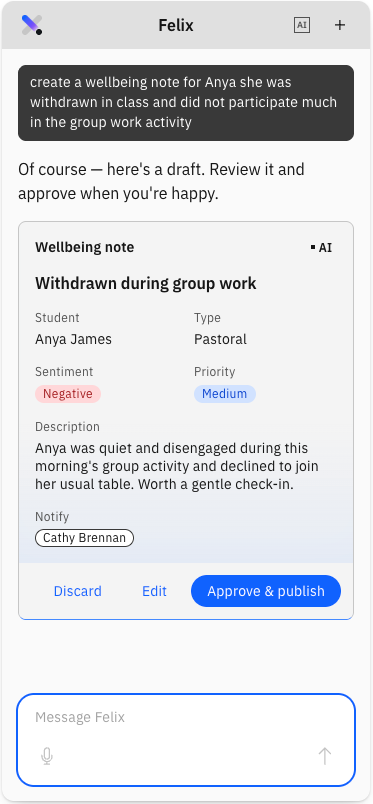
Edit or add to the note
Change any field directly, or prompt Felix — for example, add some next steps to the description. It regenerates the note with the addition.
Note: Suggested next steps are general good practice, not advice drawn from this student's record. Treat them as a prompt for your own judgement.
Add or skip an attachment
Felix suggests the kind of attachment that would suit the note — a first-aid record for an injury, an email exchange for an ongoing concern. Upload a document or image from your device, or tell Felix you have nothing to add.
Approve and publish
Check the final review, then Approve and publish. The note appears in Wellbeing under the student.
If a similar note already exists
If a note similar to this one was created for the same student a short time ago, Felix stops and tells you. You can edit the existing note instead, cancel, or ask Felix for fresh suggestions — so the same incident is not recorded twice.