Compare Quotations and Create a Contract
Quick answer
- Open the project and click Approve quotations to compare what each vendor submitted.
- Select the winning vendor, click Award this item to this vendor, and confirm.
- Open the vendor's Approved bids, select the awarded project, and click Create new contract.
Once vendors have submitted their bids, you review all submissions side by side, award the project to the chosen vendor, and create the contract. Awarding closes the project, and the resulting contract is created in D365 F&O.
Review submitted bids
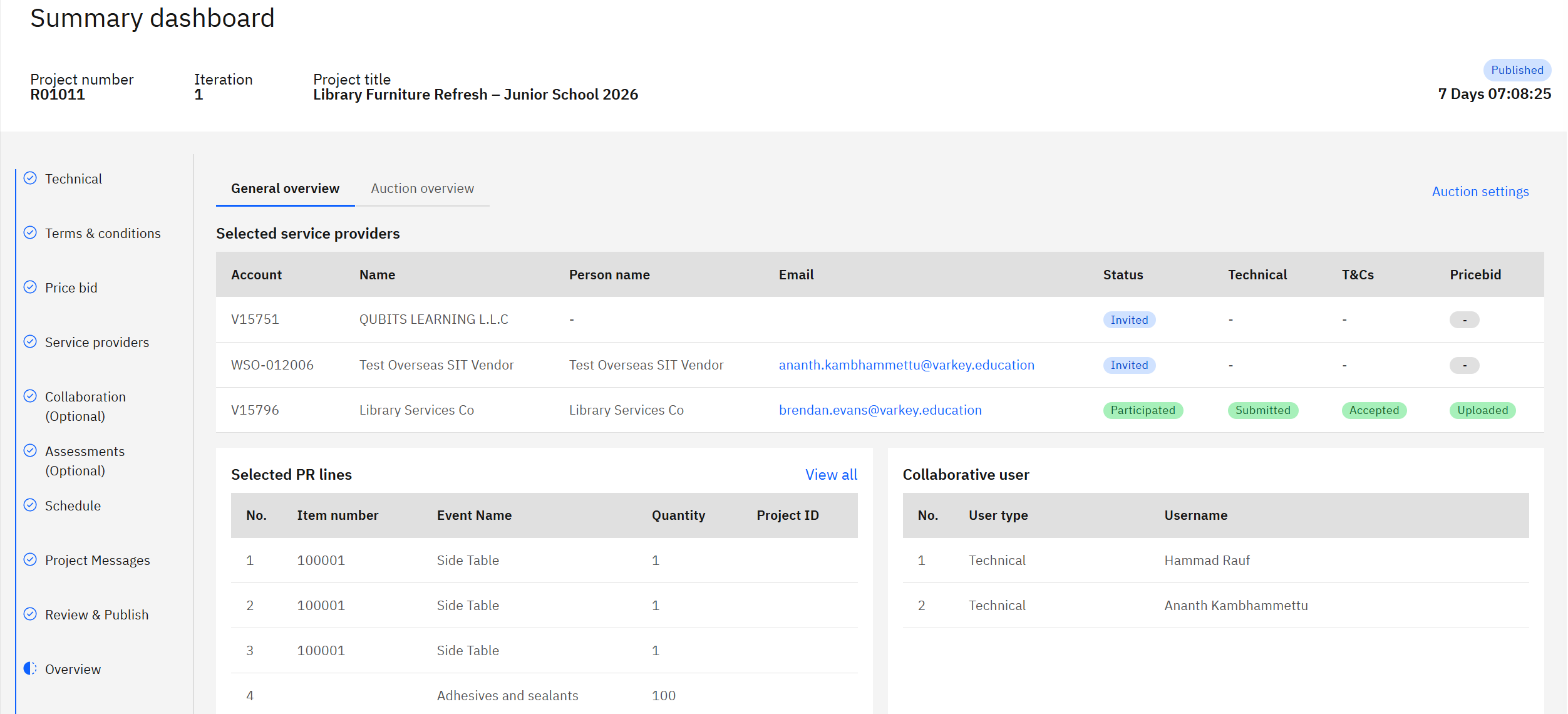
In the Projects tab, open the sourcing project. Scroll down to the Overview step (on the left) to see every vendor the project was sent to and which have participated and submitted. There is a space to communicate with Vendors in the Event Communication tab. Click View quotations to compare each vendor's submitted price and terms side by side.
Award the project
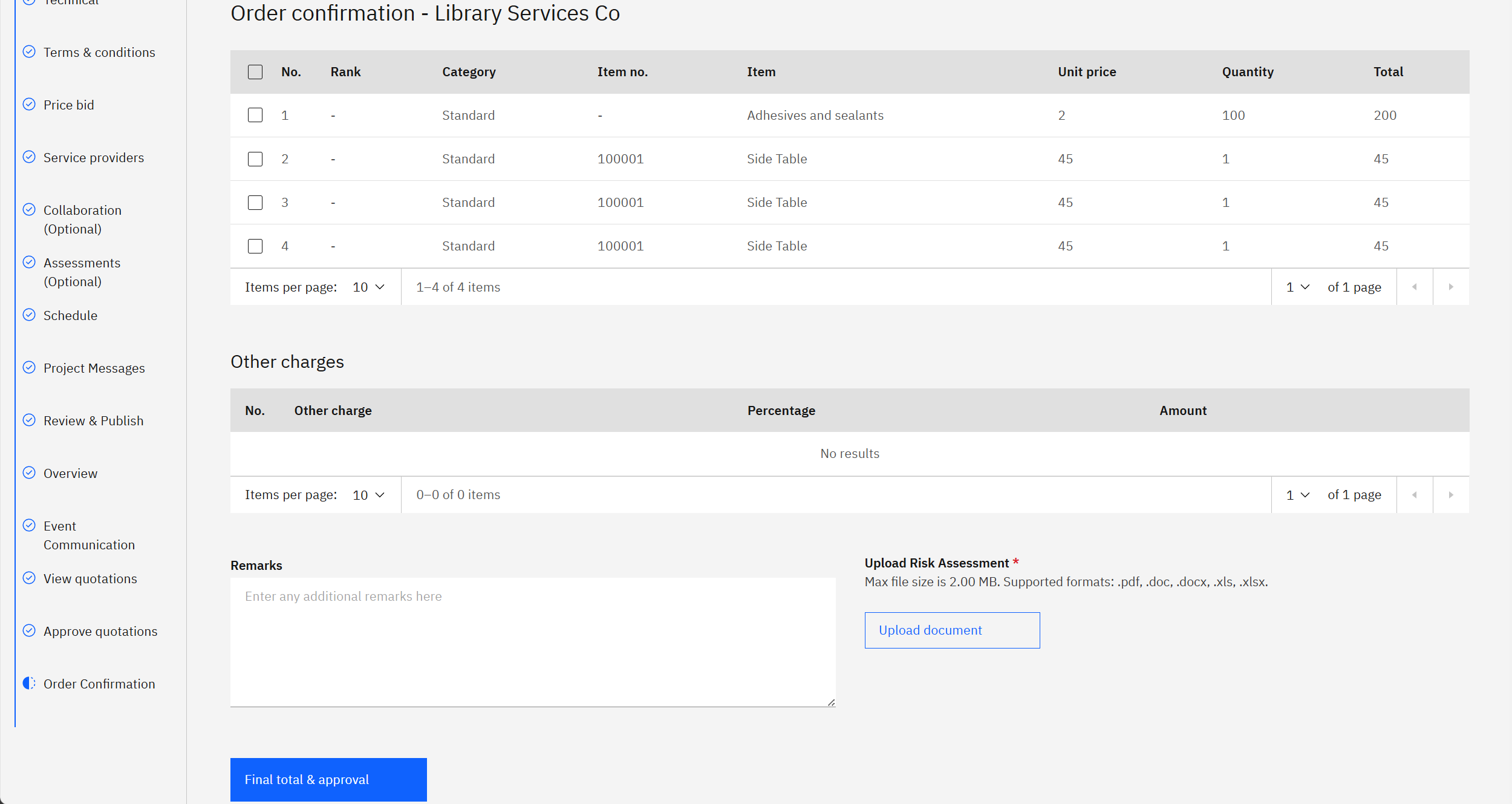
On the Approve Quotations page, select the winning vendor, click Award items to vendor +, then click Confirm. Attach the risk assessment document if required, then approve the award. If there isn't a clear winner or further details are needed, you can click the Next Round button to open an auction.
Note: Awarding closes the project. The status changes to closed and awarded, and this cannot be undone.
Create the contract
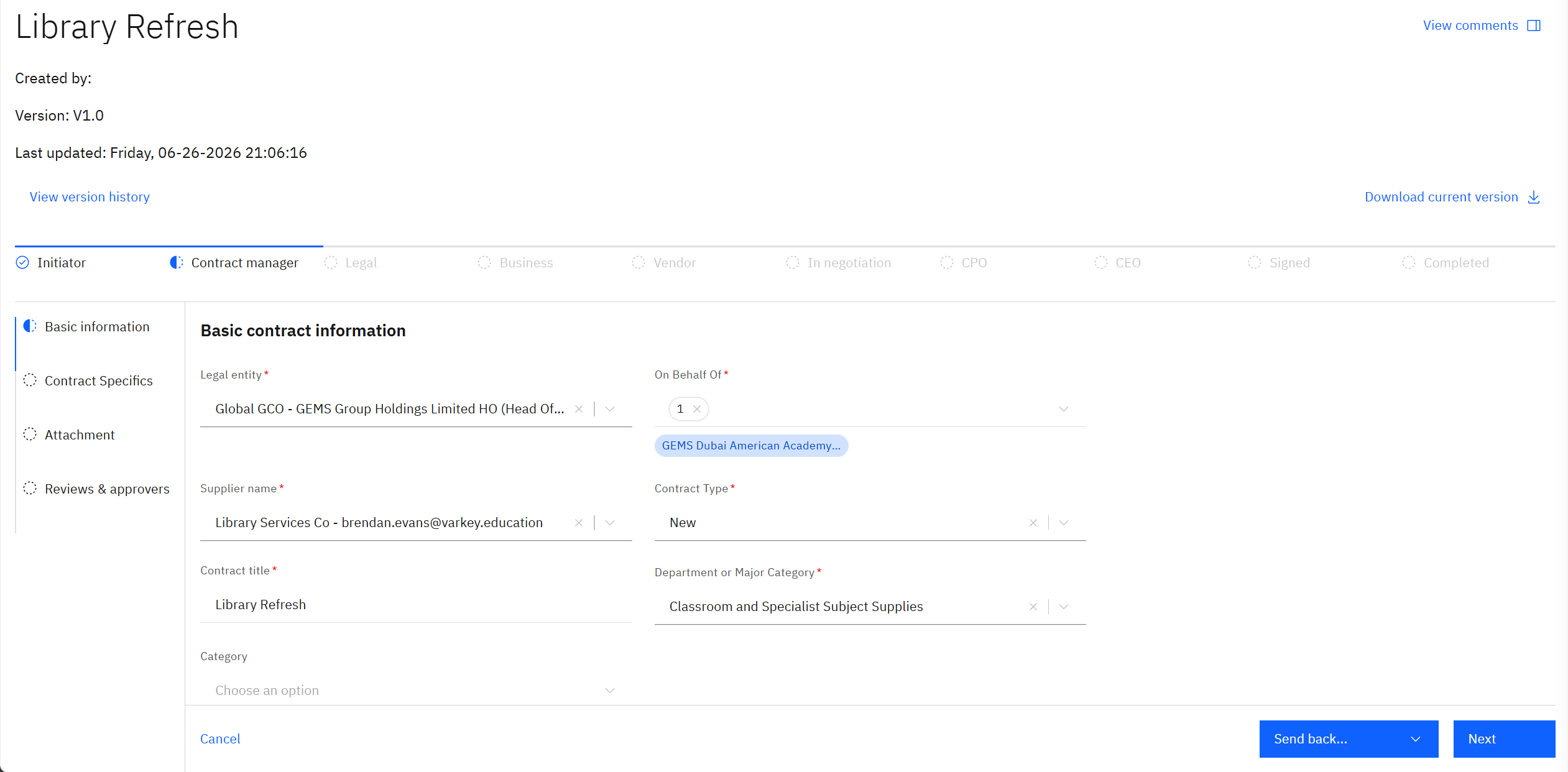
Navigate to Contracts, click New Contract, search for the awarded vendor under Supplier name, and find their Approved bids section. Select the awarded project — the project details carry over automatically — then work through the form sections to complete the contract.
- Technical documents — upload the technical documents for the contract.
- Terms and conditions — enter the terms and conditions that apply to the vendor. You can download the existing terms or create a new set.
- Price Bid — upload the items and their prices. These are created from the purchase requisition lines or imported from an Excel sheet.
- Service providers — select the vendors, or prospective vendors, the contract applies to.
- Collaboration (optional) — add any users who will work on the contract with you and set their access level.
- Assessments (optional) — select the company type, then choose the required assessments. The assessments that apply depend on the company type.
- Schedule — set the date and time the RFP or auction is scheduled to run, along with the end date.
- Project messages — the email communication sent to vendors and its related details are captured here.
- Review and publish — check the details and publish the RFP or auction so vendors are notified. The timer is set and the countdown begins after this stage.
- Overview — review the project summary and the vendor details carried across from the awarded sourcing project.
- Event communication — review the notifications and correspondence for this event.
- View quotations — compare each vendor's submitted price and terms side by side.
- Approve quotations — select the winning vendor and award the items to them.
- Order confirmation — confirm the order to finalise it with the awarded vendor.
Once published, the contract is created in D365 F&O and appears in the procurement contract section.