Check Notifications
Quick answer
- Tap the Notifications bell icon.
- Select the child's name (if you have more than one).
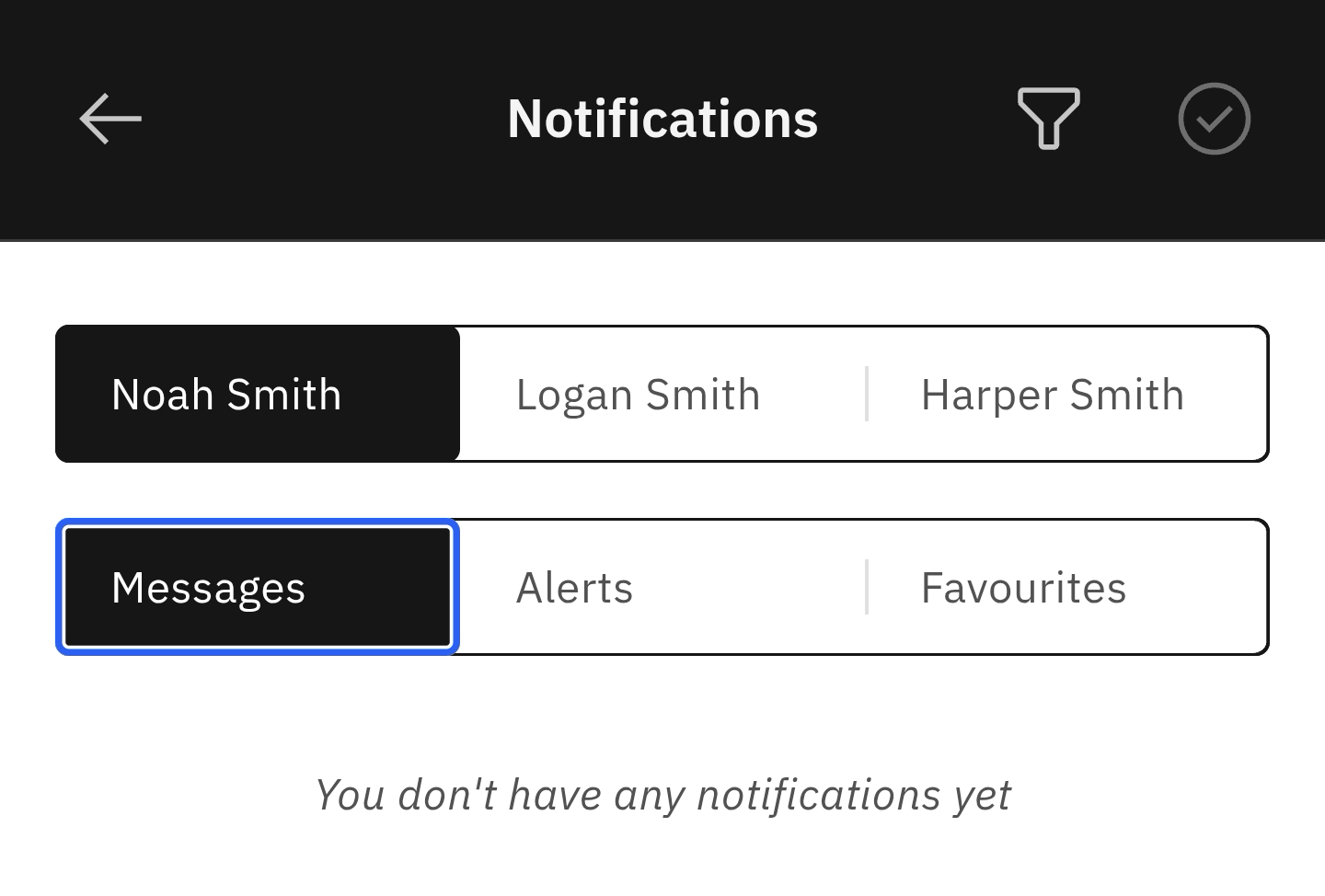
- Choose whether to view Messages, Alerts or Favourites.
Click on the Notifications Bell icon
On the right side of the navigation bar, tap the bell icon.
Select your child's name
In cases where more than one child is enrolled in the school, you can choose which notifications you view. Each child's name appears across the top of the screen.
Choose between Messages, Alerts or Favourites
You can select the Messages, Alerts, or Favourites tabs to view. Click the filter icon in the navigation bar to filter Notifications, as All, Unread, or Read. On the right, a circled checkmark lets you mark all notifications as read.