Generate attendance logs
Quick answer
- In D365, go to Time and attendance ▸ Attendance log and click Generate attendance log.
- Set the punch in and punch out times, the generate-to date, and the working time calendar.
- Select the workers by position, department, staff category, tier or staff level, then click Generate attendance log.
If you need attendance logs for employees with no punch data—because they aren't on the biometric system or a period needs backfilling—you can have D365 generate them from a default start and end time and a working time calendar. It creates one punch in and one punch out for each applicable working day in the range.
Open the attendance logs form
In D365, go to Time and attendance ▸ Inquiries and reports ▸ Attendance ▸ Attendance log.
Open the generation form
Click Generate attendance log in the Action Pane.

Set the punch in details
Enter the Start date time—the date the range begins and the time to use as the punch in (for example, 10 August at 07:00) —and set the Code remark in to Punch in.
Set the punch out details
Enter the End date time using the punch out time (for example, 17:00), and set its Code remark out to Punch out. The start and end date and time define the punch in and punch out times used on every generated record.
Set the generate-to date
Enter the Create till date — for example, 14 August. This is how far forward the records are generated.
Select the working time calendar
Choose the working time calendar to apply. It determines which days in the range count as working days, so non-working days produce no records.
Select the workers
Under the workers area, narrow to the employees you want. Available criteria include position, tier, department, staff category, and staff level, or you can select named employees from the list.
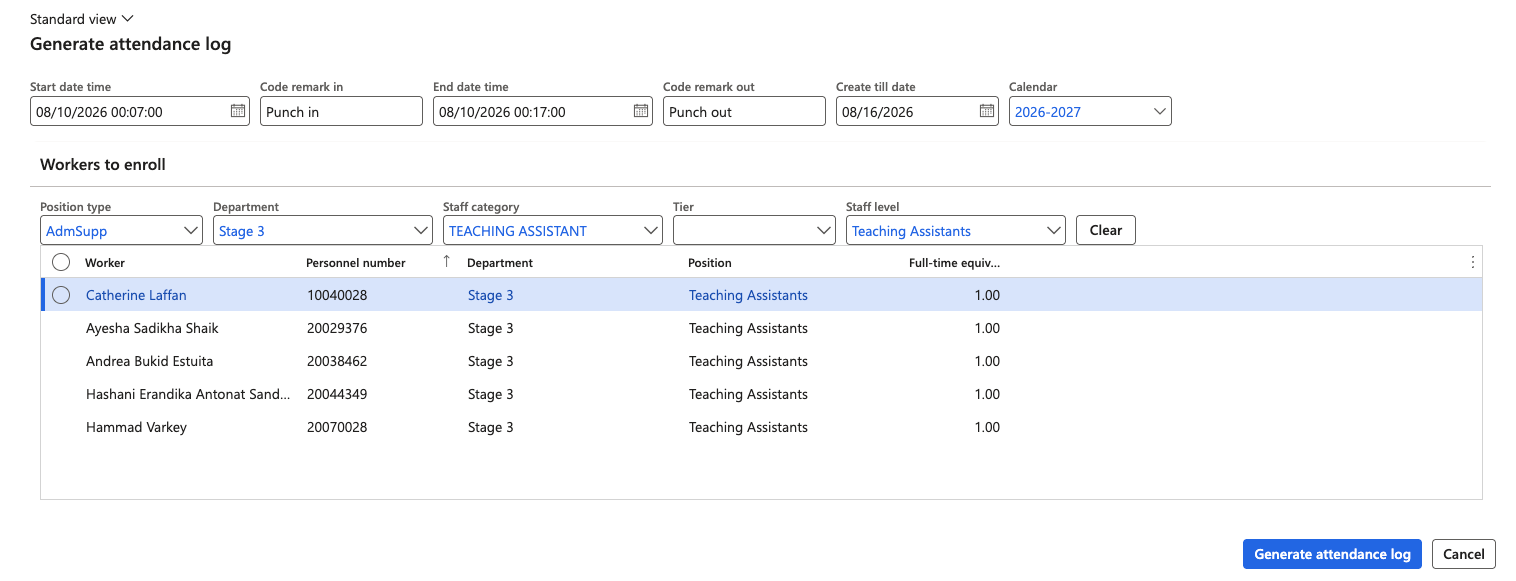
Generate
Click Generate attendance log. A notification confirms how many employees were processed.
Check the generated records
Refresh the attendance logs form and filter to the personnel numbers and the entry dates you generated. You should see a punch in and a punch out for each applicable working day in the range, with the code remarks you set.
The process is safe to re-run over the same period. Re-running with the same parameters does not create duplicates — existing records are left unchanged, and only records that are missing, for example, a day someone has deleted, are generated again.
Generated records feed the normal process from here. Run the attendance summary batch job over them as you would over imported punch data — see Run the attendance summary batch job.