Process an HR request
Quick answer
- Open the HR Request form in D365 and refresh to see new submissions.
- Review the employee's submission and any attached file.
- Enter HR Feedback, optionally attach a document, then Approve and Complete the request.
When an employee submits a request through ESS, it is routed to the HR team via the configured workflow. HR reviews the submission, provides feedback, and marks it complete.
Open the HR Request form
In D365, navigate to the HR Request form within the Human Resources module. Click Refresh to load any new submissions. Each submitted request has a system-generated request number.
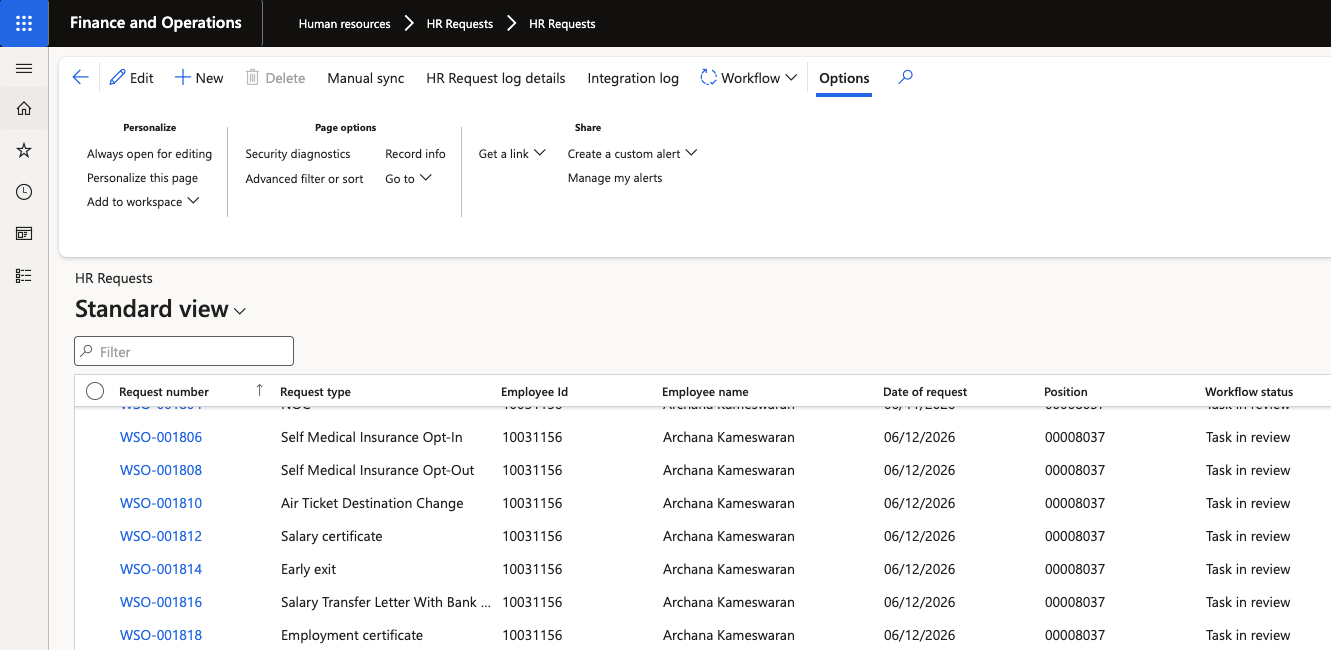
Open the request
Click on a request to open its detail view. You can see:
- The employee's submitted field values (e.g., destination, date, reason)
- Any file the employee attached, which you can open or download
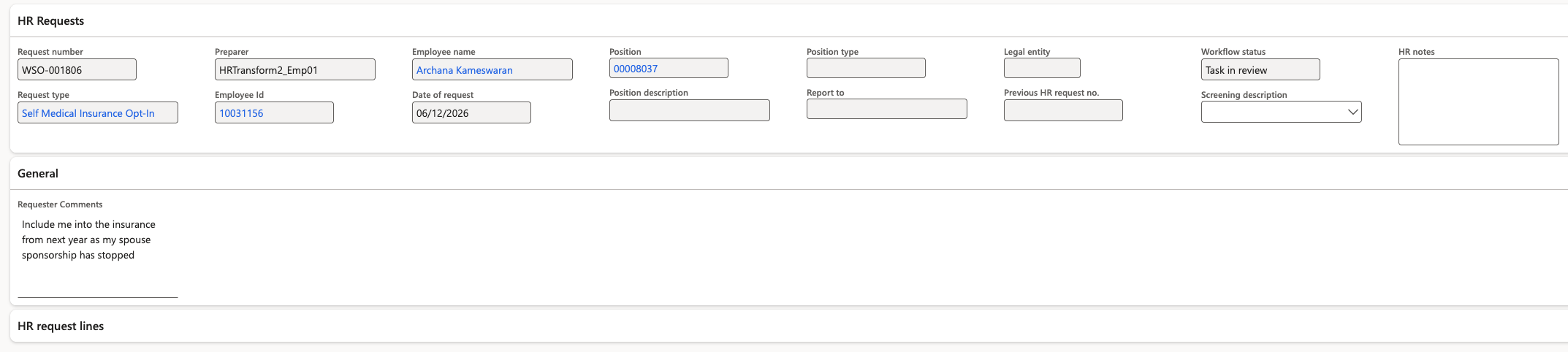
Review the submission
Read through the employee's details and verify the request before taking action.
Enter HR Feedback
In the HR notes field, enter your response or notes. This text is visible to the employee when they view their completed request in ESS.
Attach a document (optional)
If you need to provide the employee with a document — such as an approval letter — click Attach to upload a file. The employee will be able to download it from their request in ESS.
Approve and complete the request
Click Approve to approve the request, then click Complete to mark it as done and close the workflow.

Note: After completing a request there is typically a 3–5 minute delay before the updated status appears in ESS. The ESS cache refreshes on a 5-minute cycle — this is by design.