Configure HR request types
Quick answer
- Open the Request Types form in D365 and select the request type to configure.
- Set fields as Visible or Mandatory, attach a Workflow, and toggle Display on web ESS.
- Set the Input Order and click Save.
Request types define what employees can request through the ESS portal, which fields appear on the submission form, what is required before submitting, and which approval workflow the request follows.
Open the HR request types form
In D365, navigate to the HR request types form within the Human Resources module: Human resources ▸ Setup ▸ HR request types.
Select a request type
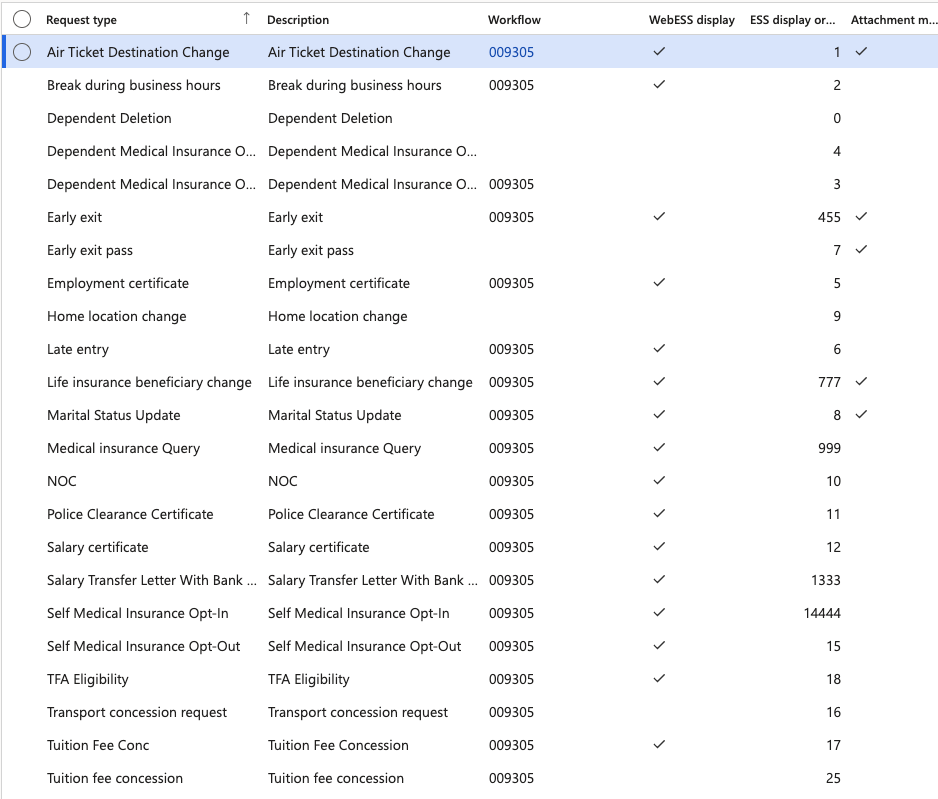
Choose the request type to configure — for example, Police Clearance Certificate, Early Exit, or Home Location Change.
Configure the fields
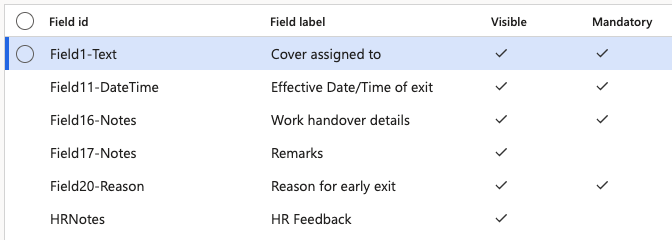
Click Header setup. For each field on the request type, set:
Toggle What it does Visible Shows the field on the employee's ESS submission form Mandatory Requires the employee to complete this field before submitting The Attachment option is present on every request type by default — employees can always attach a file, so it does not appear in the field list.
Assign a workflow
Return to the main request page. Select the approval Workflow to apply to this request type from the dropdown. If multiple workflows exist, choose the appropriate one for this type (for example, routing to the WSO HRBP approval group).
Control ESS visibility
Toggle WebESS display to show or hide this request type in the employee portal. Request types that HR initiates internally should be set not to display in ESS.
Set the display order
Enter a value in the ESS display order field. Lower numbers appear first in the ESS request list (e.g., 1 = first). Assign a high number to push a request type to the bottom of the list.
Save
Click Save to apply the configuration.