View the intentions inquiry
Quick answer
- Go to Human Resources ▸ Workers ▸ Inquiries and Reports ▸ Employee Intention Survey Result.
- Review the list of employees who have indicated they intend to leave.
- Open a record to view their details and current Retention Status.
The Employee Intention Survey Result form displays all employees who answered "Yes" to the intention-to-leave question in the Intention Questionnaire. Responses are captured live as employees submit the survey through ESS.
Navigate to the intentions inquiry
From the D365 navigation pane, go to Human Resources ▸ Workers ▸ Inquiries and Reports ▸ Employee Intention Survey Result.
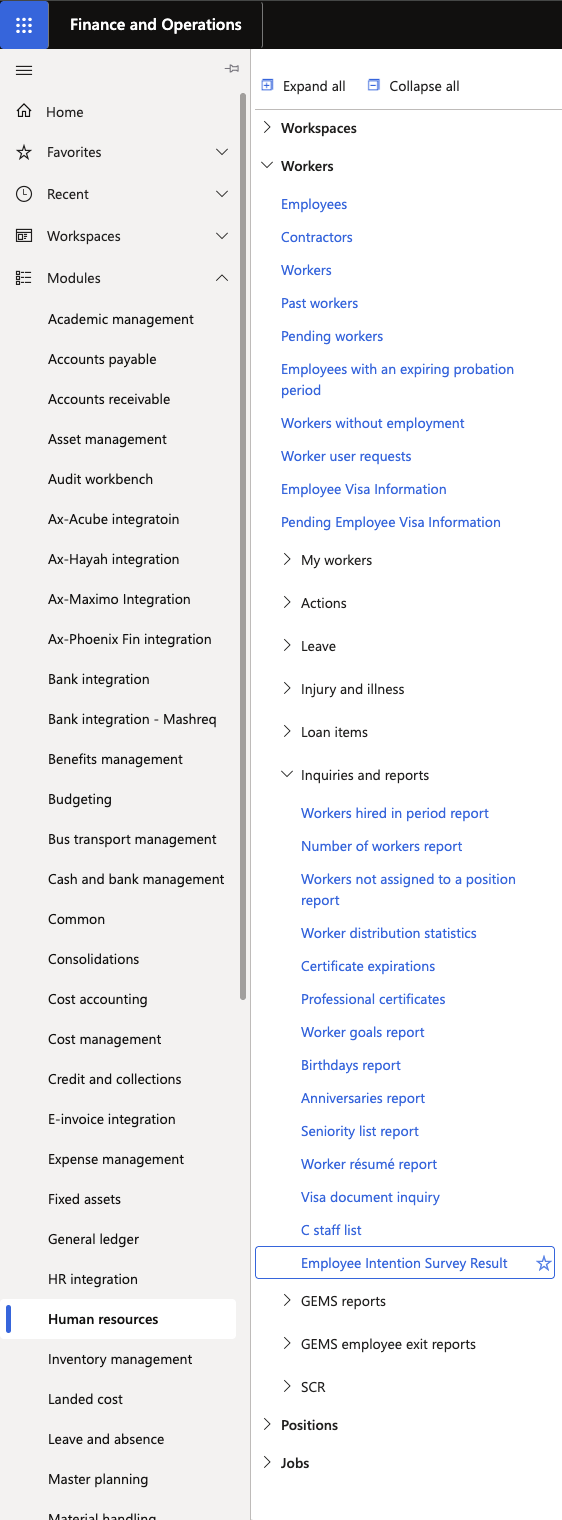
Review the list
The form displays all flagged employees. Columns include: name, search name, school, school code, business segment, position, job, email, intention to leave response, and retention status.
The list is pre-loaded with historical data and receives new live submissions as employees complete the questionnaire. You can build filters to segment employees by retention status stage or school.

Open a record
Click on an employee's record to open the full detail view, including their questionnaire response and current Retention Status.