Update an employee's retention status
Quick answer
- Open the employee's record in the Employee Intention Survey Result form.
- Click Edit and update the Retention Status dropdown.
- Optionally add a note in the Comments field, then Save.
As your retention conversation with an employee progresses, update their status in the Intentions Inquiry to keep the record up to date.
Open the intentions inquiry
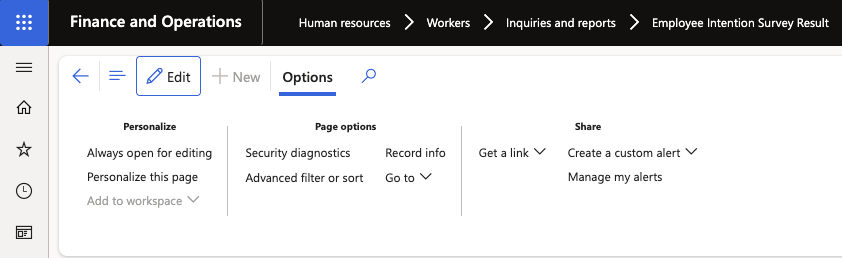
Navigate to Human Resources ▸ Workers ▸ Inquiries and Reports ▸ Employee Intention Survey Result and locate the employee.
Edit the record
Click Edit to put the record into edit mode. Most fields are read-only. Only the Retention Status and Comments fields are editable.
Update the retention status
Select the appropriate status from the Retention Status dropdown:
Status When to use HR Discussion A retention conversation has been initiated Retained successfully The employee has agreed to remain Exit confirmed The employee is confirmed as leaving — triggers the recruitment process 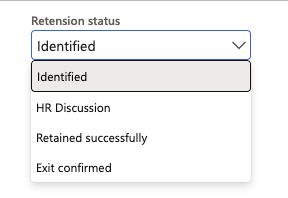
Add a comment
Enter any relevant notes in the Comments field to document the outcome of conversations or actions taken.
Save
Click Save to record the change.