Set up a questionnaire schedule
Quick answer
- In the Questionnaire module, open Questionnaire Schedule and click New.
- Set the questionnaire, target legal entity or business segment, and start/end dates.
- Click Start to release the questionnaire to respondents.
Questionnaire schedules target a questionnaire to specific employees across one or more legal entities. Schedules are typically created in the GCO entity and can be released to individual schools or across all companies.
Open the Questionnaire module
From the D365 navigation pane, go to Modules ▸ Questionnaire ▸ Distribute ▸ Questionnaire schedules.
Create a new schedule
Click Questionnaire schedules in the left menu, then click New.
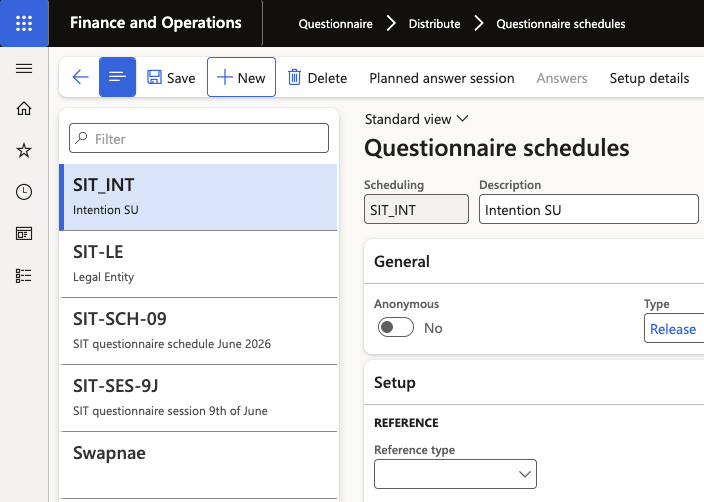
Select the questionnaire
In the Questionnaire field, select the questionnaire to distribute. The questionnaire must already exist in the system before it can be scheduled.
Set up the questionnaire details
Click Setup details in the Action Pane. Select the person, teams or business segments to specify which school or group of schools the questionnaire is released to.
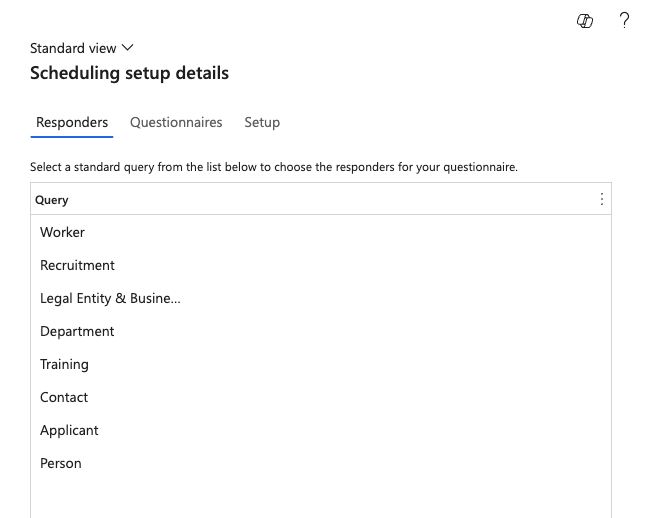
Set the date range
Enter a Start date and End date for the questionnaire window. Respondents will only see the questionnaire within this active period.
Start the schedule
Click Start to activate the schedule. The questionnaire will appear for targeted employees in the ESS portal under their Questionnaires tab.
