Run the offboarding questionnaire batch
Quick answer
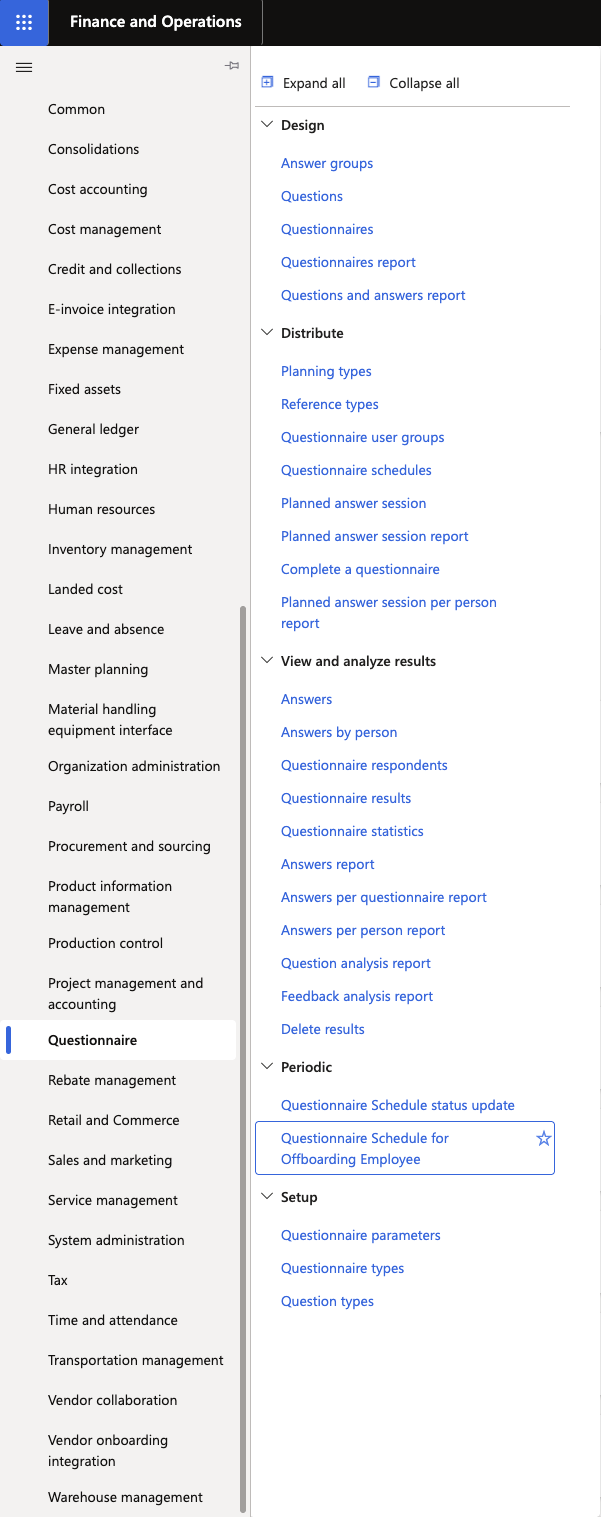
- Go to Questionnaire ▸ Periodic Question ▸ Questionnaire Schedule for Offboarding Employee.
- Click Run to trigger the batch job.
- The job generates questionnaires for employees with an active offboarding checklist and they appear in ESS.
The offboarding exit survey is generated automatically via a batch job that detects employees assigned to an offboarding checklist. Run this batch to assign the exit questionnaire to departing employees.
Navigate to the questionnaire schedule
From D365, go to Questionnaire ▸ Periodic Question ▸ Questionnaire Schedule for Offboarding Employee.
Run the schedule
Click OK to trigger the batch job. The job:
- Finds all employees who have been assigned an offboarding checklist.
- Generates a questionnaire for each employee based on the offset dates defined in the checklist.
- Assigns the questionnaire to each employee for completion in ESS.
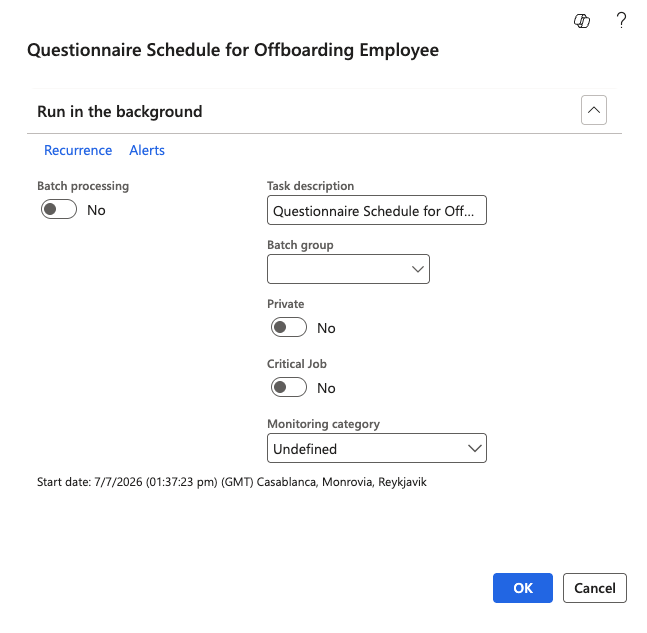
Note: This batch can be configured to run nightly as a recurring job — no manual intervention is required once scheduled. Run it manually only when you need to trigger it outside the normal cycle.
Confirm generation
After the batch runs, a questionnaire ID is generated for each affected employee. Employees will see the questionnaire appear in their ESS portal under the Questionnaires tab. To check the answers in D365, go to Questionnaire ▸ View and analyse results ▸ Answers by person. Filter the name required, then click Answers in the Action Pane. Use the questionnaire number as a reference.