Probation fields on an employee record
Quick answer
- Open the employee record in D365 and locate the probation fields.
- Review the auto-calculated Stage 1, Stage 2, and End dates.
- Set Exclude from Probation to bypass the process, or update Probation Status to Confirmed after successful completion.
Probation fields are automatically populated in an employee's record when the employee is created in the system. HR can view and update these fields at any point during the process.
Open the employee record
In D365, navigate to the relevant employee record within the Human Resources module, Human resources ▸ Workers ▸ Employees.
Locate the probation fields
In the navigation bar below the Employee's name, select Work history. The following probation fields appear on the employee record:
Field Description Probation Review Stage 1 Date Auto-calculated from start date and Stage 1 review days Probation Review Stage 2 Date Auto-calculated from start date and Stage 2 review days Probation End Date Defaulted from probation parameters Template The review template linked to this employee's staff level and category Review 1 Generated Set to Yes by the batch when the Stage 1 review is created Final Review Generated Set to Yes by the batch when the Stage 2 review is created Probation Status Updated manually to Confirmed by HR after successful completion Exclude from Probation Set to Yes to bypass the probation process for this individual 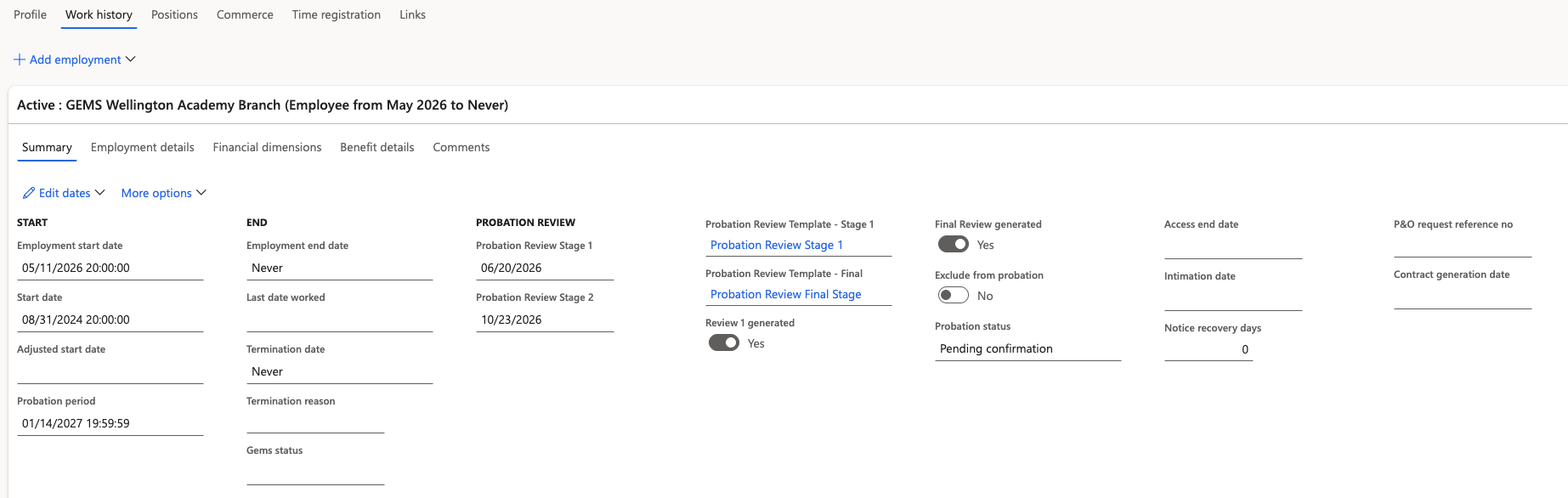
Exclude an employee from probation
If an employee should not go through the standard probation process, set Exclude from Probation to Yes. The batch process will skip this employee when generating reviews.
Confirm successful completion
After Stage 2 completes with a "Meets Expectations" outcome, HR receives a notification. Update Probation Status to Confirmed on the employee record to finalise the process.