Monitor probation reviews
Quick answer
- Open the HR Probation Reviews form in D365.
- Filter by employee and review the status, ratings, comments, and workflow stage.
- Use View History to trace workflow routing and condition outcomes.
HR can view all probation reviews — in progress or completed — from a central form in D365, including workflow status, manager ratings, and employee feedback.
Open the HR Probation Reviews form
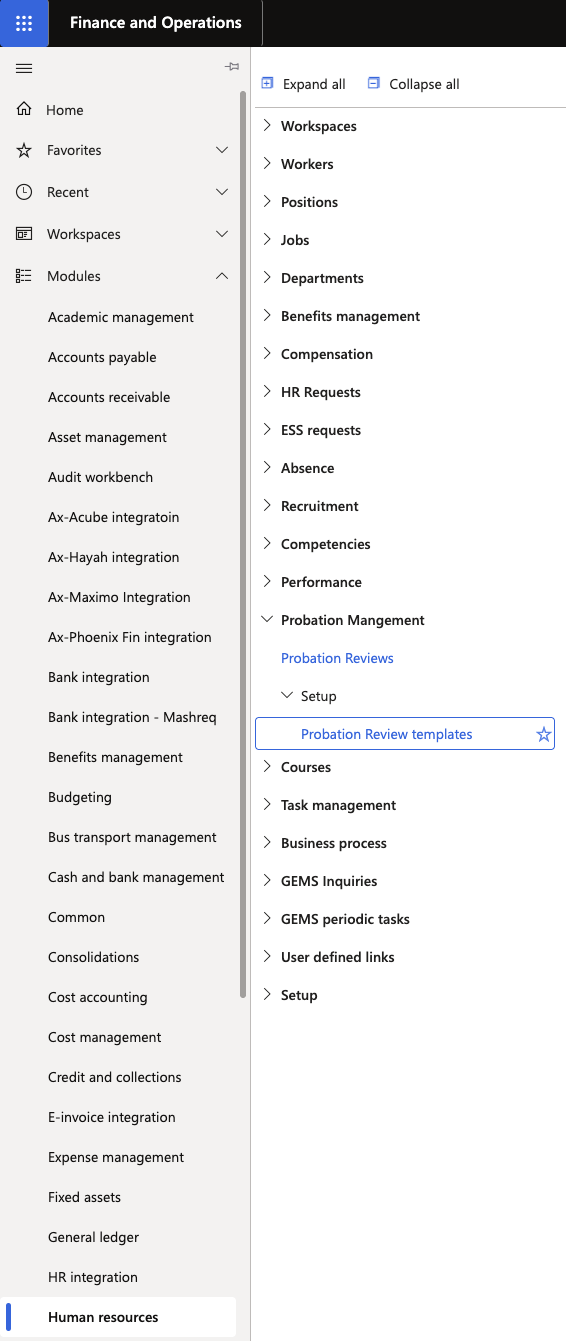
In D365, navigate to the Probation Reviews form within the Human Resources module.
Find the review
Use the filter options to locate reviews for a specific employee, or view all active reviews across the organisation.
Review the record
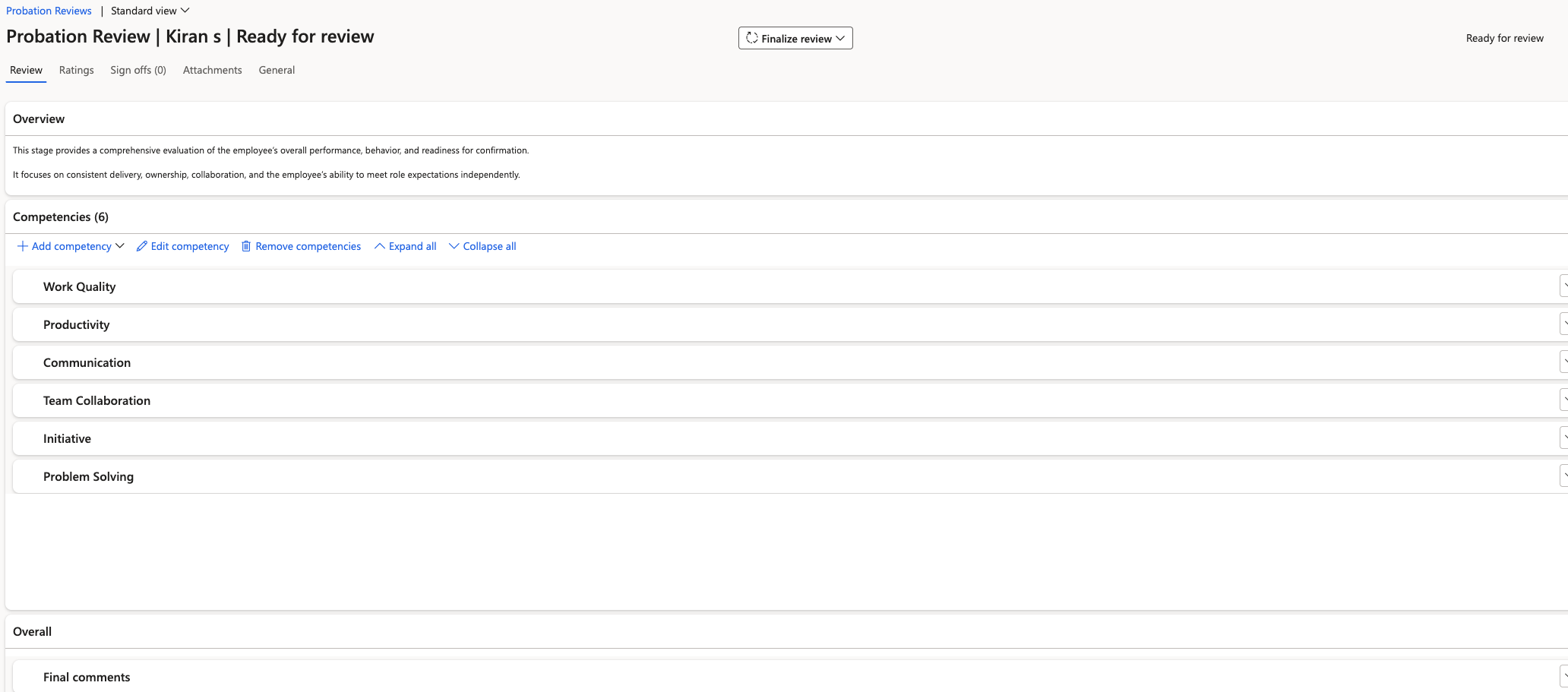
For each review, you can see:
- Employee name and review type (Stage 1 or Stage 2)
- Manager's competency ratings and comments
- Employee feedback comments
- Current workflow status: Processing, Assigned, or Completed
- For Stage 2 reviews: the Review Outcome (Meets Expectations/Performance Concerns)
Stage 2 records show Stage 1 comments alongside Stage 2 comments for comparison.
View workflow history
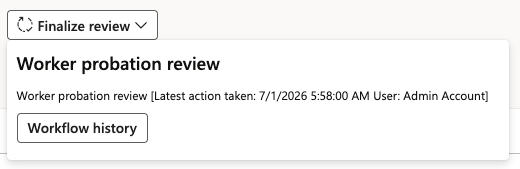
Click View History to trace the full workflow routing — who took each action, which workflow conditions evaluated to true or false, and when each step completed.
Confirm successful completion
When a Stage 2 review is completed with "Meets Expectations", HR is notified. Update the employee's Probation Status to Confirmed on their employee record to finalise the process. Where the outcome is "Performance Concerns", the workflow routes directly to HR only — the employee is not notified of the outcome, and HR takes the appropriate next steps.